64
Network control
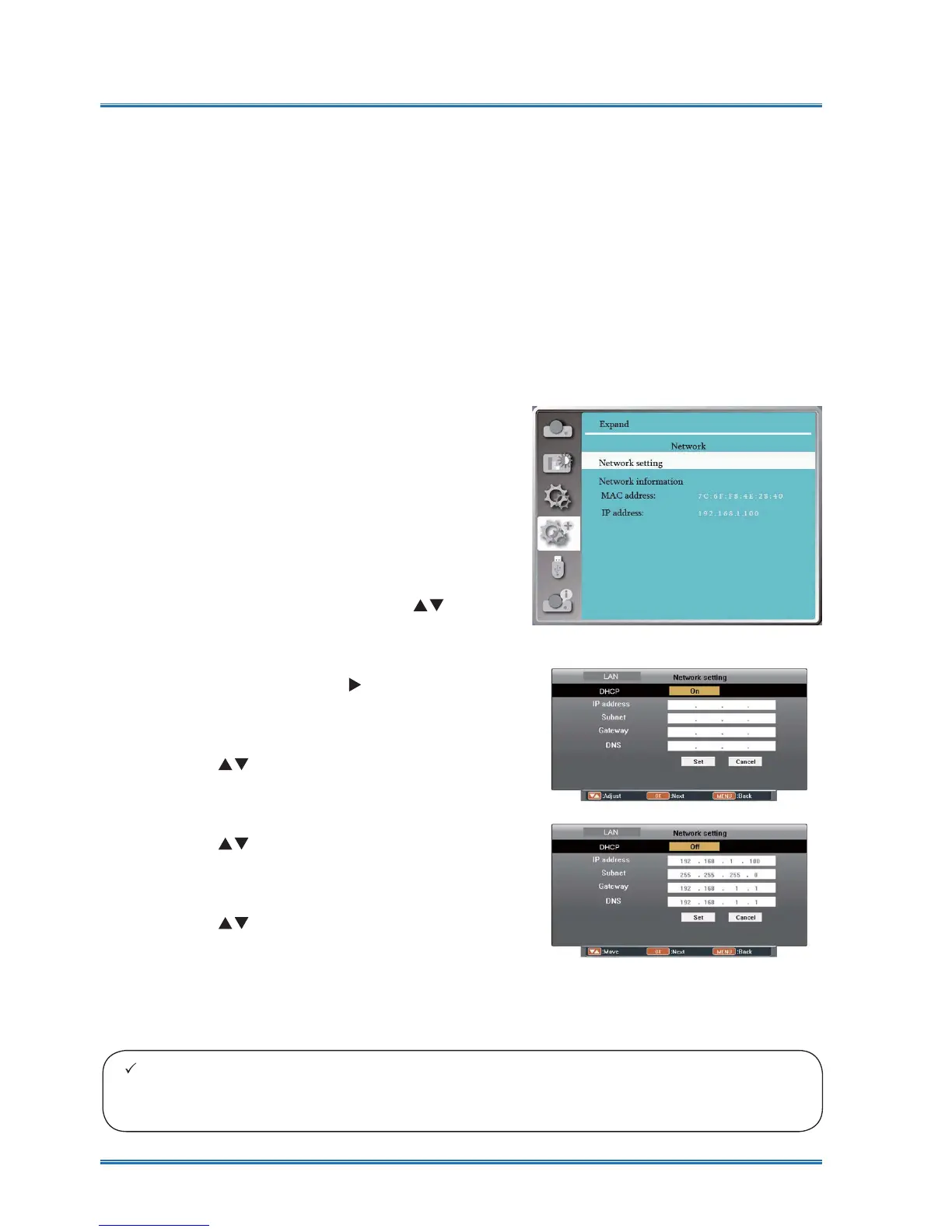
Operation steps
1 Power on your projector.
2 Acquire the IP address, with DHCP set to on
and auto IP allocation set to On. (You may set
DHCP to Off and set up IP address manually
if you are somehow familiar with networking.)
3 Enter the network setup menu
(1) Press MENU button on remote controller
or top of the control panel, press
button to select network icon.
(2) Press ENTER button or
button and the
network menu displays.
(3) Press
button select network settings
DQGSUHVV(17(5WRFRQ¿UP
(4) Press
button to set DHCP On and
SUHVV2.EXWWRQWRFRQ¿UP
(5) Press
button to select Set, press
OK button to wait until the “Please wait..”
message disappears.
Network control operation
Function: This function is designed to remote control computer in the same LAN.
Preparation
1 Required equipment: Projector, computer, network cable
2 Connection:
Connect your projector to a router or switch in the LAN with normal or jumper network
cable. In case a normal network cable failed to connect successfully, use a jumper cable
instead.
7XUQRQWKHFRPSXWHU7KH/$1SRUWRQFRPSXWHUDQGSURMHFWRUDUHÀDVKLQJDIWHUSRZHU
on the projector.
Note:
Ɣ If you are using the wireless network connection, please check the SSID / ESSID and wire-
less IP address in the Network Setting status , and write down the information.



 To Next Page