39
Display
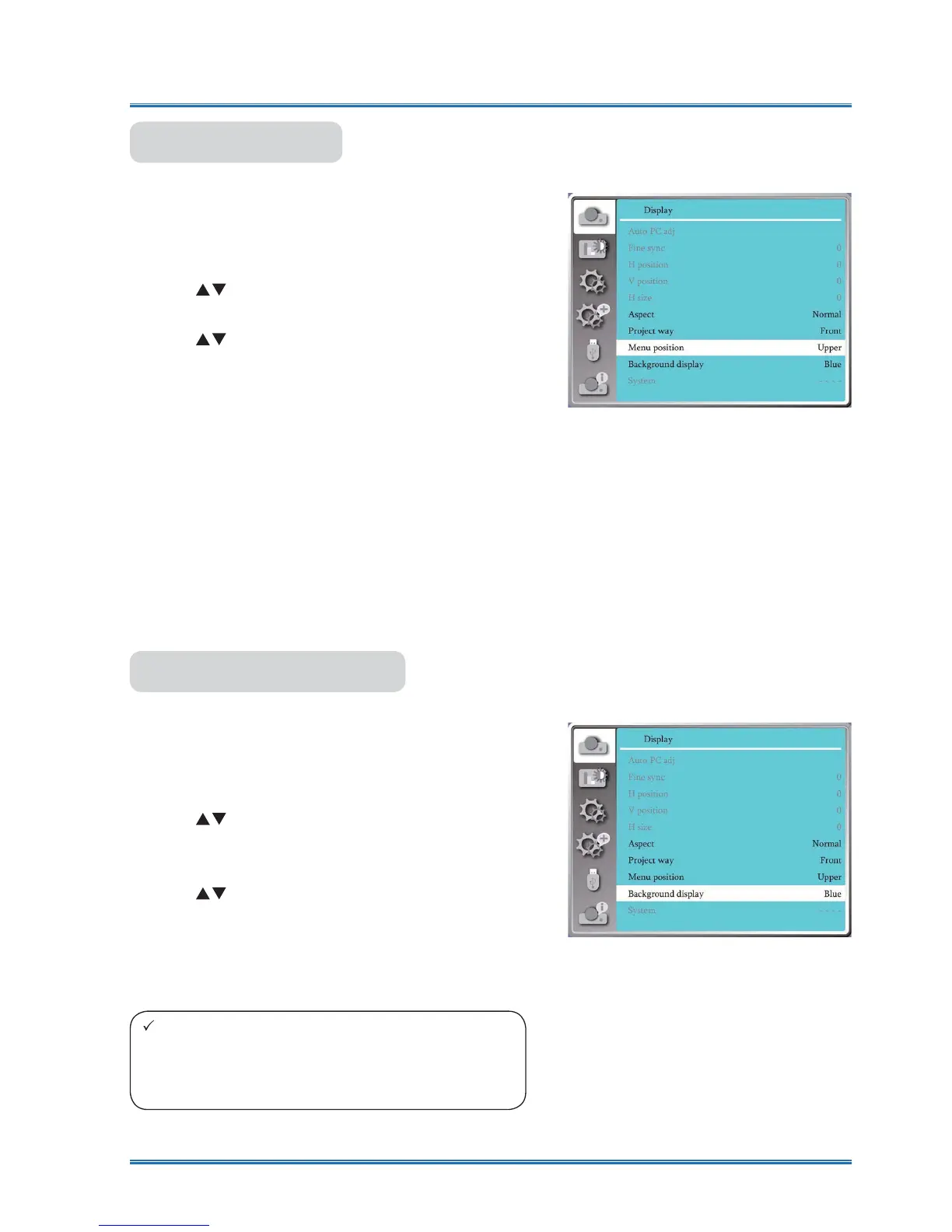
Select this function to set the Menu position .
Press < MENU > button on the remote controller or on
the top control panel to display the OSD menu.Press
ST
button to select the Display menu ,then press
<OK> or
X
button
.
1) Press
button to select [Menu position] menu.
2) Press <OK> button.
3) Press
button to change menu position.
Upper left
......
The Menu display on the Upper left
corner of the screen.
Upper right
...
The Menu display on the Upper right
corner of the screen.
Center
............
The OSD display in the Center of the
screen.
Lower left
......
The Menu display on the lower left
corner of the screen.
Lower right
....
The Menu display on the lower right
corner of the screen.
Menu position
Menu position menu
Select this function can adjusts background color.
Press < MENU > button on the remote controller or on
the top control panel to display the OSD menu.Press
ST
button to select the Display menu ,then press
<OK> or
X
button
.
1) Press
button to select [Background display]
menu.
2) Press <OK> button.
3) Press
button to select reqiured item .
Blue...... The entire projection area display blue.
Black......The entire projection area display black.
Background display
Background display menu
Note:
This function will be invalid once you select
input signal as USB Display,Memory viewer and
Network.



 To Next Page