36
Display
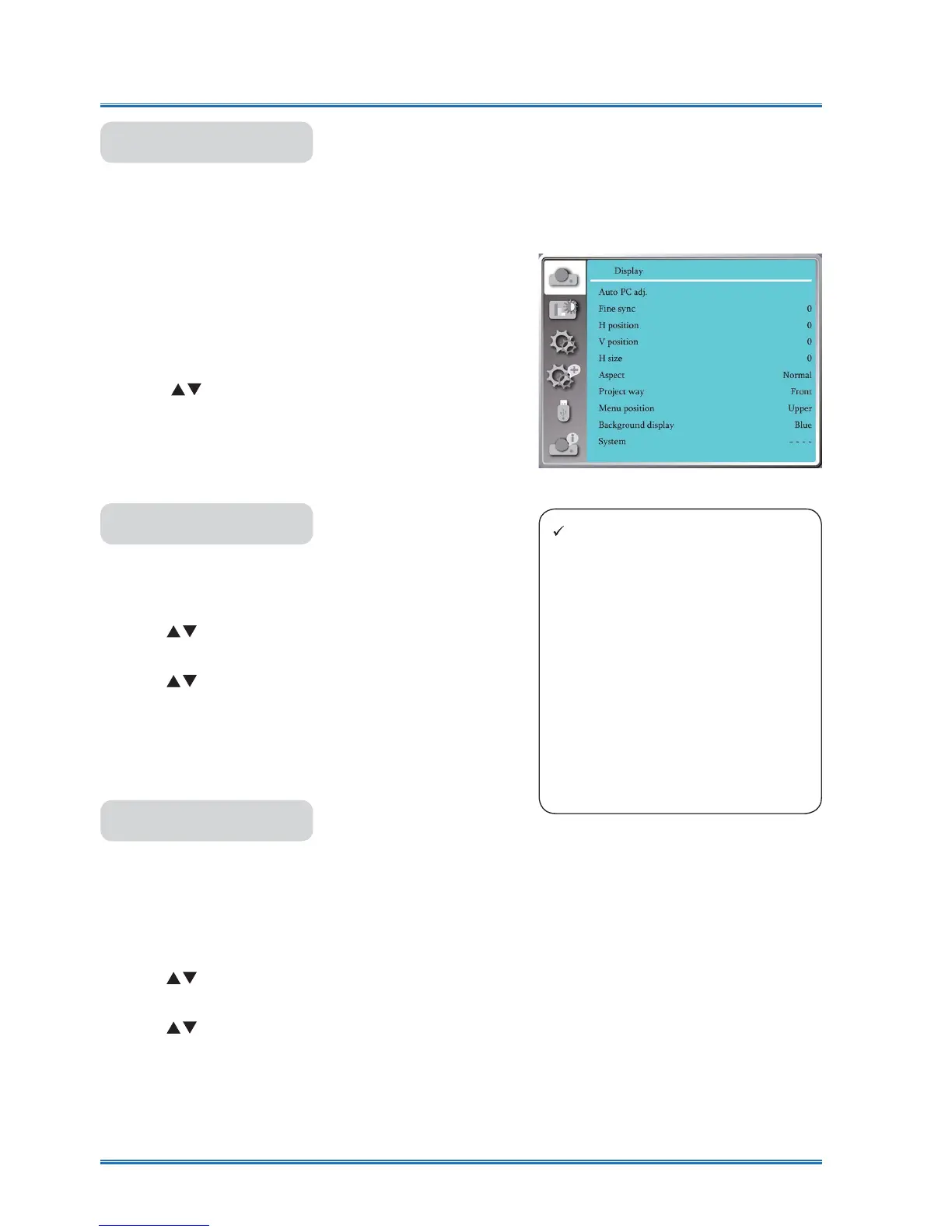
Select Auto PC Adj. function can adjusts Fine sync, H position, V position , H size to be compati-
ble with the computer automatically.
Menu operation
AUTO PC adj.
Press < MENU > button on the remote controller or
on the top control panel to display the OSD menu.
Press
ST
button to select the Display menu ,then
press <OK> or
X
button
.
1) Press
button to select [Auto PC adj.] menu.
2) Press <OK> button.
Auto PC adj.
(Only for PC signal input)
Adujust image to the best state When the image
jitters, or the image outline dims.
1) Press
button to select [Fine sync] menu.
2) Press <OK> button.
3) Press
button to adjust Fine sync
.
Adjustment range is from 0 to +31. Please adjust to
the least interference state.
Fine sync
(Only for PC signal input)
On the premise that the relative position of both pro-
jector and the screen is set up right,you can move
the image horizontal position,if the position of the
projected image on the screen is deviated.
1) Press
button to select [H Position] menu.
2) Press <OK> button.
3) Press
button to adjust image H position.
Adjustment range is from -5 to +5.
H Position
AUTO PC adj. menu
Note:
Ɣ The projector will perform Auto
PC Adjustment function auto-
matically,when its signal is input
IRUWKH¿UVWWLPH
Ɣ $XWR3&$GMXVWPHQWIXQFWLRQ
may fail to work if computer
models is not compatible with
the input signal .
Ɣ $XWR3&$GMXVWPHQWIXQFWLRQ
may fail to work if you select the
following system signal format:
480i, 576i, 480p, 576p, 720p,
1080i,1080p, or signals from the
HDMI terminal.



 To Next Page