44
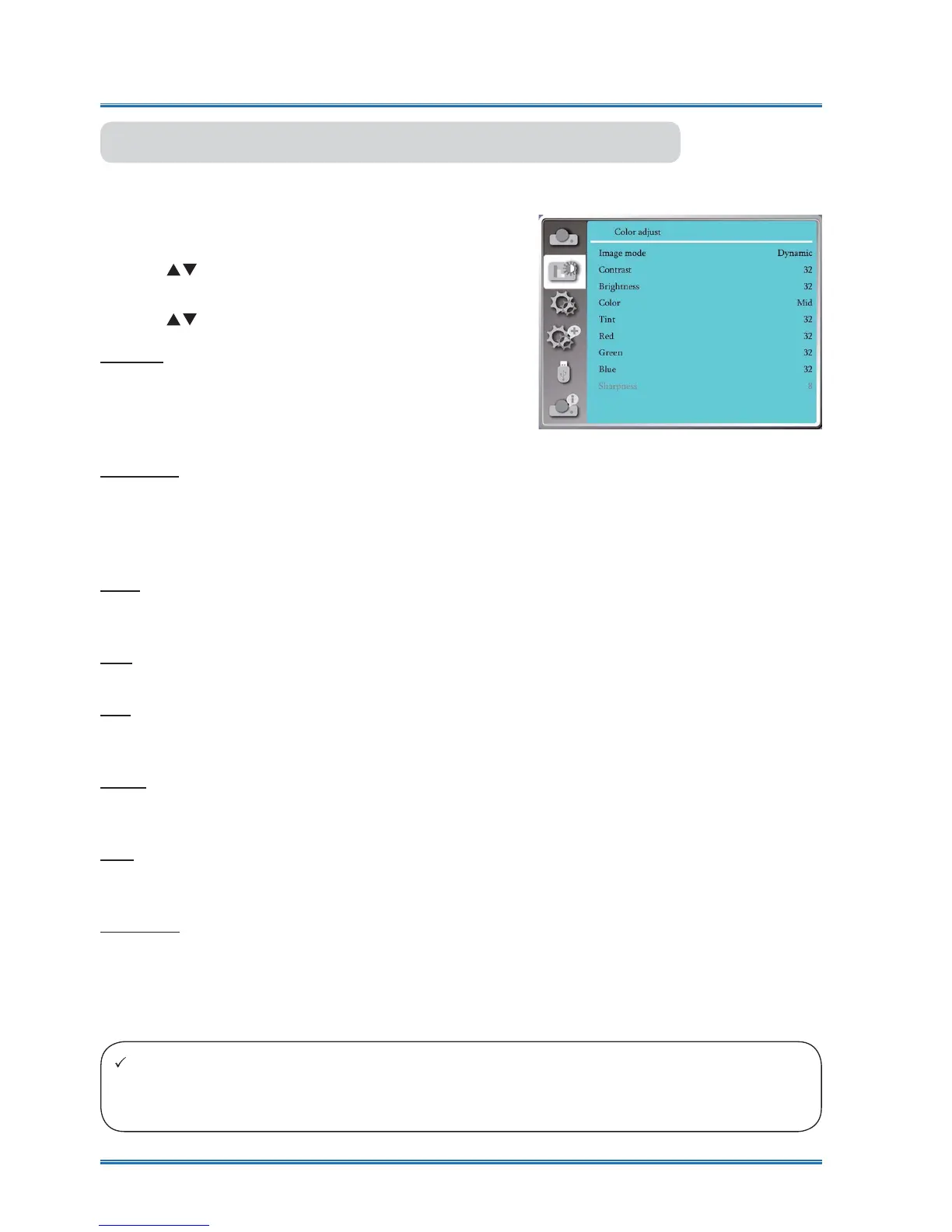
Color adjust
Press < MENU > button on the remote controller or on
the top control panel to display the OSD menu.Press
ST
button to select the Color adjust menu , then
press <OK> or
X
button
.
1) Press
button to select reqiured item .
2) Press <OK> button.
3) Press
button to adjust setpoint .
Color adjust( For Video, S-video or Component)
Color adjust( For Video, S-video ,
Component)
Contrast
Press
T
button to decrease contrast, range from
press
S
button to increase contrast,range from
Brightness
Press
T
button to decrease brightness, range from
press
S
button to increase brightness, range from
Color
Press
T
button to decrease saturation, press
S
button
to increase saturation.
Tint.
Press
ST
button to select required tint.
Red
Press
T
button to decrease red tint and
S
button to
increase it.
Green
Press
T
button to decrease green tint and
S
button to
increase it.
Blue
Press
T
button to decrease blue tint and
S
button to
increase.
Sharpness
Press
T
button to soften image and
S
button to
sharpen ,range from 0 - +15.
Note:
Ɣ Sharpness option is available if you chose Video, S video or Component as signal, while
other signals result in sharpness available



 To Next Page