MySets and Tools
68
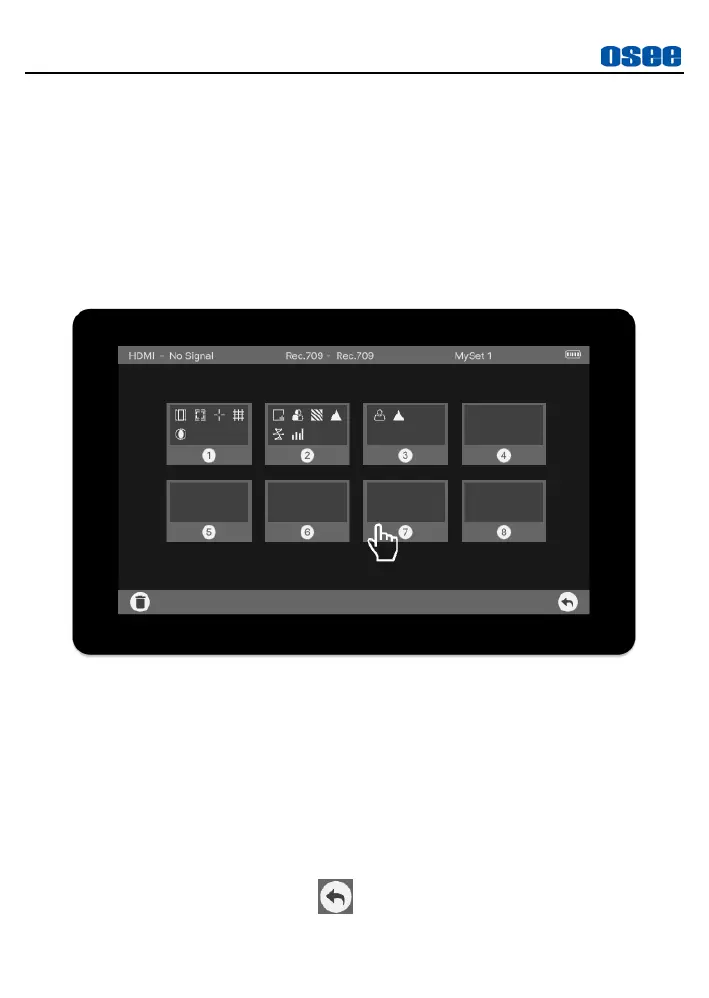
numeric of MySet is displayed at the bottom of each MySet thumbnail,
and the tool thumbnails for each MySet are tiled on the MySet
thumbnail, as shown in Figure 6.2-2:
Switch MySets
Tap on the thumbnail to switch among these MySets, and the name
of current MySet will be displayed in the top right-center of the status
bar.
Figure 6.2-2 MySet Preview Page
Method 1
: Tap these MySet thumbnails to switch between MySets,
and it will exit the MySet preview page after you have chosen one.
Method 2
: Swipe left or right to switch among MySets when the
screen is clean with no bars.
Exit MySet Preview Page
If you don’t want to switch to a new MySet and return to the normal
image screen, tap the return button at the rightmost of the bottom


 To Next Page