EasyManua.ls Logo

Panasonic FZ-M1 Series - User Manual

Panasonic FZ-M1 Series
147 pages
Print Icon
To Next Page IconTo Next Page
Loading...
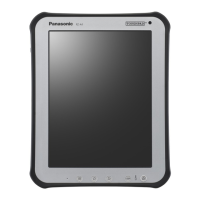
Tablet Computer
Model No. FZ-M1 Series
Operating Instructions - Reference Manual
We recommend that thisReference Manualbe printed.
Disclaimer
Computer specifications and manualsare subject to change without notice. PanasonicCorporation assumes no liability for damage incurred directly or
indirectly from errors, omissions or discrepancies between the computer and the manuals. Refer for the latest information about optional products to the
catalogs, etc.
Trademarks
Microsoft, Windows, and the Windows logo are registered trademarksor trademarksof Microsoft Corporation of the United States and/or other
countries.
Intel, Core, and PROSet are either registered trademarks or trademarksof Intel Corporation.
microSDXC Logo is a trademark of SD-3C, LLC.
MobileMark
®
is a U.S. Registered Trademark of the Business Applications Performance Corporation.
The terms HDMI and HDMI High-Definition Multimedia Interface, and the HDMI Logo are trademarks or registered trademarksof HDMI Licens-
ing Administrator, Inc. in the United States and other countries.
Bluetooth
®
is a registered trademark owned by Bluetooth SIG, Inc., U.S.A. and licensed to Panasonic Corporation.
Names of products, brands, etc., appearing in this manual are trademarks or registered trademarks of their respective own companies.
About the Software License
This product incorporates the following software:
(1) the software developed independentlyby or for Panasonic Corporation,
(2) the software owned by third partyand licensed to Panasonic Corporation, and/or
(3) open source software
- 1 -

Table of Contents

Other manuals for Panasonic FZ-M1 Series

Questions and Answers

  • E
    elizabethwolfSep 8, 2025
    What to do if my Panasonic FZ-M1 Tablet displays 'Remove disks or other media'?
    • K
      Kenneth DavenportSep 8, 2025
      If your Panasonic Tablet displays a message like 'Remove disks or other media', and you have a device connected to the USB port, disconnect the device. Alternatively, set [USB Port] to [Disabled] in the [Advanced] menu of the Setup Utility. If the problem continues after disconnecting the device, it may indicate a flash memory failure.
  • J
    jennifermcclureAug 25, 2025
    Why does the pointer not work on my Panasonic Desktop?
    • W
      William MartinAug 25, 2025
      If the pointer does not work on your Panasonic Desktop, and you are using an external mouse, connect it correctly. If using an external keyboard, restart the computer using the keyboard. If the computer does not respond to keyboard commands, read 'No response'.
  • M
    Morgan ClarkAug 25, 2025
    How to connect my Panasonic FZ-M1 to a network?
    • J
      Jesse GonzalesAug 26, 2025
      To connect to a network on your Panasonic Tablet, set the device ([Wireless LAN] / [Bluetooth] / [Wireless WAN] of [Wireless Configuration]) to [Enabled] in the [Advanced] menu of the Setup Utility (Wireless Configuration). Also, touch (Notification) at the task tray, and then touch (All settings) - [Network & Internet] - [Airplane mode]. Set [Airplane mode] to [Off], and then set [Wi-Fi] to [On] (for wireless LAN). set [Mobile broadband] to [On] (for wireless WAN). set [Bluetooth] to [On] (for Bluetooth).
  • L
    Lisa BrowningSep 18, 2025
    What to do for other startup problems with my Panasonic Desktop?
    • P
      Pamela AlvarezSep 18, 2025
      If your Panasonic Desktop is experiencing other startup problems, start the Setup Utility to return the Setup Utility settings (excluding the passwords) to the default values, and then make the settings again. Remove all peripheral devices. Check for disk errors: remove all peripheral devices including an external display, long touch (Start) at the bottom left corner, and then touch [File Explorer]. Long touch [This PC], then long touch [Windows (C:)], and touch [Properties]. Touch [Tools] - [Check], and follow the on-screen instructions.
  • J
    John MillerNov 27, 2025
    What to do if 'Enter Password' doesn't appear on my Panasonic Tablet when resuming?
    • F
      fhaleNov 28, 2025
      If your Panasonic Tablet displays 'Enter Password' does not appear when resuming from sleep or hibernation, try these solutions: * Select [Enabled] in [Password On Resume] in the [Security] menu of the Setup Utility. * The Windows password can be used instead of the password set in the Setup Utility. * Add a password: Touch (Start) - [Settings] - [Accounts]. Touch [Sign-in options] and touch [Add] under “Password”. Or Touch (Start) - [Control Panel]. Touch [User Accounts and Family Safety] - [Add or remove user accounts]. * Set up the following: Open the Control Panel, touch [System and Security] - [Power Options] - [Require a password on wakeup]. Add a check mark for [Require a password]. Or Touch [Control Panel] - [System and Security] - [Power Option] - [Require a password when...
  • S
    Sharon FloresSep 13, 2025
    How to enable Cradle USB Port on Panasonic FZ-M1?
    • R
      Ronald RamosSep 13, 2025
      To enable the Cradle USB Port on your Panasonic Tablet, set [Cradle USB Port] to [Enabled] in the [Advanced] menu of the Setup Utility.
  • M
    Martin SmithSep 3, 2025
    Why is the screen on my Panasonic FZ-M1 disordered?
    • T
      Tyler MarshSep 3, 2025
      If the screen on your Panasonic Tablet is disordered, restarting the computer may help, as changing the number of display colors and resolution or connecting/disconnecting an external display can affect the screen.
  • A
    Alejandro BrownSep 4, 2025
    Why are there red, green, or blue dots on my Panasonic FZ-M1 Tablet screen?
    • T
      Thomas SalazarSep 4, 2025
      If you notice red, green, or blue dots on the screen of your Panasonic Tablet, or if there is unevenness in colors and brightness, it's important to know that advanced high-precision technologies are used in the production of color LCD screens, and 0.002% or less of the picture elements may be dark or remain constantly lit. Also, due to the natural characteristics of LCD screens, you may notice unevenness in colors and brightness depending on your angle of view. Hues may also vary by product.
  • W
    William EllisSep 23, 2025
    Why are there red, green, or blue dots on my Panasonic Desktop screen?
    • A
      Andrew BradleySep 23, 2025
      If you see red, green, or blue dots on the screen, or there is unevenness in colors and brightness on the screen of your Panasonic Desktop, this is not a malfunction. 0.002% or less of the picture elements may be dark or remain constantly lit (more than 99.998% of elements function properly). Also, due to the natural characteristics of LCD screens, you may notice unevenness in colors and brightness depending on your angle of view, which is also not a malfunction.
  • S
    Stacey OwensAug 29, 2025
    What does '[Executing Battery Recalibration]' mean on my Panasonic Tablet?
    • L
      Laura RandallAug 29, 2025
      If your Panasonic Tablet is displaying “[Executing Battery Recalibration]” screen appears, it means the Battery Recalibration was canceled before Windows was shut down last time. To start up Windows, turn off the computer by the power switch, and then turn it on again.

Summary

Description of Parts

Turning the Computer On and Off

Turning On the Computer

Instructions for powering on the computer and initial startup procedures.

Turning Off the Computer

Steps for shutting down the computer properly to avoid data loss.

Screen Input and Touch Operations

Using the Touch Screen

Explains how to use the touch screen with fingers or the dedicated pen.

Tablet Buttons Functions

Button Descriptions and Functions

Explains the functions of Power, Windows, Volume, Rotation Lock, and A buttons.

Battery Status Indicators

Main Battery Indicator

Explains the meaning of the main battery indicator lights and their status.

Replacing the Battery Pack

Battery Pack Replacement Guide

Instructions for safely removing and installing the battery pack.

Panasonic PC Settings Utility

Starting the PC Settings Utility

Steps to launch the Panasonic PC Settings Utility application.

Network Connectivity

Connecting to a Wired LAN

Steps for connecting the computer to a wired Local Area Network (LAN).

Wireless Communication Management

Wireless LAN Operations

Enabling Wireless LAN Communication

Steps to turn on wireless LAN communication for network access.

Connecting to a Wireless LAN Access Point

Guide to setting up and connecting to a wireless LAN access point.

Bluetooth Connectivity

Wireless WAN and SIM Card

Using the Wireless WAN Function

Details on enabling and using the Wireless WAN feature for mobile data.

Inserting and Removing the SIM Card

Step-by-step guide for inserting and removing the SIM card for Wireless WAN.

Security Measures and Password Setup

Setting Supervisor and User Passwords

Procedure to set or disable supervisor and user passwords in the Setup Utility.

Setting the Windows Password

Steps to set or change the Windows login password for security.

Preventing Unauthorized Computer Use

Guides on setting startup passwords to protect against unauthorized access.

Accessing and Using the Setup Utility

Starting the Setup Utility

Steps to access the Setup Utility for system configuration.

Navigating the Setup Utility

Explains how to use touch screen, on-screen keyboard, and tablet buttons in Setup Utility.

Boot Menu and Priorities

Configuring Boot Order and Options

Explains how to set the boot mode and prioritize boot devices.

Security Menu Settings

Password and Disk Lock Settings

Guides on setting passwords, enabling disk lock, and KB support for encryption.

Handling and Maintenance Precautions

General Handling Cautions

Provides essential precautions for safely handling the computer to prevent damage.

microSD Memory Card Usage

Inserting and Removing microSD Cards

Step-by-step guide for inserting and removing microSD memory cards.

Barcode Reader Functionality

Installing and Configuring Barcode Reader

Steps to install the barcode utility and set the language for correct reading.

Reading Barcodes and USB Mode

Instructions for reading barcodes and configuring the USB mode for the reader.

USB Device Management

Connecting and Removing USB Devices

Provides guidelines for connecting and safely removing USB devices.

Using the Optional Cradle

Connecting and Disconnecting the Computer from Cradle

Step-by-step guide for connecting and disconnecting the computer to/from the cradle.

Battery Charger Operation

Charging Battery Packs

Instructions for charging battery packs using the cradle or directly.

Battery Charger Indicators

Interpreting Battery Indicator Lights

Explains the meaning of the battery indicator lights on the charger.

Charging Battery Packs with Charger

Step-by-step guide for charging battery packs using the battery charger.

Troubleshooting Startup Issues

Cannot Start Up or Resume from Sleep

Addresses issues like no power indicator, failure to warm up, or inability to resume from sleep.

Resolving Startup and Password Issues

Guides on fixing incorrect date/time, password entry issues, and shutdown problems.

Sleep, Hibernation, and Resume Troubleshooting

Troubleshooting Sleep;Hibernation Entry

Solutions for problems related to entering or resuming from sleep or hibernation.

Display Troubleshooting

Troubleshooting Sound and Network

Wireless Communication Troubleshooting

Peripheral Device Troubleshooting

Screen Operation and Input Troubleshooting

Hardware Diagnostics Utility

Running Hardware Diagnostics

Instructions for using the PC-Diagnostic Utility to check hardware components.

Resetting and Refreshing Windows

Refreshing Windows Operating System

Procedure to refresh Windows while retaining personal files and settings.

Software Installation and Disk Recovery

Installing Software and OS Recovery

Guide for reinstalling the OS and performing disk recovery from recovery partition.

Using a Recovery Disc

Instructions on using a recovery disc to reinstall the OS or recover partitions.

Troubleshooting Error Messages

Resolving System and Date;Time Errors

Solutions for Bad System CMOS, Checksum errors, and incorrect date/time settings.

Erasing Flash Memory Data

Securely Erasing Data

Procedure to erase all flash memory data to prevent data leakage before disposal.

Computer Disposal and Battery Removal

Computer Specifications

Product Warranty Information

Limited Hardware Warranty Terms

Details the limited warranty coverage for hardware components, including duration and exclusions.

Canada Limited Warranty

European Warranty Information

Panasonic FZ-M1 Series Specifications

General IconGeneral
Operating SystemWindows 10 Pro
Display7" WXGA (1280 x 800) sunlight-viewable glove-enabled capacitive multi touch display
RAM8GB
Storage128GB SSD
Weight540g
ConnectivityWi-Fi, Bluetooth, optional 4G LTE
Rugged FeaturesIP65, MIL-STD-810G
Camera2MP

Related product manuals