100
QR34662
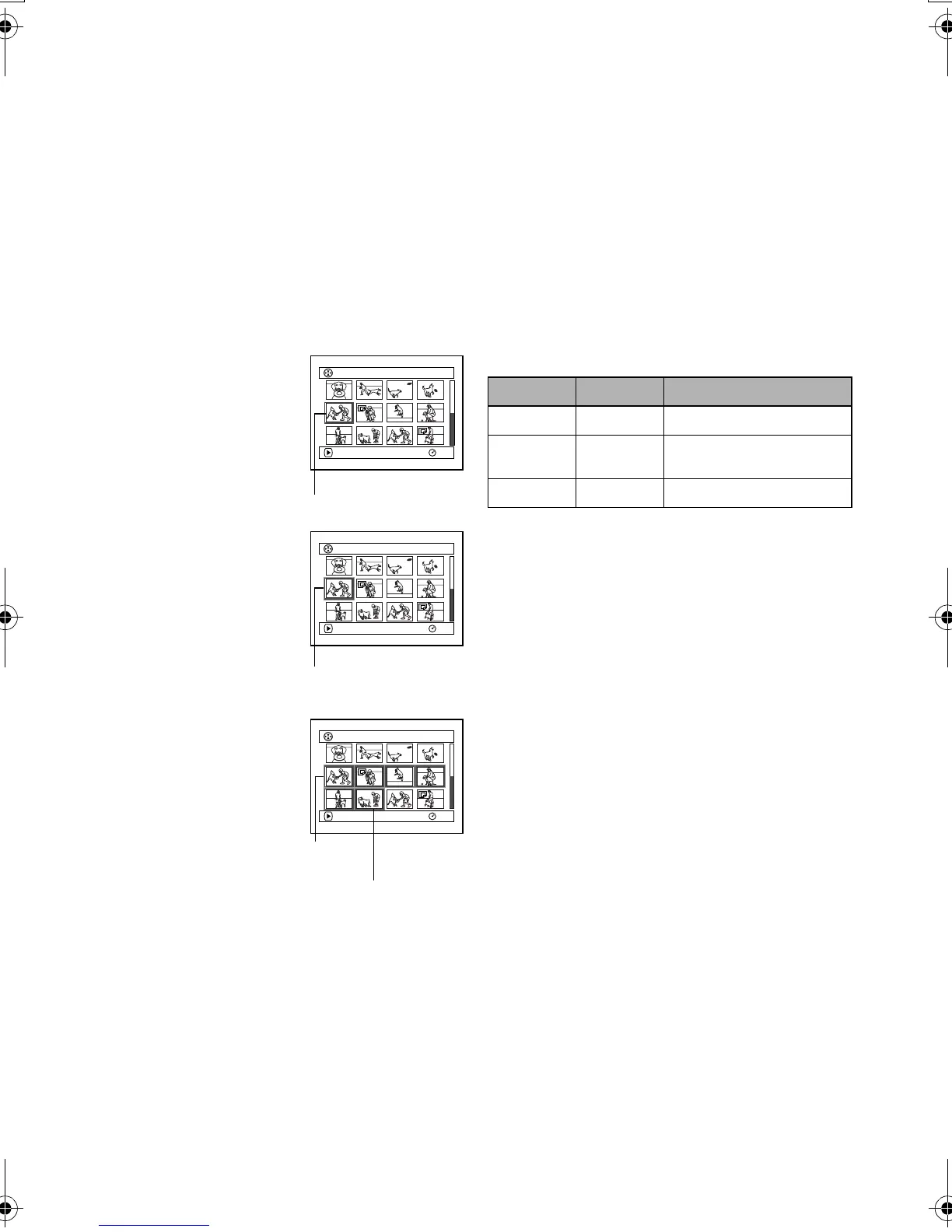
Selecting Multiple Scenes
1 Press the DISC NAVIGATION button.
2 Use the joystick to select the desired scene.
3 Press the SELECT button once:
The selected scene will be framed in red and
yellow.
Repeat steps 2 and 3 to randomly select multiple
scenes.
To cancel a selected scene, select the scene to be
canceled, and then press the SELECT button.
To cancel all selected scenes, press the button.
Note:
Although scenes can be randomly selected, playback will
always start from the lowest scene number.
Selecting Consecutive Scenes Together
1 Press the DISC NAVIGATION button.
2 Use the joystick to select
the desired scene.
3 Hold down the SELECT
button for at least one
second:
The selected scene will be
doubly framed in yellow
and blue.
4 Use the joystick to select
the last scene in the range
you want, and then press
the button:
The thumbnails of scenes
in the specified range will
be framed in red, and
then selected.
Note:
• You can know the status of scenes from the colors of
cursor and bargraph:
• Pressing the button after selecting scenes will play
back only the selected scenes from the beginning of
each.
• You can also select scenes in reverse from the last scene
in the range.
• To release multiple selection, press the SELECT or
button after step 4.
• Up to 999 scenes can be selected for both disc and card.
005 / 014All Progra
m
s
PLAY
RAM
Yellow frame
005 / 014All Progra
m
s
PLAY
RAM
Double frames in
yellow and blue
010/ 014All Progra
m
s
PLAY
RAM
When scenes up to this
point are selected
Red
frame
Cursor Bar graph Status of scenes
Yellow Sky blue
Current cursor position
Blue Sky blue
Range of scenes being
selected
Red Red
Scenes already selected
VDR-M30PP_GB.book Page 100 Friday, March 14, 2003 8:53 PM







 To Next Page