103
QR34662
Scene
Deleting Scenes (Delete)
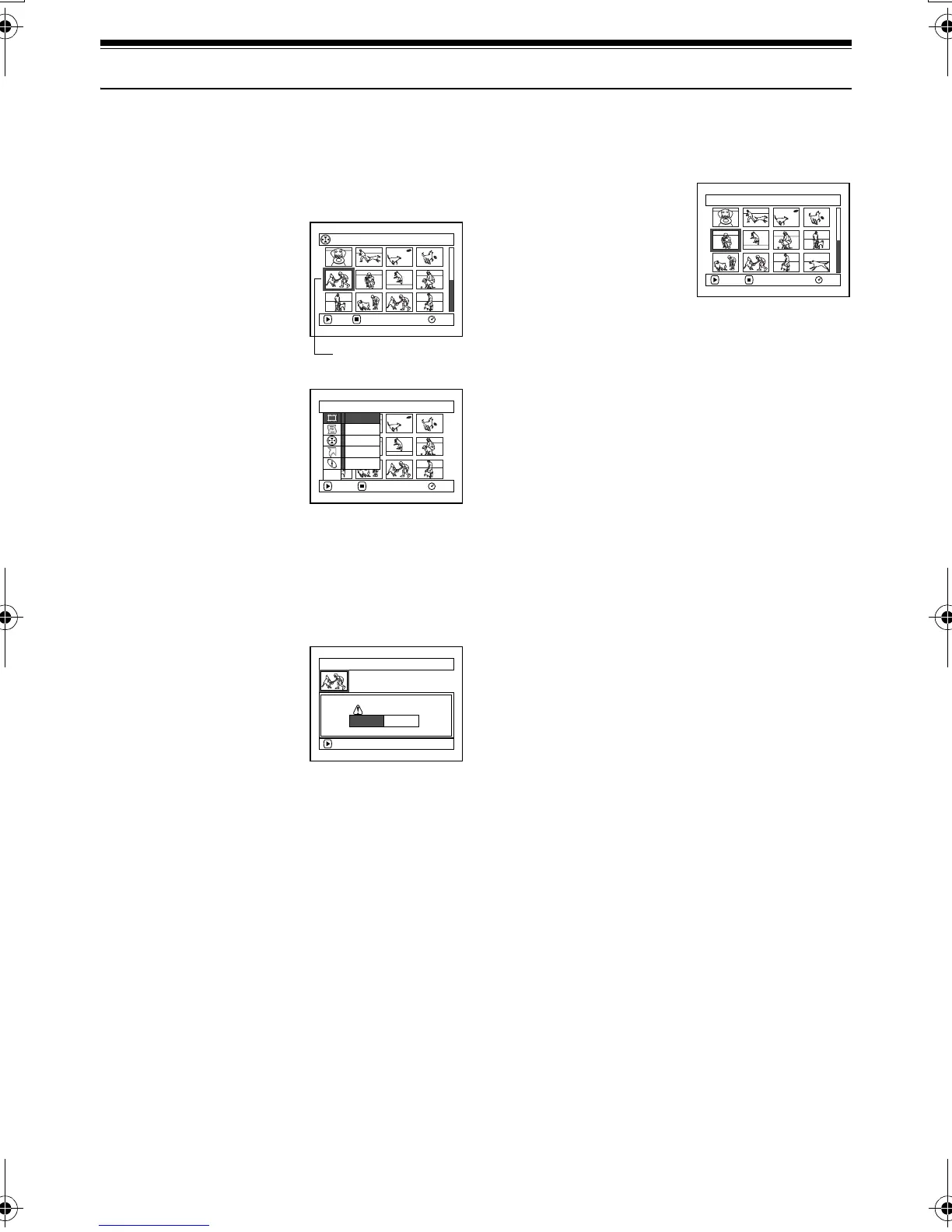
1 Press the DISC NAVIGATION button.
2 Select the scene to be
deleted.
3 Press the MENU button.
4 Choose “Delete” on the
“Scene” menu screen,
and then press the
button.
5 The “Delete Scene”
screen will appear: If you
are sure you want to delete the selected scene,
press the button.
If you want to change the scene to be deleted,
you can change it on this screen.
6 The screen for verifying
deletion will appear:
Choose “YES”, and then
press the button.
Choose “NO” to cancel
deletion.
After Yes or No setting, the “Delete Scene”
screen will be restored.
Repeat steps 5 and 6 to delete other scenes.
7 Press the button to quit.
Note:
• If you point the cursor at the scene to be deleted, and then
press the DELETE button on remote controller, the
screen in step 5 will appear.
• If you delete all data on disc or card, initializing the disc
or card will be recommended (See page 129).
• If even one play list has been created, message “Same
scenes on PlayList will be deleted. Delete scenes?” will
appear before deleting scene(s). This message will
appear even if the scene(s) to be deleted is not used in the
corresponding play list. In this case, choose “YES” and
then press the
button.
• If the time of deleted scenes (stills) is quite short, the
remaining free space of disc may not increase in the disc
or card remaining indicator.
• The locked scenes on card cannot be deleted (See page
112).
All Programs
005/014
RAM
PLAY DESELECT ALL
Scene to be deleted
Scene
RAM
ENTER RETURN
Delete
Ed i t
Copy
Sel ect
De t a i l
ETC
De l e t e Scene
Delete scene?
SEP 30 2003 8: 00:00A
M
Scene No. 005
ENTER
YES NO
Delete Scene 005/013
RAM
ENTER EX I T
VDR-M30PP_GB.book Page 103 Friday, March 14, 2003 8:53 PM



 To Next Page