112
QR34662
Locking Scenes on Card (Lock)
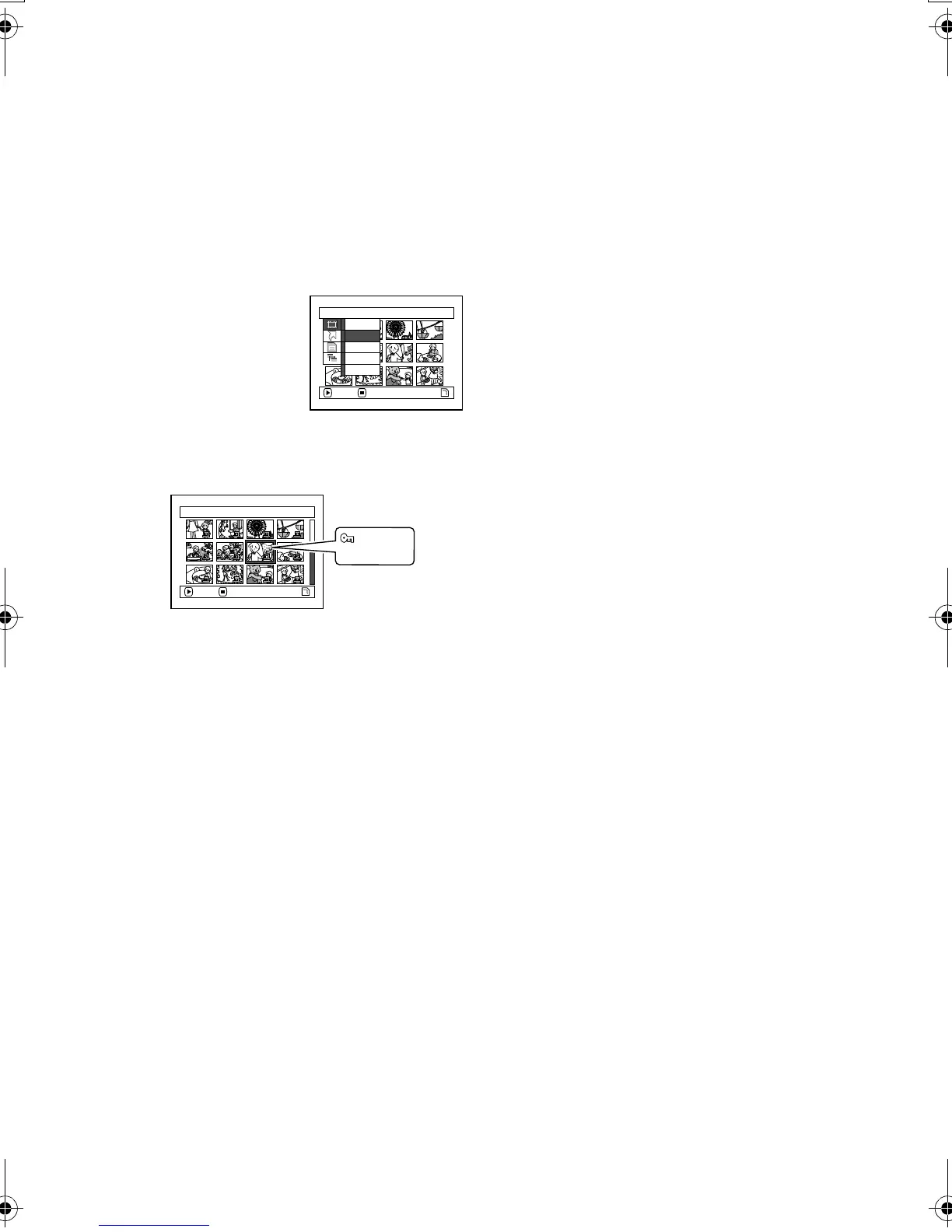
You can lock each photo recorded on card so that it will not be deleted or edited by mistake.
1 Set the power switch to “ PHOTO”.
2 Press the DISC NAVIGATION button.
3 Select the scene to be locked.
4 Press the MENU button.
5 Choose “Lock” on the
“Scene” menu screen,
and then press the
button.
6 The “Lock Set” screen
will appear: If you are
sure you want to lock the selected scene, press
the button.
If you want to change the scene to be locked, you
can change it on this screen.
After setting, the “Lock Set” screen will be
restored.
Repeat step 6 to lock another scene.
7 Press the button to quit.
●To unlock the scene:
Select the locked scene, and then use the same
procedure as above to unlock the scene: The lock
mark will disappear and locking will be released.
Note:
• If you press the MENU button before pressing the
button in step 6, the submenu screen will appear (P.104).
• You can also select multiple scenes (P.100).
• When initializing the card, the locked scenes will also be
deleted.
Scene
ENTER RETURN
Sel ect
De t a i l
Lock
Delete
DPOF
7/19Lock Set
ENTER EX I T
Lock icon
VDR-M30PP_GB.book Page 112 Friday, March 14, 2003 8:53 PM







 To Next Page