124
QR34662
Deleting Scenes Using Submenu for Editing (Editing Play List)
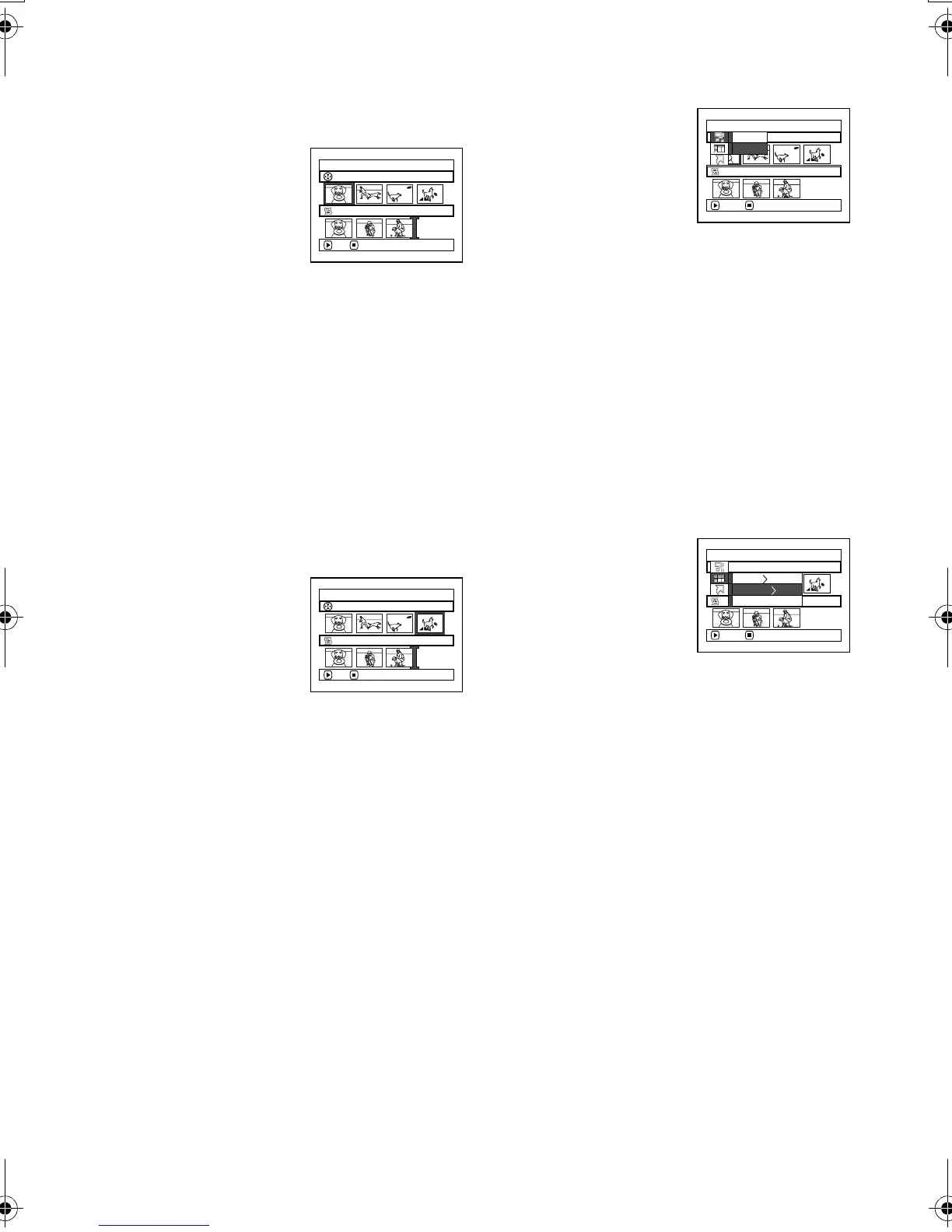
You can delete scenes from play list on the editing screen.
1 Press the DISC NAVIGATION button.
2 Display the editing screen
of the play list to be
edited.
Perform steps 2
−4 on
page 122.
3 Move the cursor to the play list in lower row.
4 Select the scene to be deleted, and then press the
MENU button.
5 Choose “Delete” on the
“Edit” menu screen, and
then press the
button.
Repeat steps 3-5: other
scenes can be deleted.
6 Press the button: The screen for verifying exit
will appear.
Note:
• If all scenes on play list are deleted, the play list itself will
also be deleted.
• You can also select multiple scenes (P.100).
Selecting Scenes Using Submenu for Editing (Editing Play List)
You can specify the range of scenes when adding or deleting consecutive multiple scenes to/from play list.
This “Select” menu item is useful when selecting consecutive multiple scenes in items for adding or
deleting scenes using menu on page 114.
1 Press the DISC NAVIGATION button.
2 Display the editing screen
of the play list to be
edited.
Perform steps 2
−4 on
page 122.
3 Specify the first scene of those you wish to select,
and then press the MENU button.
4 Choose “Start → Current”,
“Current
→ End”, “All”
on the “Select” menu
screen, and then press the
button.
Note:
See page 114 for the status of scenes to be selected.
5 Press the button: The screen for verifying exit
will appear.
Edit PlayList
PlayList No.04
Al l Progra
ms
001/014
007/007
ADD E X I T
Ed i t
PlayList No.04
Al l Progra
ms
001/014
007/007
ENTER RETURN
Ex i t
Delete
Edit PlayList
PlayList No.04
Al l Progra
ms
004/014
007/007
ADD E X I T
Select
PlayList No.03
Al l Progra
ms
001/014
007/007
ENTER RETURN
Start– Current
Cu r r ent – End
All
VDR-M30PP_GB.book Page 124 Friday, March 14, 2003 8:53 PM





 To Next Page