30
6K Hardware Installation Guide
7HVWLQJ#WKH#,QVWDOODWLRQ
!
##:$51,1*##
!
This test procedure allows you to control
your system I/O. Therefore, you should
make sure that exercising the I/O will not
damage equipment or injure personnel.
Test Setup:
1. If you haven’t already done so, made the necessary
communication connections (see page 24).
2. Install Motion Planner (CD is provided in your ship).
3. Launch Motion Planner and click on the “Terminal” window tab to
view the terminal emulator. You now have live communication with
the 6K product.
Connections Test Procedure Response Format
(left to right)
End-of-travel
and
Home Limits
NOTE
: If you are not using end-of-travel limits, issue the Disable Limits (
@LHØ
)
command and ignore the first two bits in each response field.
1. Enable the hardware end-of-travel limits with the
@LH3
command.
2. Close the end-of-travel switches and open the home switches.
3. Enter the
TLIM
command. The response should be
*TLIM11Ø_11Ø_11Ø
…
4. Open the end-of-travel switches and close the home switches.
5. Enter the
TLIM
command. The response should be
*TLIMØØ1_ØØ1_ØØ1
…
6. Close the end-of-travel switches and open the home.
7. Enter the
TLIM
command. The response should be
*TLIM11Ø_11Ø_11Ø
…
TLIM
response:
bit 1 = Axis 1 POS limit
bit 2 = Axis 1 NEG limit
bit 3 = Axis 1 HOM limit
bit 4 = Axis 2 POS limit
bit 5 = Axis 2 NEG limit
bit 6 = Axis 2 HOM limit
and so on (3 inputs/axis) …
“POS” means positive travel.
“NEG” means negative travel.
“HOM” means home.
Encoder
(not coupled to
the load or
motor)
1. Enter these commands, (preset the RETURN key after each command):
ENCCNT1
,
L
,
TPE
,
T.3
, and then
LN
. This will begin a continuous display of all encoder
positions. Press the RETURN key to move the display to the next line and save the
current value.
2. Manually rotate the encoder shaft and verify that the position changes as you rotate
the encoder shaft. If you connected the encoder as instructed earlier in this chapter,
moving the shaft clockwise should increase the position reading. If the reading does
not change, or if the direction is reversed, check the connections. If the direction is
reversed, swap the A+ and A- connections.
3. When finished, enter the
^K
(ctrl-K) command to stop the continuous report-back.
TPE
response
(encoder counts)
:
±encoder1, ±encoder1, …
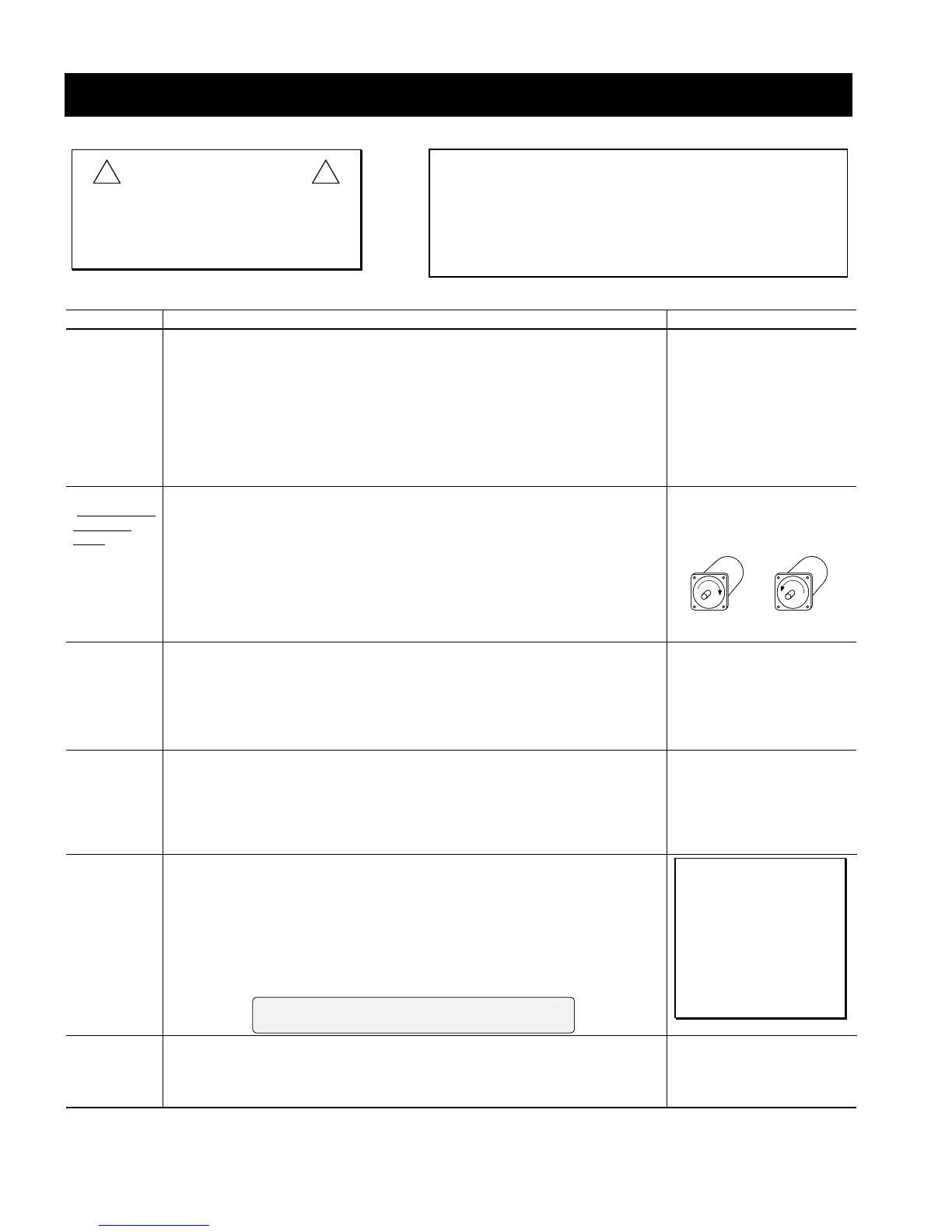
Direction of rotation:
Counter-clockwise
(negative counts)
Clockwise
(positive counts)
Trigger Inputs 1. Open the trigger input switches or turn off the device driving the inputs.
2. Enter the
TIN
command.
R
esponse should be
*TINØØØØ_ØØØØ_Ø
or
*TINØØØØ_ØØØØ_ØØØØ_ØØØØ_Ø
.
3. Close the trigger input switches or turn on the device driving the inputs.
4. Enter the
TIN
command.
R
esponse should be
*TIN1111_1111_1
or
*TIN1111_1111_1111_1111_1
.
TIN
response:
Bits 1-n, from left to right,
represent trigger inputs 1-n.
Bit #17 represents the Master
Trigger (“MASTER TRG”).
The 6K2 & 6K4 have 9 inputs,
the 6K6 & 6K8 have 17 inputs.
Onboard
Outputs
1. Enter the
@OUT1
command to turn on (sink current on) all programmable outputs.
Verify that the device(s) connected to the outputs activated properly.
2. Enter the
TOUT
command.
R
esponse should be
*TOUT1111
or
*TOUT1111_1111
.
3. Enter the
@OUTØ
command to turn off all programmable outputs. Verify that the
device(s) connected to the outputs de-activated properly.
4. Enter the
TOUT
command.
R
esponse should be
*TOUTØØØØ
or
*TOUTØØØØ_ØØØØ
.
TOUT
response:
Bits 1-n, from left to right,
represent outputs 1-n.
The 6K2 & 6K4 have 4 outputs,
the 6K6 & 6K8 have 8 outputs.
RP240 1. Cycle power to the 6K.
2. If the RP240 is connected properly, the RP240’s status LED should be green and
one of the lines on the computer or terminal display should read
*RP24Ø
CONNECTED
. If the RP240’s status LED is off, check to make sure the +5V
connection is secure. If the RP240’s status LED is green, but the message on the
terminal reads
*NO REMOTE PANEL
, the RP240 Rx and Tx lines are probably
switched. Remove power and correct.
3. Assuming you have not written a program to manipulate the RP240 display, the
RP240 screen should display the following:
COMPUMOTOR 6Kn CONTROLLER
RUN JOG STATUS DRIVE DISPLAY ETC
ASSUMPTIONS
• RP240 connected to the
COM 2 (“RS-232/485”).
•
COM 2
configured for
RP240. To verify, type
these commands:
PORT2
<cr>
DRPCHK
<cr>
The system response
should report “
*DRPCHK3
”.
Enable Input 1. Open the enable input (ENABLE) switch.
2. Enter the
TINO
command. Response should be
*TINOØØØØ_ØØØØ
.
3. Close the ENABLE switch.
4. Enter the
TINO
command. Response should be
*TINOØØØØ_Ø1ØØ
.
TINO
response:
bit 6 = Enable (ENABLE) input,
all other bits are not used.



 To Next Page