Flat Bed Foil Printer User Guide
Peleman Industries
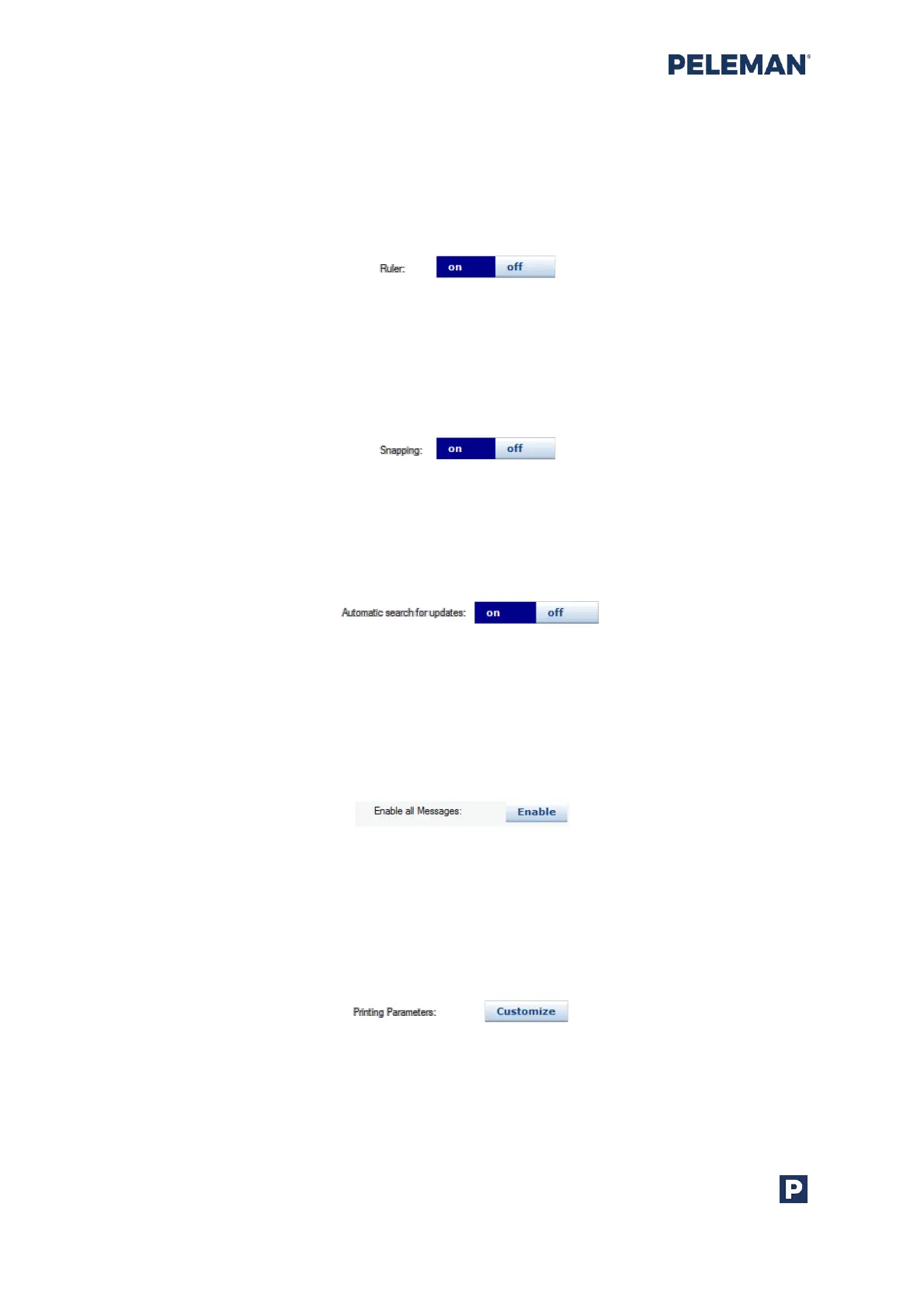
• Switching Display of Ruler On / Off
Enabling or disabling the ruler. Users may set it to on state if the ruler is required
to be displayed; otherwise it is set to off state. Its default value is on.
Figure 38: Ruler Display Setting in Tools
• Snapping On / Off
Enabling or disabling the functionality of snapping of objects against the
construction lines. Its default value is on.
Figure 39: Snap Setting in Tools
• Automatic Search for Updates
Enabling or disabling automatic search for updates. Its default value is on.
Figure 40: Setting in Tools for Automatic Search for Updates
• Enable All Messages
Enable all Flat Bed Foil Printer messages. Messages can disabled by choosing
the “Don’t display this message again” option. By default, all messages are
enabled.
Figure 41: Setting in Tools to Enable All Flat Bed Foil Printer Messages
• Printing Parameters
Customisation of parameters associated with printing. It is one of the most
essential functions in the software as it allows users to adjust settings for the
different foil materials.
Figure 42: Setting in Tools to Customise Printing Parameters
The dialog box, like the one shown in figure 43, is displayed when clicking the Customize
button. This dialog box contains settings for different printing parameters for each type of


 To Next Page