Flat Bed Foil Printer User Guide
Peleman Industries
TABLE OF FIGURES
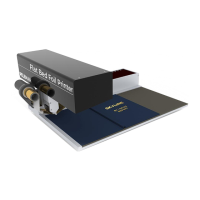
Figure 1: Flat Bed Foil Printer with Cover Placed to Print .................................................................................... 8
Figure 2: Printed Design Examples ...................................................................................................................................... 9
Figure 3: Cut Binding Strips ...................................................................................................................................................... 12
Figure 4: Unpackaging ................................................................................................................................................................. 13
Figure 5: Flat Bed Foil Printer Package Contents ................................................................................................... 14
Figure 6: Lock Tool and Support Removal ..................................................................................................................... 15
Figure 7: Flat Bed Foil Printer Connections .................................................................................................................. 15
Figure 8: Use Supplied Underlay Materials for Different Applications .................................................... 16
Figure 9: Different possibilities to use double paper clamp to hold the substrate ......................... 17
Figure 10: Connecting the Coils ............................................................................................................................................. 22
Figure 11: Foil Inserted in fead of Flat Bed Foil Printer ......................................................................................... 23
Figure 12: Files Required for Installation ........................................................................................................................ 26
Figure 13: Available Options in All Programmes of Start Menu for Launching Application .... 27
Figure 14: Flat Bed Foil Printer PC Tool ........................................................................................................................... 27
Figure 15: New Design Startup Dialog Box for Selection of Template .................................................... 28
Figure 16: Display for Selection of Appropriate Template & Associated object Orientation ... 28
Figure 17: Design Window Based on Selected Template and Object Placement ......................... 29
Figure 18: Vertical Spine Orientation (Left) and Horizontal Spine Orientation (Right) ............... 30
Figure 19: Vertical Spine Orientation (Left) and Horizontal Spine Orientation (Right) ................. 31
Figure 20: Margins (grey zone around the template) .......................................................................................... 32
Figure 21: Design Toolbar ........................................................................................................................................................... 33
Figure 22: Design Toolbar Group 1 - Functions .......................................................................................................... 33
Figure 23: Design Toolbar Group 2 - Tools .................................................................................................................... 34
Figure 24: Design Toolbar Group 3 – Edit Functions ............................................................................................ 34
Figure 25: Design Toolbar Group 4 - Text Editing.................................................................................................... 35
Figure 26: Design Toolbar Group 5 - Element Alignment ................................................................................ 36
Figure 27: Design Toolbar Group 6 - Rotation Degree ........................................................................................ 36
Figure 28: Design Toolbar Group 7 – XY Coordinates ........................................................................................... 37
Figure 29: Design Toolbar Group 8 – Make Database .......................................................................................... 37
Figure 30: Text box placed in a print area containing the text “My Photos”....................................... 38
Figure 31: Image Thresholding Menu .............................................................................................................................. 39
Figure 32: Image of palm tree placed inside print area ..................................................................................... 40
Figure 33: Layer Window ........................................................................................................................................................... 43
Figure 34: Rulers and Guidelines for Alignment ..................................................................................................... 44
Figure 35: Zoom Slider & Buttons ....................................................................................................................................... 46
Figure 36: Application Settings Tab in Available Tools ........................................................................................ 47
Figure 37: Units Setting for Rulers in Tools .................................................................................................................. 47
Figure 38: Ruler Display Setting in Tools ....................................................................................................................... 48
Figure 39: Snap Setting in Tools ........................................................................................................................................... 48
Figure 40: Setting in Tools for Automatic Search for Updates ..................................................................... 48
Figure 41: Setting in Tools to Enable All Flat Bed Foil Printer Messages ............................................... 48
Figure 42: Setting in Tools to Customise Printing Parameters .................................................................... 48
Figure 43: Settings for Printing Parameters ............................................................................................................... 49
Figure 44: Setting in Tools for Transportation ........................................................................................................... 50
Figure 45: Settings in Tools for Smart Temperature Control ......................................................................... 50
Figure 46: Settings in Tools for Printhead Calibration ........................................................................................ 50
Figure 47: Tools to Check for Updates .............................................................................................................................. 51
Figure 48: Warning Message if Printer is Not Connected ................................................................................. 51
Figure 49: Warning Message if Not Connected to Server ................................................................................. 52
Figure 50: Screen for Managing Templates ................................................................................................................. 53


 To Next Page