6-2
4. If you click without selection, then select “
開始/停止朗讀
”. The
text would be read aloud from caret location.
Note: The Windows Vista 64bit edition does not support the direct text-to-speech
function. You must select a section of text before you can use the text-to-
speech function.
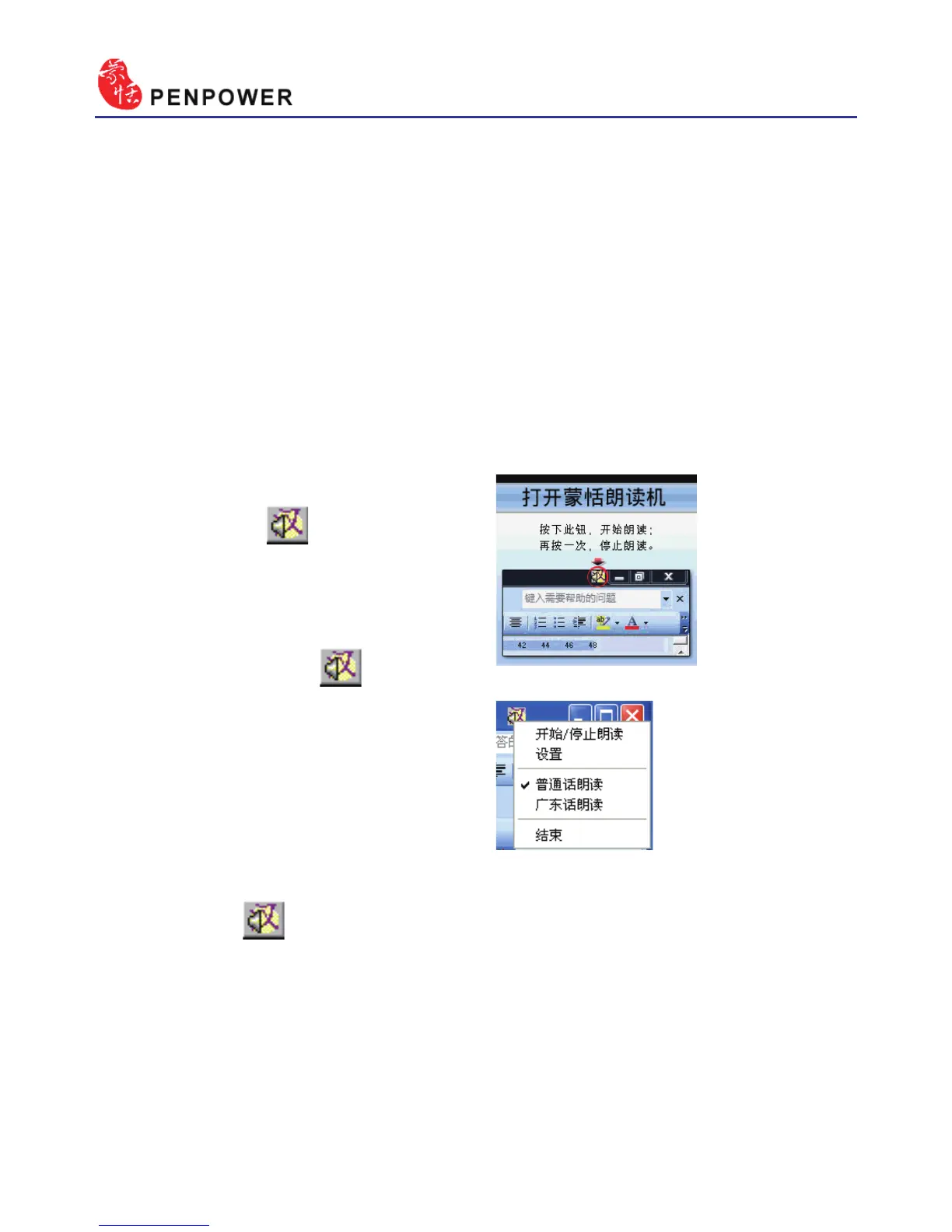
2. After VoiceReader is executed,
the small icon would be
displayed on the right top corner
of any application.
3. If you select one paragraph of
text rst, then click , and
select “
開始/停止朗讀
”. The
selected text will be read aloud.
You can choose Mandarin or
Cantonese tone pronunciation
from the menu.
6.1 Penpower VoiceReader
Integrate the Text to Speech (TTS) technology to read aloud the Chinese
article content within any window.
6.1.1 Use Penpower VoiceReader
1. Run “Start/All Programs/Penpower Jr/Penpower VoiceReader”.
Note: Before run Penpower VoiceReader, please launch Penpower Junior rst or
the system will prompt you to do so.



 To Next Page