5 Technical Alarms (INOPs)
48
This will silence the INOP tone and clear the INOP message. If the condition which caused the INOP
is still present, the INOP symbol will be displayed on the right hand side of the screen.
When using a Cableless Measurement Pod with an IntelliVue Information Center iX Release A, make
sure to remove the pod at the telemetry device and only when in SRR range of the telemetry device.
Otherwise you will get a technical alarm (
cl NBP Disconnect/cl SpO₂ Disconnect) that can not be
silenced at the telemetry device. You will then have to reboot the telemetry device to remove the
message.
Displaying a List of Current INOPs
To display a list of the currently active INOPs,
1 Select the Main Setup SmartKey.
2 Select INOPs.
3 Select INOP Messages.
Setting the Volume of the INOP Tone
To set the volume for the INOP tone,
1 Select the Main Setup SmartKey.
2 Select INOPs.
3 Select INOP Vol and select a volume setting. The maximum is 10 and the minimum depends on
your configuration.
NOTE
No INOP tone will sound at the device as long as it is within the SRR range.
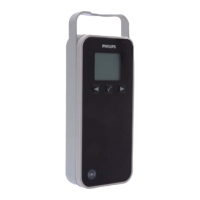
1 Full length INOP message
2 INOP indicator
If the volume of the INOP tone is set to zero, the following
symbol is displayed on the right icon tray of the Cableless
Measurement Device screen:


 To Next Page
 Loading...