Connecting a Cable/Satellite Box
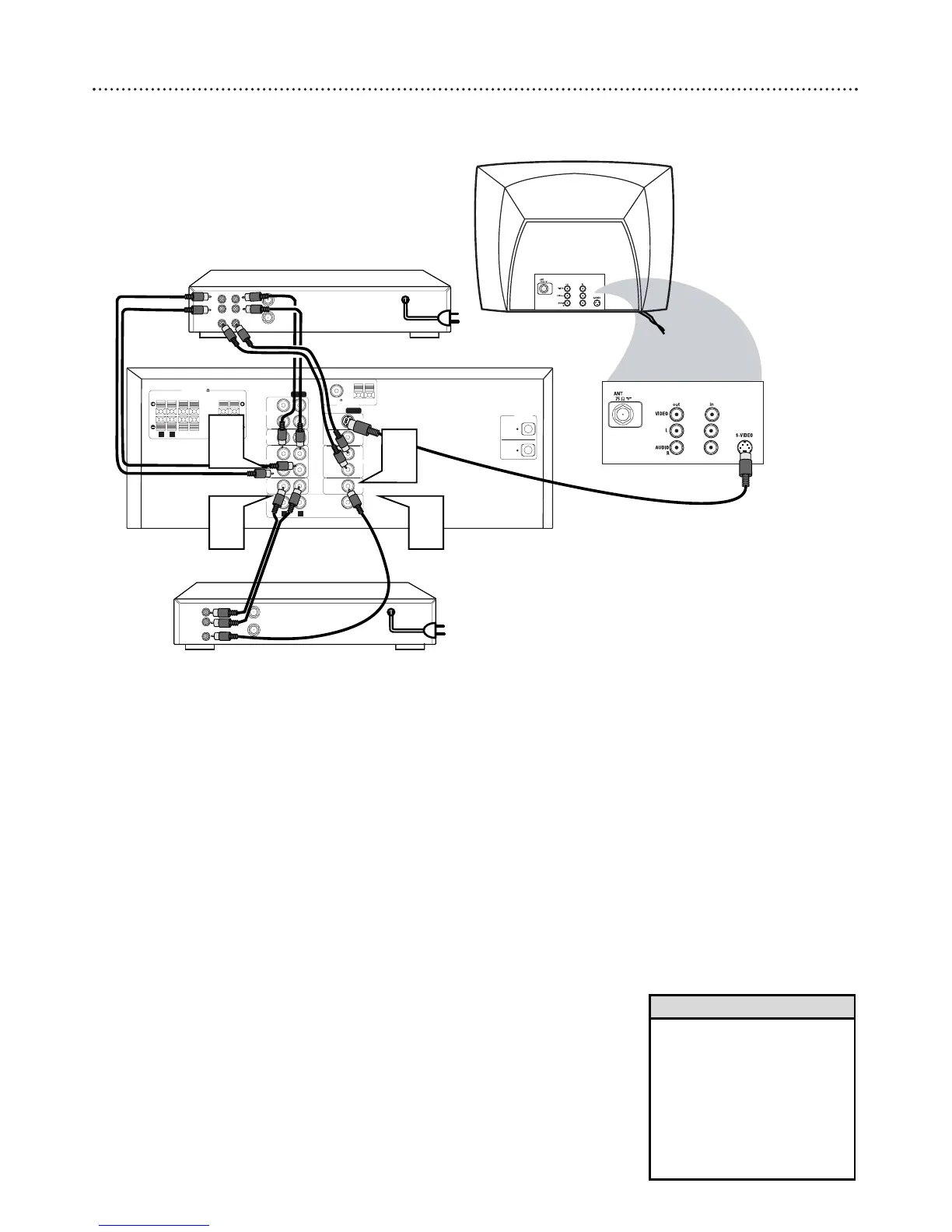
You must connect the VCR or cable/satellite box to the TV to view VCR
playback or cable/satellite channels. However, you can connect the VCR or
cable/satellite box to the receiver in order to hear surround sound play-
back.
Always refer to owner’s manual of the other equipment for complete con-
nection and use details.
1
Connect the DVD Receiver’s VIDEO SAT IN jack to the
VIDEO OUT jack on the cable/satellite box.
2
Connect AUDIO-SAT (L/R) jacks to the AUDIO OUT jacks on
the cable/satellite box.
●For a digital connection, connect the OPTICAL-SAT IN jack to
the DIGITAL OPTICAL OUT jack on the cable/satellite box.
Connecting a VCR
3
Connect the DVD Receiver’s AUDIO VCR OUT L/R and
VCR IN (L/R) jacks to the AUDIO IN (L/R) and AUDIO OUT L/R
jacks on the VCR.
4
Connect the DVD Receiver’s VIDEO VCR OUT and VCR
IN jacks to the VIDEO IN and VIDEO OUT jacks on the VCR.
• The receiver only uses all of the
surround sound speakers when
the incoming audio (from a
VCR, cable, or satellite) is in
surround sound format (Dolby
Digital, DTS, Dolby Pro Logic).
If the audio signal is in stereo
format, some of the speakers
will not be active.
Helpful Hints
12
3
4


 To Next Page