Adjusting the Volume
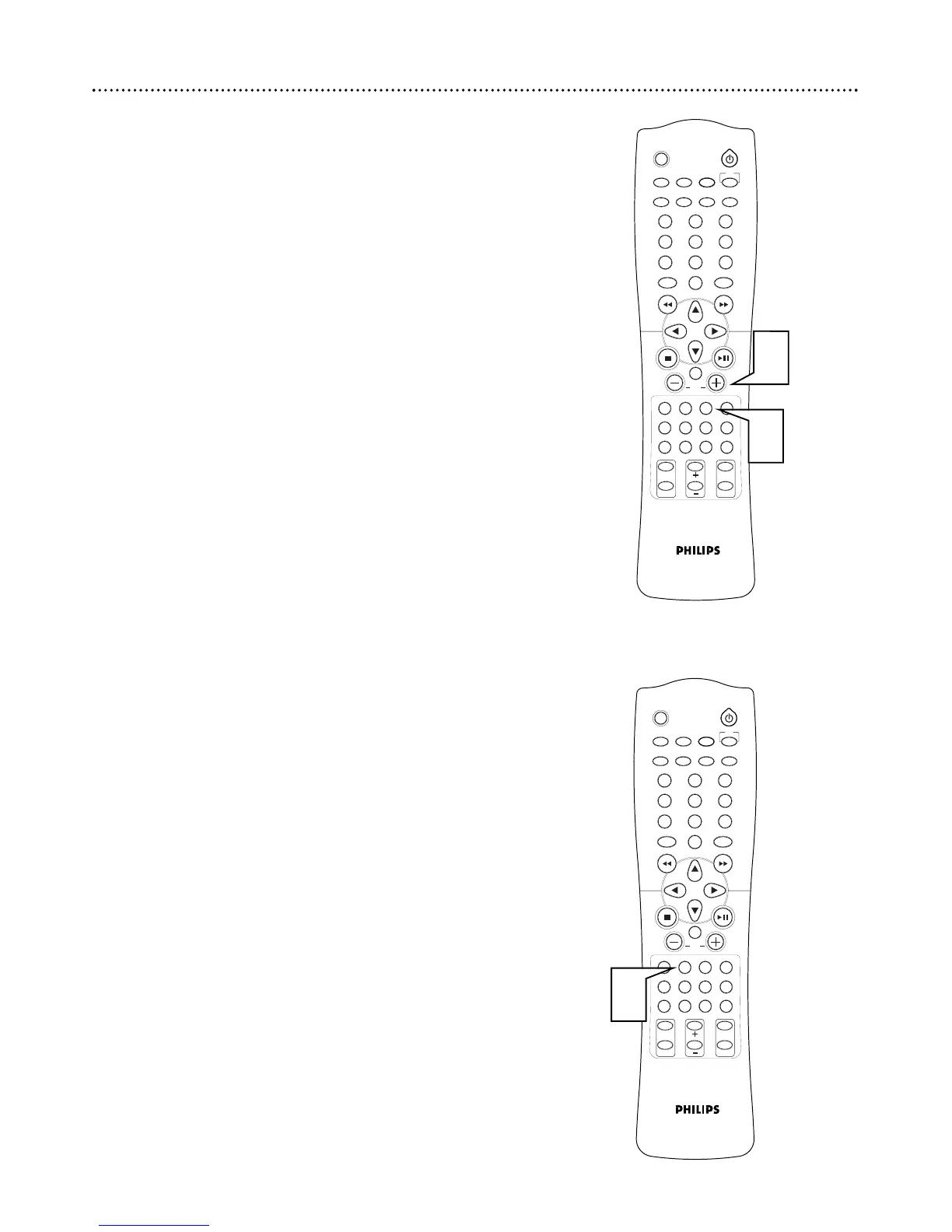
Turn the VOLUME dial on the DVD Receiver (or press VOL +/- on the
remote) to increase or decrease the volume level of the DVD Home
Cinema System.
● “VOL XX” will appear on the display panel, with “XX” being the specif-
ic volume level.
● If you have a Philips TV, press TV VOL +/- on the remote to adjust the
TV’s volume level.
● To listen through headphones (not supplied), connect the headphones
to the ; jack on the front of the DVD Receiver. The speakers will be
muted.
● Press MUTE to turn off the volume. Playback will continue without
sound. MUTE will appear on the DVD Receiver’s display panel. Press
MUTE again to restore the sound.
SLEEP
MUTE
DVD/CD TV/AV TUNER
TV
CDRAUXSATVCR
MENUMENU
DISC
SYSTEM
OK
VOL
TITLE
ANGLE
ZOOM
LANGUAGE
NIGHT
PICTURE
RETURN
SPEAKER
SURROUND VIRTUAL TONE TEST TONE
G U I
REPEAT
SUBTITLE
PROGRAM
SLOW MOTION
AUDIO
123
456
78
0
9
II
Audio and Sound Features 31
SLEEP
MUTE
DVD/CD TV/AV TUNER
TV
CDRAUXSATVCR
MENUMENU
DISC
SYSTEM
OK
VOL
TITLE
ANGLE
ZOOM
LANGUAGE
NIGHT
PICTURE
RETURN
SPEAKER
SURROUND VIRTUAL TONE TEST TONE
G U I
REPEAT
SUBTITLE
PROGRAM
SLOW MOTION
AUDIO
123
456
78
0
9
II
1
2
1
Selecting Virtual Sound Effects
Virtual Sound Effects let you enhance your favorite music or soundtrack.
Select a preset audio mode that matches your Disc’s content or that opti-
mizes the sound of the musical style you are playing.
1
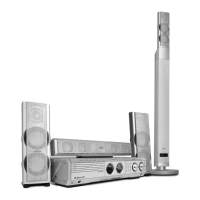
Press VIRTUAL repeatedly to choose a sound effect.
● STADIUM recreates a large stadium effect using long
reverberation times.
●HALL recreates a concert hall suitable for orchestral music.
●THEATER uses the speakers to recreate a theater environment,
emphasizing the front channels.
Adjusting the Tone
The Tone controls let you adjust the low and high tones of the Bass and
Treble.
1
Press TONE on the DVD Receiver to select the Bass or Treble
sound feature.
2
Within five seconds, turn the VOLUME dial to adjust the Bass
or Treble level.


 To Next Page