Title/Chapter Selection
DVDs may contain multiple Titles or Chapters.
1
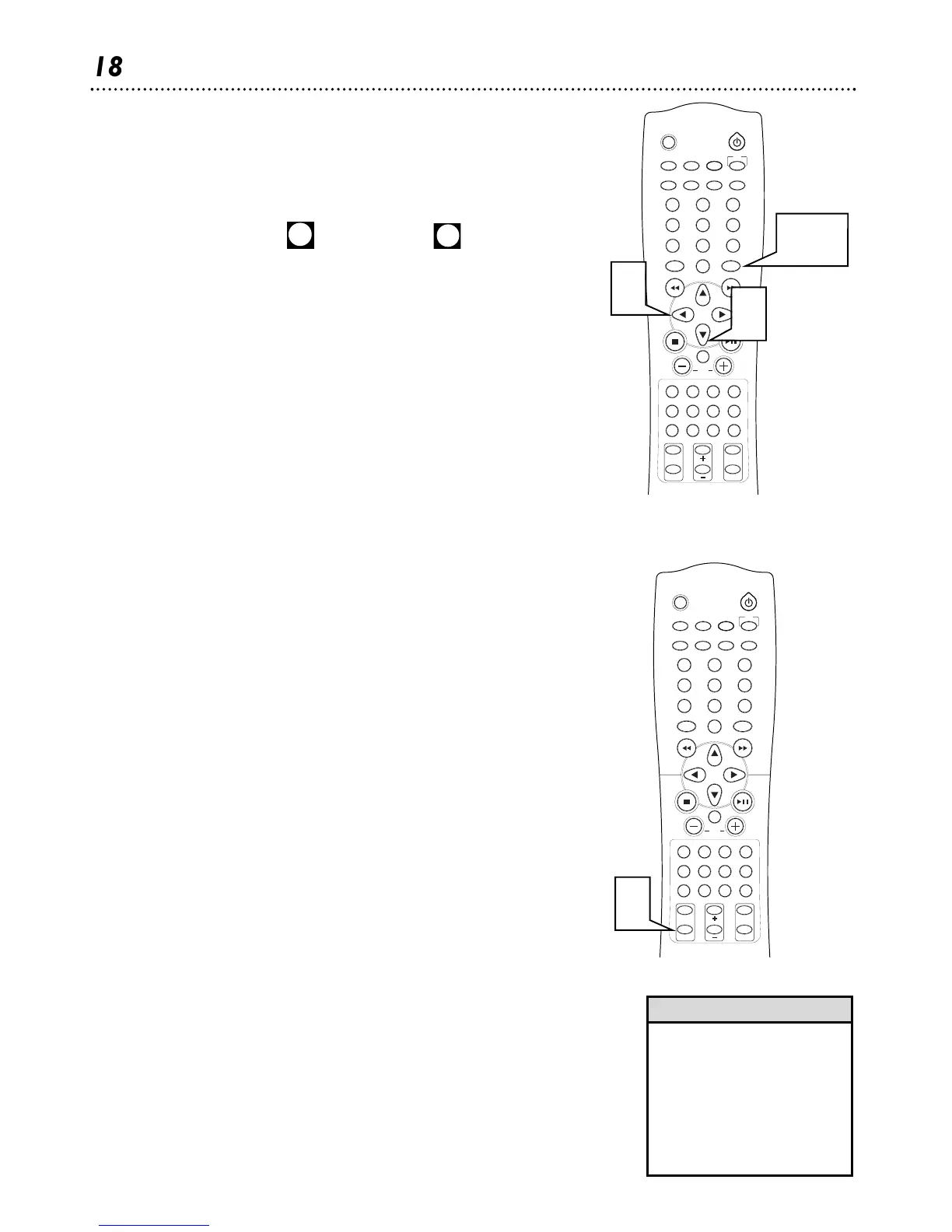
Press SYSTEM MENU.
2
Press ; or : to select (Title/Track) or (Chapter).
3
Use the Number buttons (0-9) to select a Title or Chapter
number, then press OK. The Title or Chapter you selected will
start playing automatically.
4
Press SYSTEM MENU to remove the Menu Bar.
18 Title/Chapter Selection, Subtitles
SLEEP
MUTE
DVD/CD TV/AV TUNER
TV
CDRAUXSATVCR
MENUMENU
DISC
SYSTEM
OK
VOL
TITLE
ANGLE
ZOOM
LANGUAGE
NIGHT
PICTURE
RETURN
SPEAKER
SURROUND VIRTUAL TONE TEST TONE
G U I
REPEAT
SUBTITLE
PROGRAM
SLOW MOTION
AUDIO
123
456
78
0
9
II
• Some DVDs may not allow you
to choose a Title or Chapter in
the DVD Receiver’s Menu Bar.
Choose the Chapter or Title you
want in the DVD’s Disc Menu
instead.
• Time Search of a Video CD is
not possible if Playback Control
is active.
Helpful Hints
SLEEP
MUTE
DVD/CD TV/AV TUNER
TV
CDRAUXSATVCR
MENUMENU
DISC
SYSTEM
OK
VOL
TITLE
ANGLE
ZOOM
LANGUAGE
NIGHT
PICTURE
RETURN
SPEAKER
SURROUND VIRTUAL TONE TEST TONE
G U I
REPEAT
SUBTITLE
PROGRAM
SLOW MOTION
AUDIO
123
456
78
0
9
II
Subtitles
Some DVDs provide subtitles in multiple languages. If so, you can select a
language in the Menu Bar. Check the DVD or its case to make sure subti-
tles are available in the language you want.
1
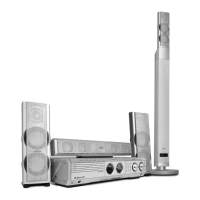
Press SUBTITLE during playback to select the subtitle lan-
guage. To turn off the subtitles press SUBTITLE until “OFF” is dis-
played.
1-4
2
3
1


 To Next Page