16 Philips · HDP2510
4 Connect to the playback device
If no input source is found or connected
a message appears: NO SIGNAL
Connecting to devices with
HDMI output
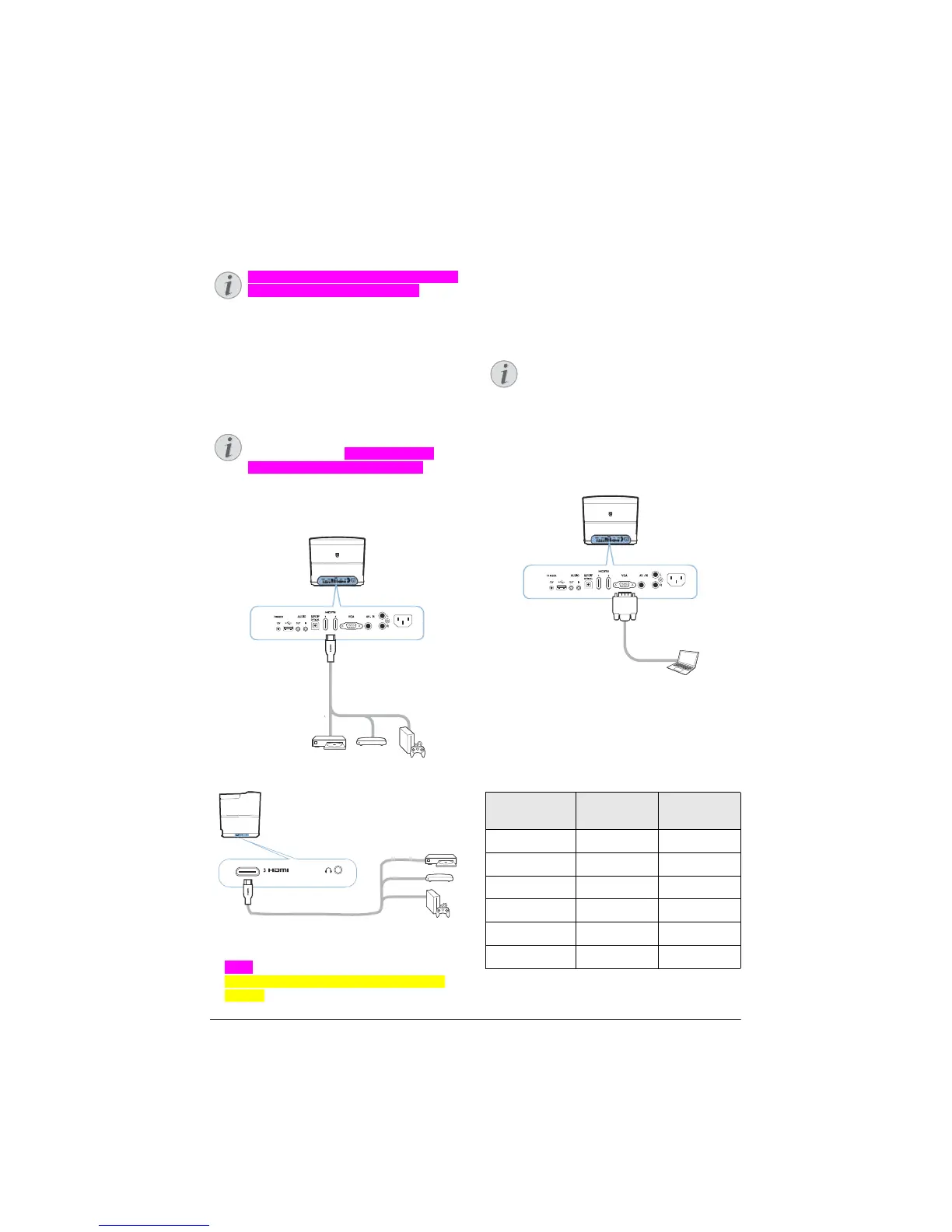
Use a HDMI cable to connect the projector to a
Blu-ray player, set-top box or gaming console.
Use any of the HDMI sockets to connect
the projector to a playback device
when a 3D signal is broadcasted.
1 C
onnect the cable to one of the projector's
HDMI sockets on the rear or side of the
device.
2 Connect the HDMI plug to the HDMI socket of
the playback device.
3 From the Option menu, select HD
MI 1,2 or 3
depending on the external device is con-
nected.
Connecting to a computer
(VGA)
Use a VGA cable to connect the projector to a
computer, laptop or other devices.
Many laptops do not activate the exter-
nal video output automatically when
you con
nect a second display such as a
projector. Check your laptop's user
manual to find out how to activate the
external video output.
1 C
onnect the VGA cable to the projector's VGA
socket.
2 Connect the VGA plug to the VGA socket of
the computer.
3 Adjust the computer's resolution to the cor-
rect setting and switch the VGA signal to an
e
xternal monitor. The following resolutions
are supported:
Resolution Image refresh
rate
VGA 640 x 480 60 Hz
SVGA 800 x 600 60 Hz
XGA 1024 x 768 60 Hz
WXGA 1280 x 768 60 Hz
HD 1280 x 720 60 Hz
FULL HD 1920 x 1080 60 Hz
Notice
Notice
Notice





 To Next Page