24 Philips · HDP2510
5 When you press u, you will return to the
media player main screen.
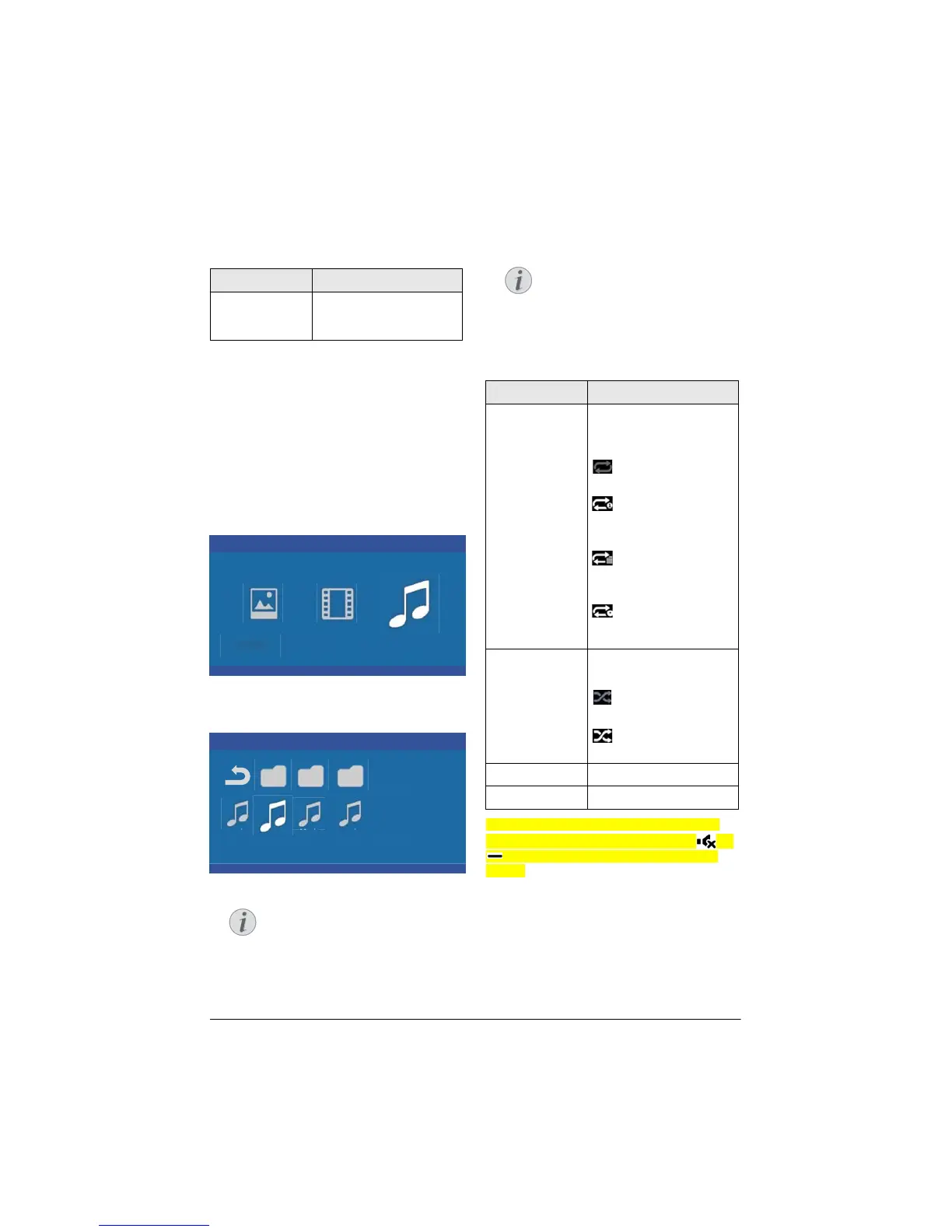
Navigation by colour keys
Keys Action
Red key Allows to set the slide
sp
eed: off, 3 sec, 5 sec,
10 sec
Music playback (optional)
The projector can be used as Bluetooth
speaker. In this mode, you can play music from
smart phones, tablets or other devices (see
Bluetooth speaker, page 20).
Supported file formats
Supported file formats are MP3 and WAV.
1 To disp
lay the photos content, select Music
using the keys À/Á.
Media Player
Photo Movie Music
1 Use / to select the music file that you
wish to play.
Music
USB/Music2 1/1
Music MusicMusic
Only those music that are compati-
ble with the projector will be dis-
played.
2 Press OK to start the playback. The title or
information is shown for two seconds.
The playback can be paused with
OK. To stop the music press BACK
button.
3 When you press u, you will return to the
media player main screen.
Navigation by colour keys
Keys Action
Red key Allows to set the repeat
mode: off, song, direc-
tory, all
: Play mode deacti-
vated (greyed).
: Plays only the
selected music or movie
in loo
p.
: Plays all musics or
movies in the selected
dire
ctory in loop.
: Plays all musics or
movies in the media in
loo
p.
Green key Allows to set the shuffle
m
ode: on, off
: Shuffle mode deac-
tivated (greyed).
: Shuffle mode acti-
vated.
Yellow ke
y Fast forward for music.
Blue key Fast backward for music.
During playback you can adjust the volume
us
ing the VOLUME buttons (+/-). Press
or
repeatedly to shut off the volume com-
pletely.
Notice
Notice





 To Next Page