Overview 9
Browsing the user interface
Navigation for menu
1 Navigation can be done by navigation keys
(,, À,Á, OK and ¿) on the panel
control of your device or on the remote
control.
2 Th
e chosen setting is always highlighted with
a bar and the font is changed to black.
Im Folgenden wird die Navigation mit
der Infrarot-Fernbedienung (IR) bes-
chrieben. Below the navigation with the
infra
red remote control is decribed.
Navigation by keys:
• /
– Scrolls trough the menu level up
and down.
• À/Á –
Modify settings / confirms selec-
tion (depending on which menu)
•OK – Confirms selection / goes one level
down.
In the final level, acce
pts a setting and
goes back to the last sub menu (depend-
ing on which menu).
• ¿ – G
oes one level up.
The ¿ k
ey aborts a setting or exits the
menu (depending on which menu).
Option menu and Short cut
menu
Settings can be done in the Option menu or in
the Short cut menu.
Option menu
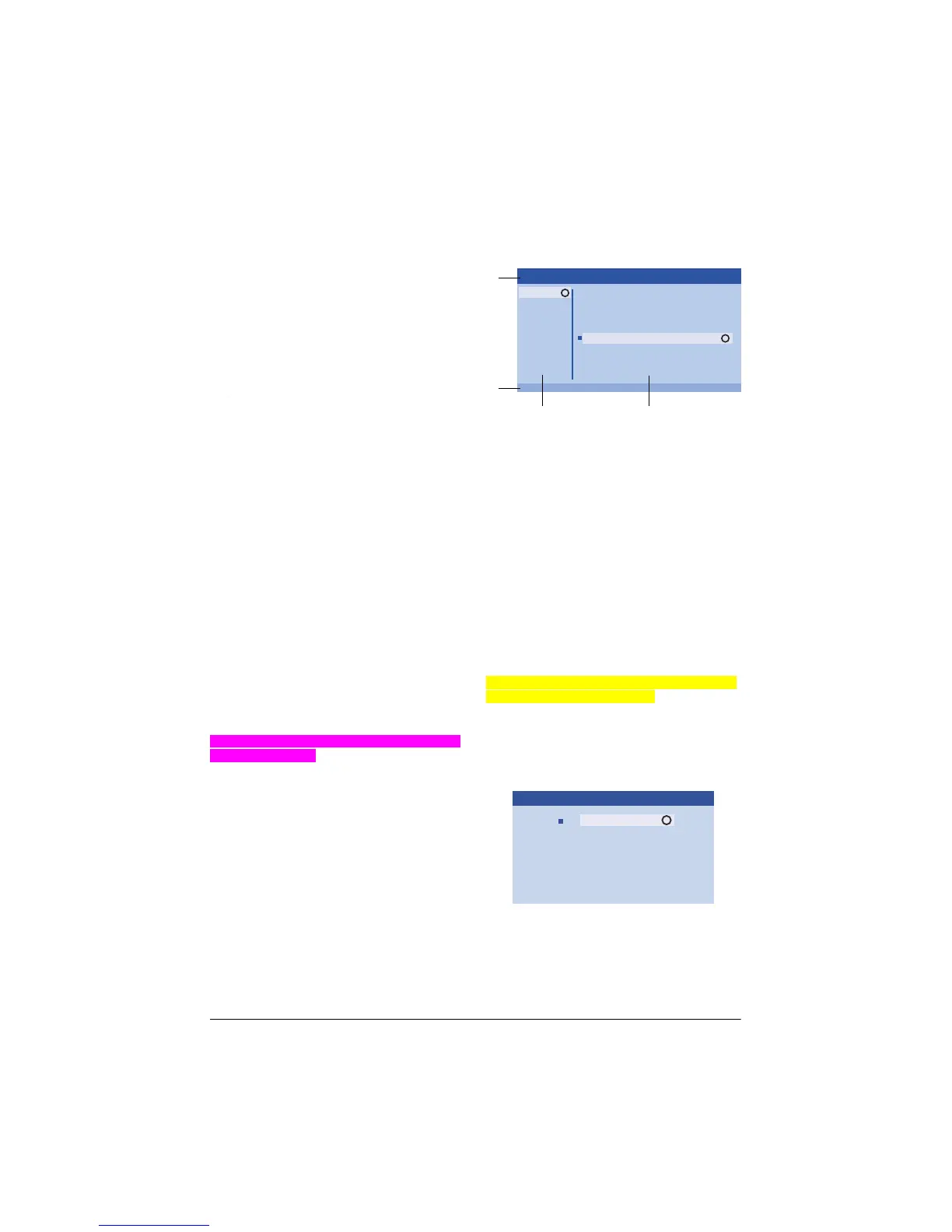
1 Select the Option menu using the OPTION
button.
OK
OK
OK
Source
Image
3D
Sound
System
Information
HDMI1
HDMI2
HDMI3
VGA
AV-In
Bluetooth speaker
Source settings
a
d
c
b
HDMI1
1 Top bar
Select the desired setting with / and
confirm with OK.
4 Sub menu
Additional settings can be done. Select the
desired setting with //À/Á and con-
firm with OK.
Short cut menu
Für die Schnellauswahl stehen Ihnen folgende
Kurzwa
hl Menüs zur Verfügung: Source, Smart
Settings, Format and 3D.
The Short cut window always opens in the right
corner.
1 S
elect the Short cut menu using the related
button (for example SOURCE button).
HDMI 1
HDMI 2
HDMI 3
VGA
AV-IN
Blutetooth speaker
OK
Source
Notice






 To Next Page