Service 31
Troubleshooting
Power cycling
If a problem occurs that cannot be corrected
with the instructions in this user manual, follow
the steps given here.
1 Turn the device off by pressing twice the B
button.
2 Wait at least ten seconds.
3 Turn the device on by pressing once the B
button.
4 If the problem repeats, please contact our
technical customer service or your retailer.
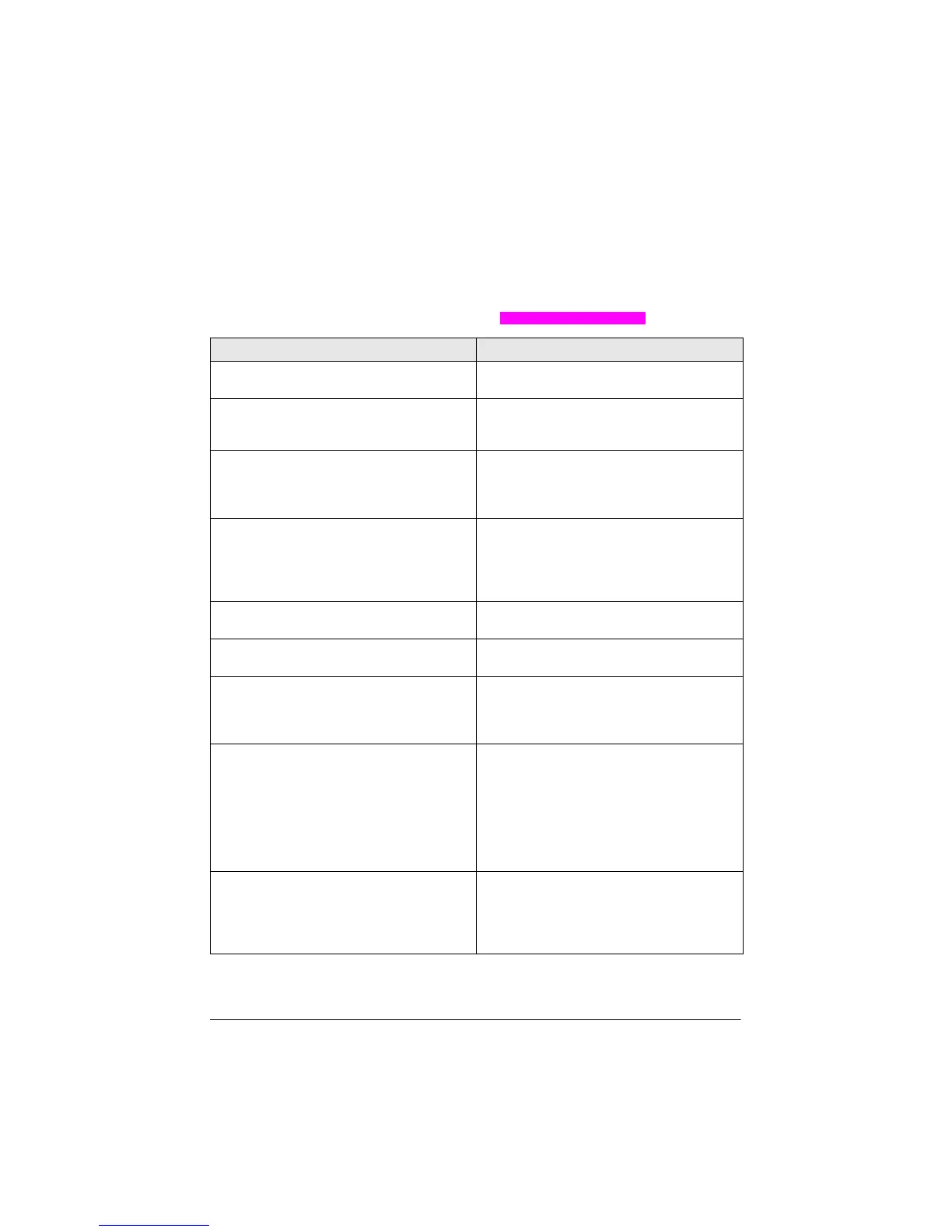
Problems Solutions
The projector cannot be turned on • Disconnect and connect the power supply
cable and try to turn it on again.
The projector cannot be turned off
• Push the B button longer than ten seconds.
If it does not work, disconnect the power
supply cable.
No sound • Check that the speaker is activated (see
Sound settings, page 26).
• Adjust the volume using the VOLUME buttons
(-/+).
No sound from the external connected device • Check the cables to the external device.
• Check that the sound is activated on the
external device.
• Only the original cables from the device man-
ufacturer may function.
No sound from external HDMI output device • Set the audio setting to Multichannel (Raw
data) & Stereo (PCM).
No sound when you connect your computer via
HDMI cable
• Check that the sound is activated on the
computer.
Video display problem when the source is a 3D
signal from a Blu-ray player
• Check that the 3D mode is activated on the
projector (see 3D settings, page 26)
• If the Blu-ray player is connected to the pro-
jector via HDMI, use any of the HDMI sockets.
Only the initial screen appears and not the image
from the external device
• Check if the cables are connected to the right
sockets.
• Check that the external device is turned on
• Check if the video output of the external
device is turned on.
• Check that the HDMI source selected on the
user interface corresponds to HDMI connec-
tor where the external device is connected.
Only the initial screen appears and not the image
from the connected computer
• Check that the VGA-output of the computer
is turned on.
• Check if the resolution of the computer is set
to 1920*1080 (for VGA-connection) or 1080P
(for HDMI-connection).





 To Next Page