Connect to the playback device 19
Update firmware with USB
storage medium
You can find the Screeneo firmware version on
the website Philips: www.philips.com/screeneo
1 Y
ou must download the file on USB storage
medium in order to update your projector.
Do not turn off the device during the
update process!
Download from website
1 Launch an Internet browser, in the address
bar, type the address: www.philips.com/
screeneo
2 Se
lect your country and your language.
3 Cli
ck on View All 6 Products to select your
model: HDP2510
4 T
he Screeneo HDP2510 projector screen
appears. In the new screen, research Support
and click on Software & drivers.
5 I
n the Software & drivers screen select your
language and click Download file.
The file on the website is a zip file. It has
to be unpacked and put on the root
folder of the USB stick.
On the projector
1 Check that the device is connected to power
supply.
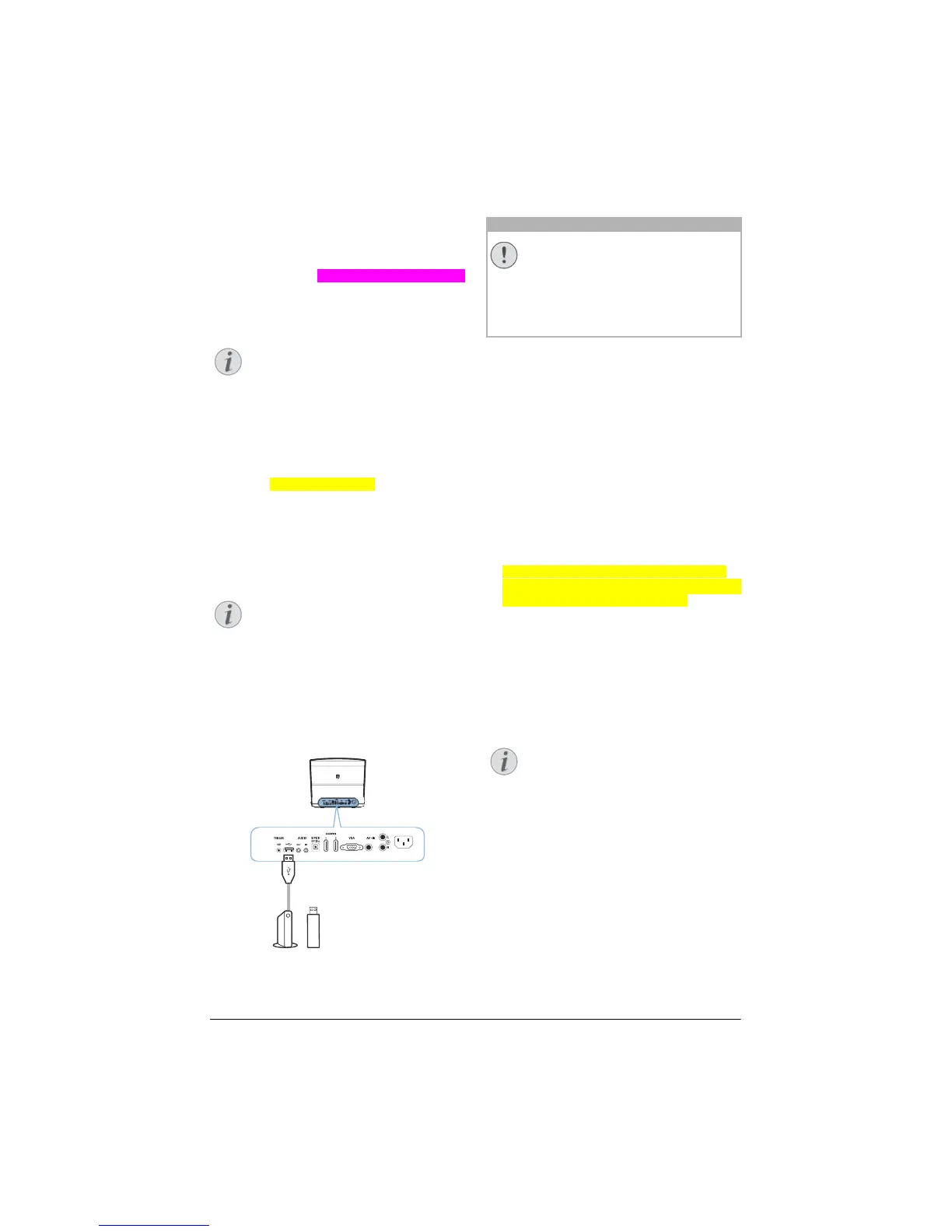
2 Conn
ect the USB storage medium to the pro-
jector's USB sock
et.
Never pull out the digital media while
the device is accessing it. This could
cause data to be damaged or lost.
Turn the device off in order to make
sure that the device does not access
the USB storage medium.
3 To turn on the projector, press once the
B button on the panel cont
rol of the device
or on the remote control.
4 Pr
ess the OPTION button and use / to
select System.
5 Confirm with OK.
6 Us
e / to select Firmware update.
7 Confirm with OK.
A message displays asking if you want to
update the new fi
rmware. Confirm with OK
(YES).
If no firmware was found on the USB stick or
if no USB stick is plugged in a message
appears.
Möchten Sie die Firmware nicht updaten,
verlassen Sie das Menü indem Sie mit À/Á
NO wählen und mit OK bestätigen.
8 A
message displays informing you that the
installation process will take some minutes
and that the projector will reboot during
installation. Confirm with OK.
9 T
he device turns off and on again. After a
short time the Language selection screen
appears. The firmware update is now com-
pleted.
If an error occurs during the firmware
update process retry the procedure or
contact your dealer.
Notice
Notice
CAUTION!
Notice





 To Next Page