wlan
17
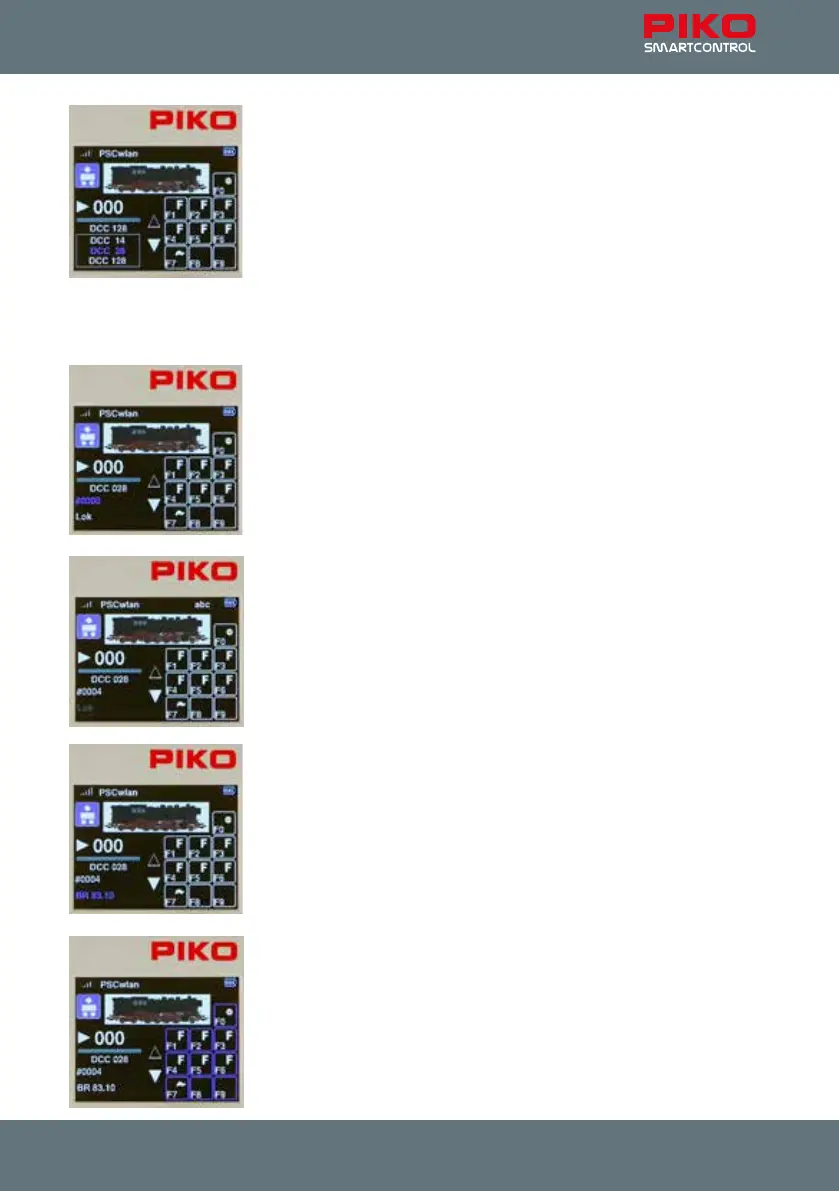
To set the number of DCC speed steps, move to the speed step display
under the speed bar using the "down button". This is now highlighted in blue.
Press the OK button to open the selection eld for DCC speed steps.
Now use the "down" button to select the desired number of speed steps and
conrm with the OK button.
If you plan to use the SmartController throttle with just one hand, then the 28
speed step setting is usually most comfortable.
NOTE: If you select the 14 step setting, which was common in the past, then your locomotive’s
headlight will not function properly using a current decoder. The 14 step setting will cause the headlight
to be switched on and o from speed step to speed step. If this happens, adjust CV 29, Bit 1 to 0.
To enter the locomotive’s DCC address after setting the speed steps, scroll
down to the next eld, which will now be highlighted in blue.
By pressing the OK button, the previous address becomes a sequence
of gray zeros, which can now be overwritten with the desired locomotive
address.
As with previous data entry, the address is saved by pressing the OK button.
At this point, the locomotive name can be changed. To do so, use the "down"
button to navigate down another line to highlight the previous name in blue.
By pressing the OK button, the old name is displayed in gray.
It can now be deleted character-by-character using the "left" navigation
button. Then the desired locomotive name is entered using the keypad in the
same way a telephone keypad is used to enter text.
If you want to switch between upper and lower case letters (the active
spelling appears in the top line of the display "abc / ABC"), you can do so by
using the "down" key.
Special characters are be found under the 0 and 1 keys. A space is inserted
with the "right" navigation key.
0: 0 . : ; % & [ ] { } ~ ` | #
1: 1 , ! ?-_+ / ( ) @$ ' " *=<> \ ^
Finally, the entry is conrmed by pressing the OK button.
The function keys can also be changed in each locomotive data set.
Function keys can be re-mapped, symbols/icons changed, and new function
keys up to F68 can be created.
To change the functions of the current locomotive, press the "right"
navigation button. Now all functions are displayed in blue



 To Next Page