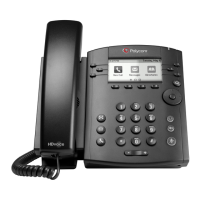
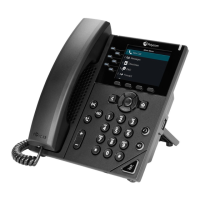
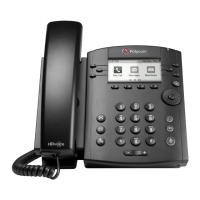
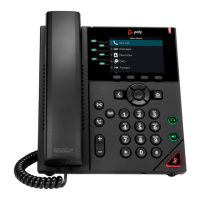
End User 10
Messages — On the Phone
Comcast Business VoiceEdge voicemail enables you to manage your time without missing your calls. Callers can leave a message
while you’re on the phone, off-site, or just need phone-free time to focus on a project. If you are away from the office, you can opt to be
notified via email that you have messages waiting.
Setting Up Voicemail
To set up your new Comcast Business VoiceEdge voicemail service, follow these easy-to-use instructions. The first time you call into
your Comcast Business VoiceEdge voicemail, you will be asked to create a new password and record your name to personalize the
greeting that callers will hear when they reach your voicemail.
Note: Each line may have its own voicemail and would need to be set up individually.
First Time Voicemail Activation
From your office:
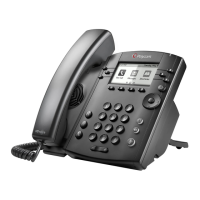
1. Press the “Messages” button on your phone or dial your extension or 10-digit telephone number.
2. A tutorial will guide you through the setup of your new voicemail service.
Note: You will be prompted to enter a password, which will be the “Be Anywhere/Voicemail PIN” listed on the welcome email that contained your VoiceEdge credentials.
Should you need this information resent, please contact your Technical Administrator or call Customer Care. Once you’re in the system, listen carefully to the
recorded instructions. You will be prompted to create a password, record your name and record a customized business greeting.
Setting Your Personalized Name
Press to record new Personalized Name.
Press to listen to current Personalized Name.
Press to delete Personalized Name.
Press to return to the Main Menu.
Press to repeat the Main Menu.
Accessing Voicemail
There are three ways to access your voicemail:
From your office:
1. Press the “Messages” button on your phone or dial your 3-4 digit extension or 10-digit telephone number.
From your desktop:
1. Click the “Dial Voicemail” icon on the Telephony Toolbar. Or visit business.comcast.com/bveportal to access voicemail online.
Away from your office:
1. Dial your office telephone number.
2. When your personal greeting starts, press .
3. Enter your password when prompted.
Managing Voicemail
When you access Comcast Business VoiceEdge voicemail by phone, you will be in the Main Menu. This menu will prompt you with a
set of options to use in managing your messages. Once you’ve made a selection from the Main Menu, you will hear prompts to guide
you through further options. The following is a list of options available to you from the Main Menu.
Main Menu options:
Press to access voice messaging.
Press to record a personalized name.
Press to change call forwarding options.
Press to change passcode.
Press to exit voice portal.
Press to repeat the Main Menu.
Once you’ve made a selection from the Main Menu, you will hear prompts to guide you through further options.
Message options:
Press to review your new messages. While playing the message you can:


 To Next Page