End User 23
Call Notify
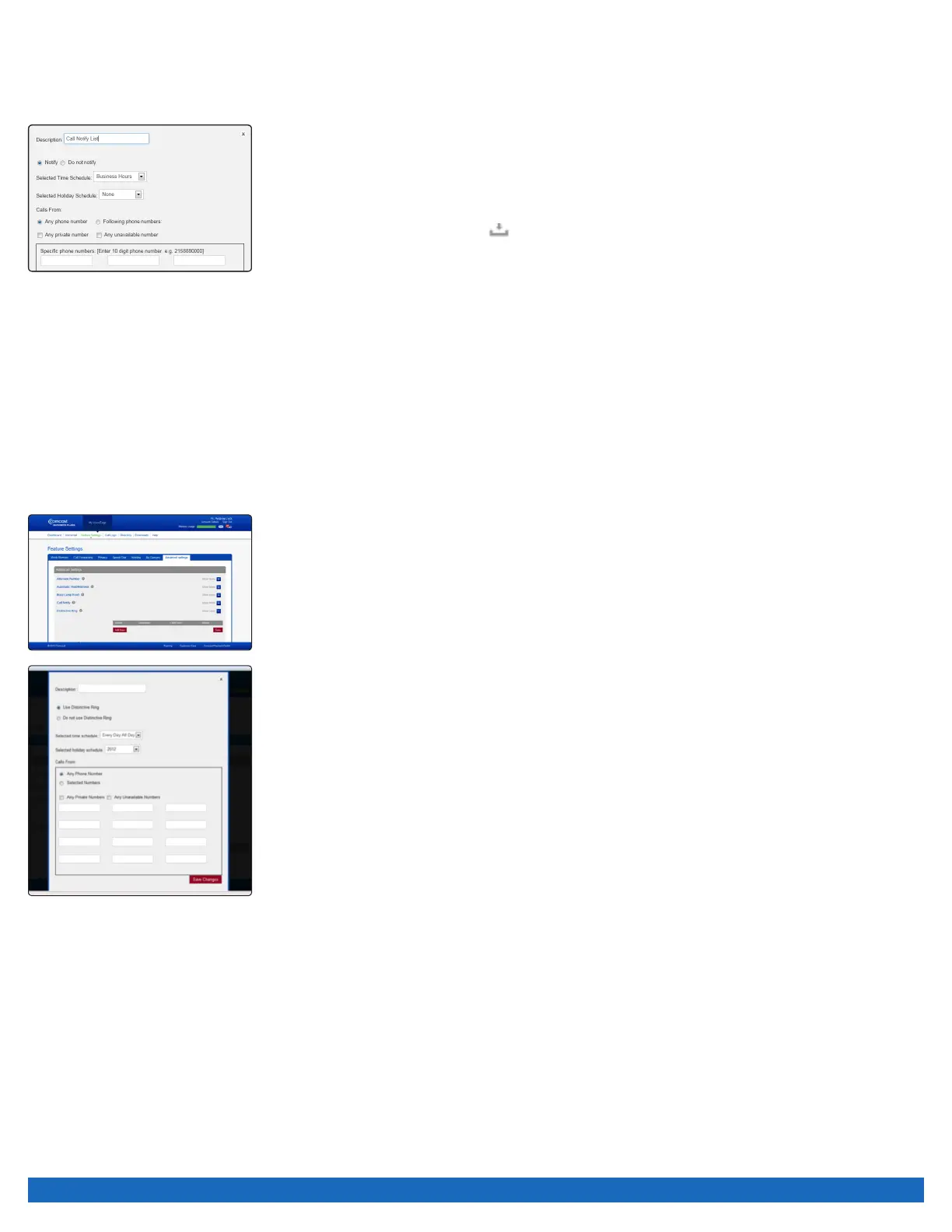
There are certain incoming calls you want to know about as soon as possible. Call Notify sends an email when specific calls you
designate come in. You specify the pre-defined criteria such as phone number, time of the day or day of the week. Call Notify will send
an email only when all of the pre-defined criteria are met.
To set up Call Notify:
1. Log on to business.comcast.com/bveportal.
2. From the Main Navigation Page, select “Feature Settings”.
3. Click “Advanced Settings”.
4. Next to Call Notify, click the to show more, and then click “Add New”.
5. Enter a title to describe the specific criteria.
6. Enter the timeframe and holiday schedule.
7. Enter up to 10 specific phone numbers.
8. Click “Save Now”.
Note: Once your Call Notify settings are established, you can turn the feature on or off by selecting either the “Notify” or “Do Not Notify” buttons.
Distinctive Ringing
Distinctive Ringing enables you to make your phone utilize a different ring tone based on pre-defined criteria. Use this service if you
want to know when anyone from a specific company calls or any member of a group is working on a critical project. Distinctive Ringing
can be a list of up to 12 phone numbers or digit patterns as well as a specified time schedule. All criteria for an entry must be true for the
phone to ring with a different tone (phone number plus day of the week and time of the day).
To set up Distinctive Ringing:
1. Log on to business.comcast.com/bveportal.
2. From the Main Navigation Page, select “Feature Settings”.
3. Click “Advanced Settings”.
4. Next to Distinctive Ringing, click “Show more”.
5. To create a new Distinctive Ringing treatment, click “Add New”.
6. Enter a Description (or name).
7. Click “Use Distinctive Ring”.
8. Select “Time Schedule” or “Holiday Schedule” (if applies).
9. Select “Any Phone Number” or “Selected Numbers”.
10. If “Selected Numbers” was selected, provide numbers that when they call you, Distinctive
Ringing treatment will be applied.
11. Click “Save Changes”.
Hoteling
Hoteling allows users to associate their service profiles with devices other than their own. For example, your enterprise can set
up a visitor’s office with a phone. The user account associated with this phone would have the Hoteling Host service assigned. A
salesperson, with the Hoteling Guest service assigned, can associate their service profile with the phone in the visitor’s office for when
that employee is using that phone.
Hoteling consists of two separate services, Hoteling Host and Hoteling Guest. The first service, Hoteling Host, is used to designate
a particular user as a host and is a feature of the Unified Communications seat, allowing other users, with the Hoteling Guest service
assigned, to associate their service profile with the Host user’s device. The second service, Hoteling Guest, is used to allow a Hoteling
Guest user to associate their service profile with a Hoteling Host user’s device.
Note: A user who is both a Hoteling Host and a Hoteling Guest cannot associate their Hoteling Guest service to themselves as a Host. Therefore, even if you are
provisioned with both, Hoteling Guest and Hoteling Host services; when you as a Hoteling Guest, list all available Hoteling Hosts, your name does not appear in
the list of available Hosts.


 To Next Page