End User 30
Voicemail
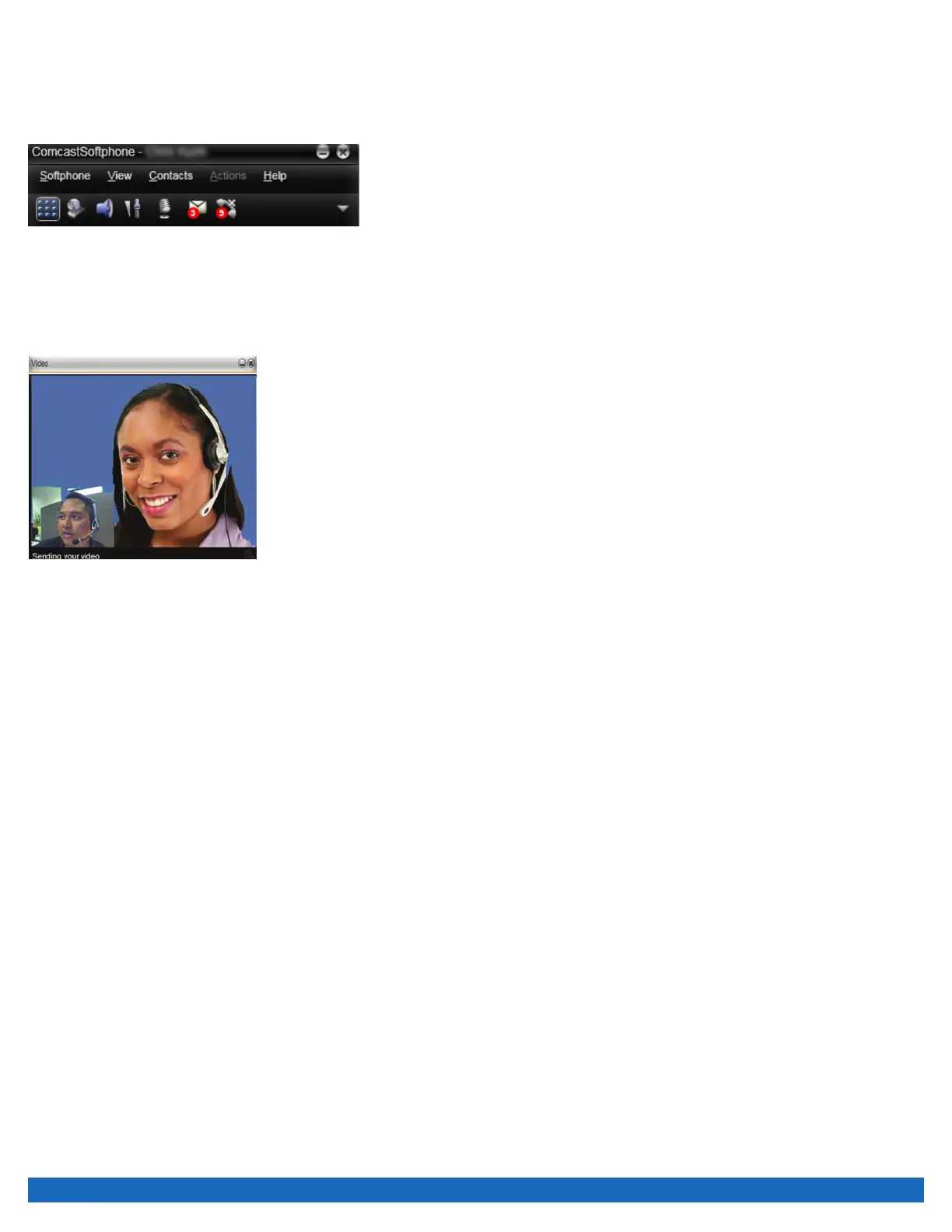
If your service includes voicemail, then when you have voicemail messages, an envelope icon will appear near the top of your
Softphone and will indicate the number of voice messages you have. Click the icon to automatically connect to voicemail to listen to
your messages.
Note: To enter in your passcode for the voicemail system you must click in the call status window prior to entering in your passcode.
Adding Video to Your Call
Either you or the other party can add video to your active call at any time during the call. To add video click the “Start Sending Your
Video” button. This will send your video to the other party (if they have video capability). A video panel will open and show the video
being sent in the corner and if the other party is sending video they will be in the larger image. The video panel is separate from the
Softphone panel.
Pausing and Resuming Video
To pause or resume video, click the camera icon to stop sending your video.


 To Next Page