End User 20
Automatic Callback
When enabled in the Web portal, you are prompted to activate Automatic Callback when you get a busy signal while calling another
intra-group user. This feature will monitor and notify you with a distinctive ring when the user becomes available.
Push to Talk
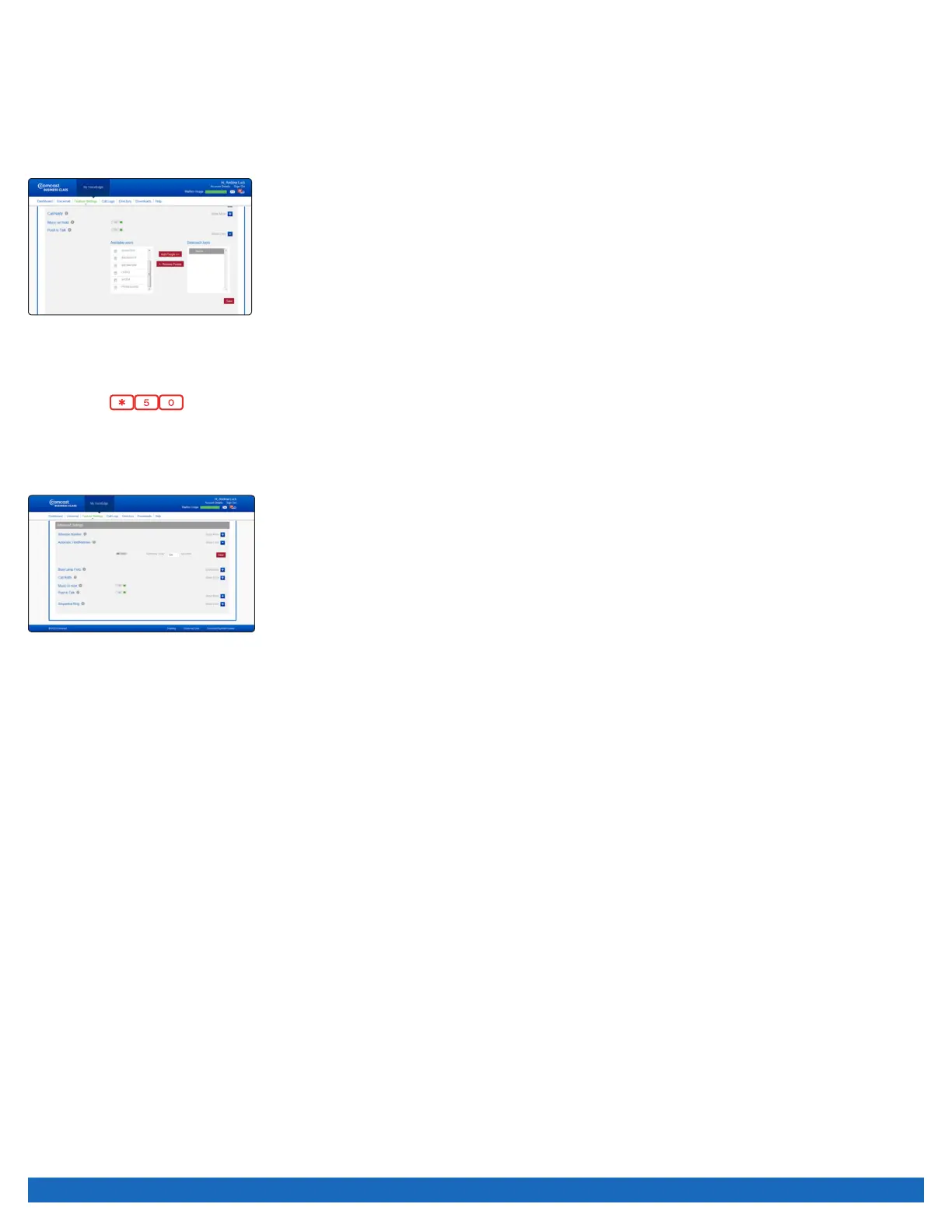
Push to Talk allows people to call each other and have the phone answer automatically via the speaker phone. You can control which
users call you this way through the VoiceEdge portal.
To set up Push to Talk:
1. Log on to business.comcast.com/bveportal.
2. From the Main Navigation Page, select “Feature Settings”.
3. Click “Advanced Settings”.
4. Next to Push to Talk, click “Show more”.
5. Check the box next to the users that you want to call using Push to Talk.
6. Click on “Add People”.
7. Click “Save”.
Note: Once your Push to Talk settings are established, you can turn the feature on or off by selecting “On” or “Off”. To make a Push-to-
Talk call, press
on your phone, and the user’s extension for any person that has added you to their Push to Call list.
Automatic Hold and Retrieve
The Automatic Hold and Retrieve service provides an alternate method to hold and retrieve calls without using feature access codes or
flash hook.
To set up Automatic Hold and Retrieve:
1. Log on to business.comcast.com/bveportal.
2. From the Main Navigation Page, select “Feature Settings”.
3. Click “Advanced Settings”.
4. Next to Automatic Hold and Retrieve, click
“Show more”.
5. To turn on Automatic Hold and Retrieve, turn the switch to “On”.
6. Select the number of seconds to hold, between six and six hundred.
7. Click “Save”.


 To Next Page