End User 27
Login
Installation and First Time Login
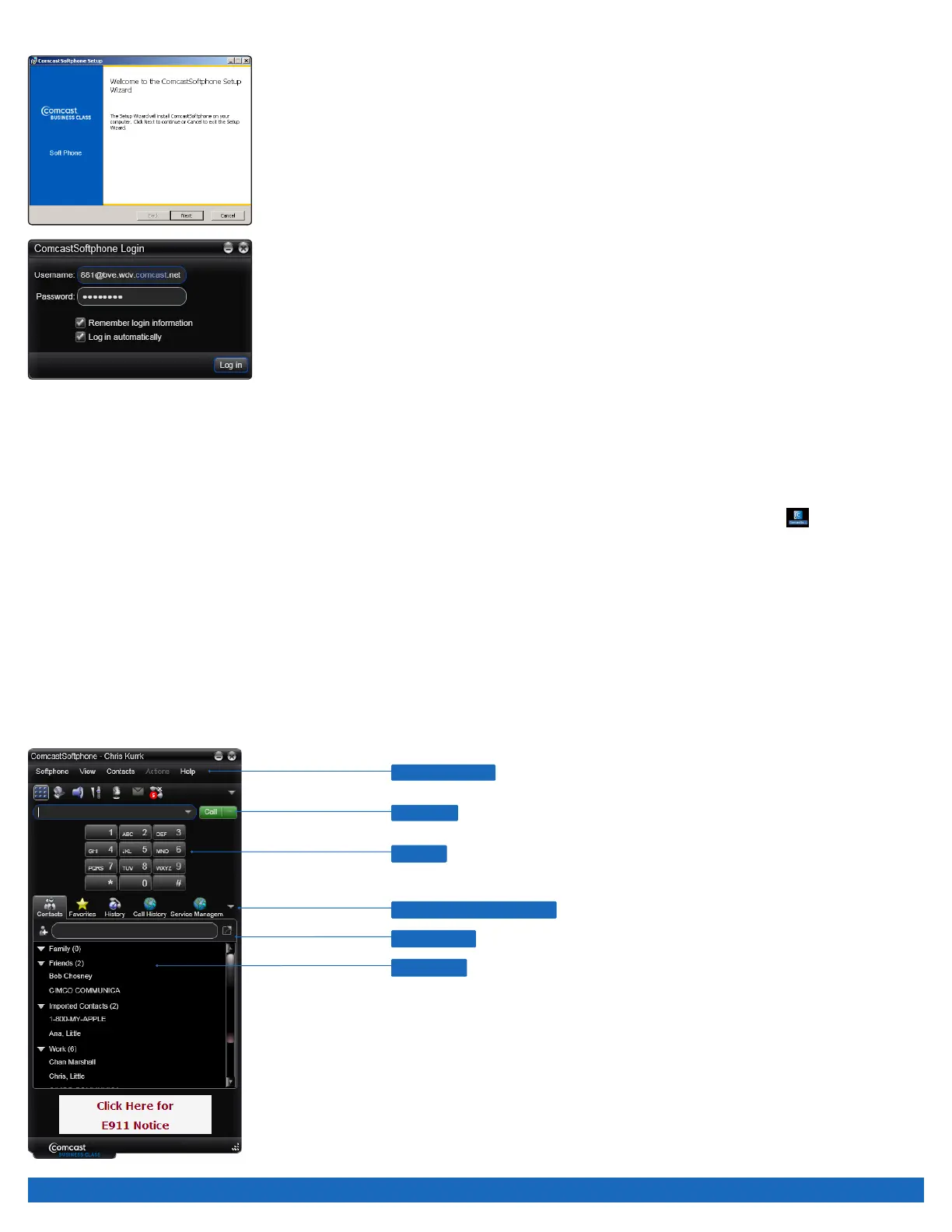
1. Login to business.comcast.com/bveportal, and click the “Downloads” tab.
2. Click on the link for the appropriate Softphone - either Windows or MAC. If the Softphone
downloads do not appear on the download page, please call our support group at 877-761-
7401.
3. Select “Run”, and select “Run” again.
4. Select the language from the pull down list (English is the default).
5. Click on “Next” on the install wizard.
6. Read and check your acceptance of the terms of the end user license agreement, then click
“Next”.
7. On the Destination Folder, accept the Destination
folder provided:
a. Select “Create a shortcut for this program on the desktop” if you’d like an icon on desktop
to launch the program.
b. Select “Launch this program when Windows starts” to have this program run every time you
log into Windows.
c. Select “Create a shortcut in Quick Launch” if you want this available in the “Start” menu.
8. Select “Next” to continue installation when you have completed your selections.
9. Click “Install” to begin the installation process.
10. Click the “Finish” button to complete installation. Locate the Softphone on your desktop with the following icon .
11. The first time you login, in the username field enter your username which is your portal login with the following appended to the
username: @bve.wdv.comcast.net (For Example if your portal login is 630432331 than your Softphone login will be 630432331@
bve.wdv.comcast.net. Your password will be the same as your portal password).
12. In the Password field enter the password.
13. To have your computer remember your username and password select “Remember login information”.
14. To have your computer automatically login and launch the application, check “Log In Automatically”.
15. Press the Login button.
Softphone Basics
Softphone Menu
Detach Panel
Call History
Additional Panel Selections
Call Panel
Dial Pad


 To Next Page