End User 12
Messages — Online
With VoiceEdge, some feature management is available through the portal, and this section will go through those features. From the
portal you can turn on and off specific features, listen to voicemail, review call logs, view your company directory and more.
1. To access the VoiceEdge portal, log on to business.comcast.com/bveportal.
2. Sign in with your user credentials provided in the Welcome Email, and the same credentials
used for the Telephony Toolbar.
3. The first time you login, you will need to set your security questions for quick and easy
password retrieval. Once the security questions are established, you will be directed to the
portal dashboard.
Note: Your username and password were emailed to you upon installation. Should you need this information resent, please contact Comcast Customer Care.
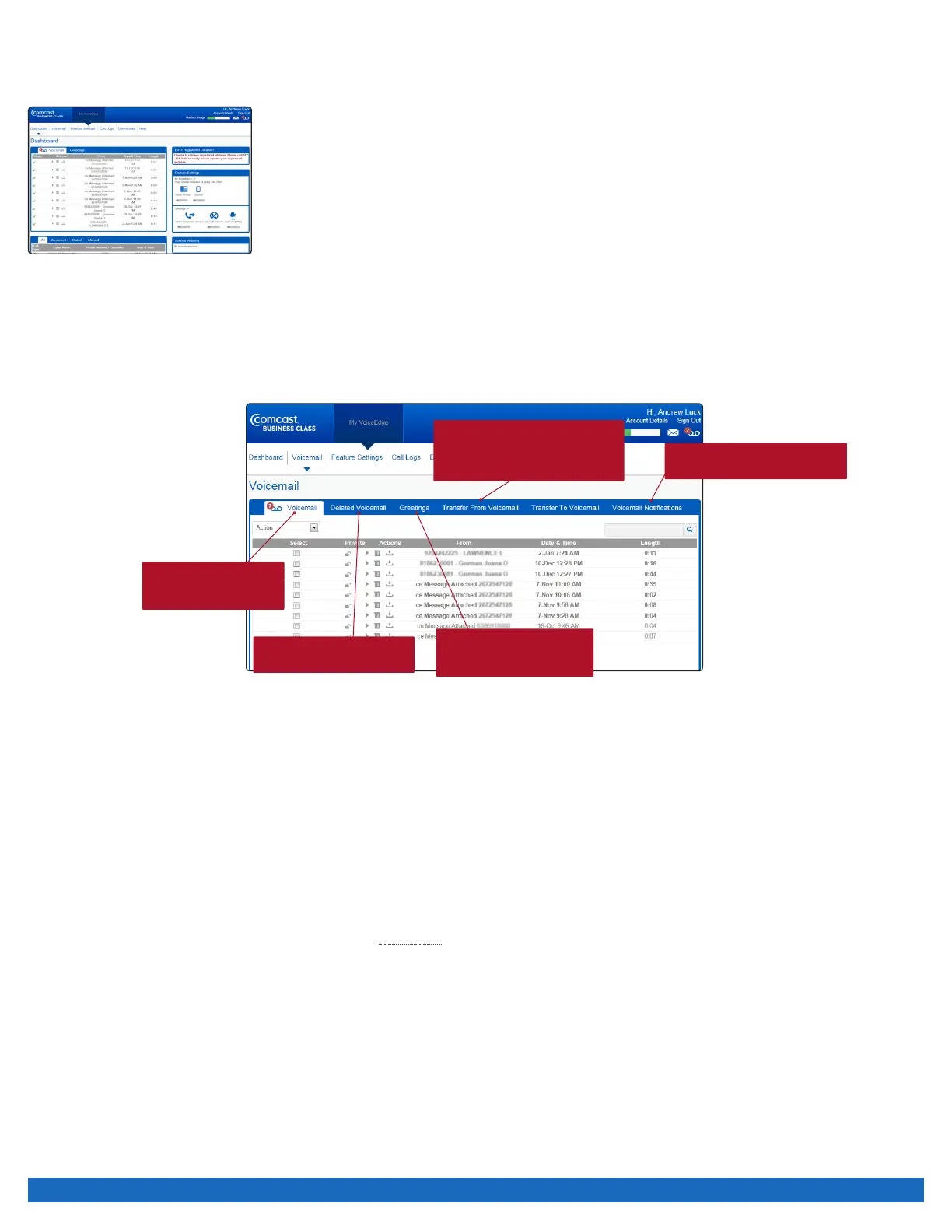
Listen, delete or download voicemail from either the dashboard or the voicemail section of the portal. The voicemail section of the
portal provides a more detailed view and the ability to listen to ALL your voice messages while the dashboard contains only your most
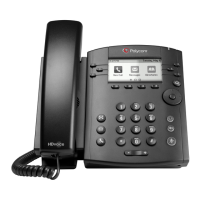
recent voice messages. To access the Voicemail section, click the Voicemail tab from the main VoiceEdge navigation. The different
tabs in the voicemail section grants you more control over your voicemail options. You may also record or upload a new voicemail
recording through the VoiceEdge portal. Please refer to the next section for more detail.
Greetings
The platform also allows you to record and upload personal WAV files as greetings to use when people reach your voice messaging
box. You may provide alternate no answer recordings, although you can access only one of these greetings at a time.
To record or upload greetings:
1. From the Voicemail Page, select the “Greetings” tab.
2. If you want callers to hear a standard greeting, select “Standard Greeting”.
3. To have callers hear your personalized greeting, select “Personal Greeting”.
4. Click “Record Your Greeting” to record using your computer microphone.
5. To upload a pre-recorded greeting, select “Upload Your Greeting”, and then browse for the appropriate file.
Note: To create a WAV file using your PC requires specific settings in Windows Sound Editor. The file must be saved using u-law 8-bit mono settings. To record your
greetings on your phone, please refer to the instructions on pages 11–12. The maximum greeting length is five minutes.
Set up email notifications
when voicemails are received
Set up a telephone number
or extension for callers to be
transferred to when they dial 0
at your message prompt
Listen, download, or
delete your recorded
voicemail messages
Stores deleted voicemail
until permanently deleted
Manage No Answer and
Busy greetings as well as
other greeting options


 To Next Page