Quick Start 5
Quick Start: VoiceEdge Common Basic Features
Get familiar with your new Business VoiceEdge service and phones by reading this quick start section.
Introduction to Your Phone
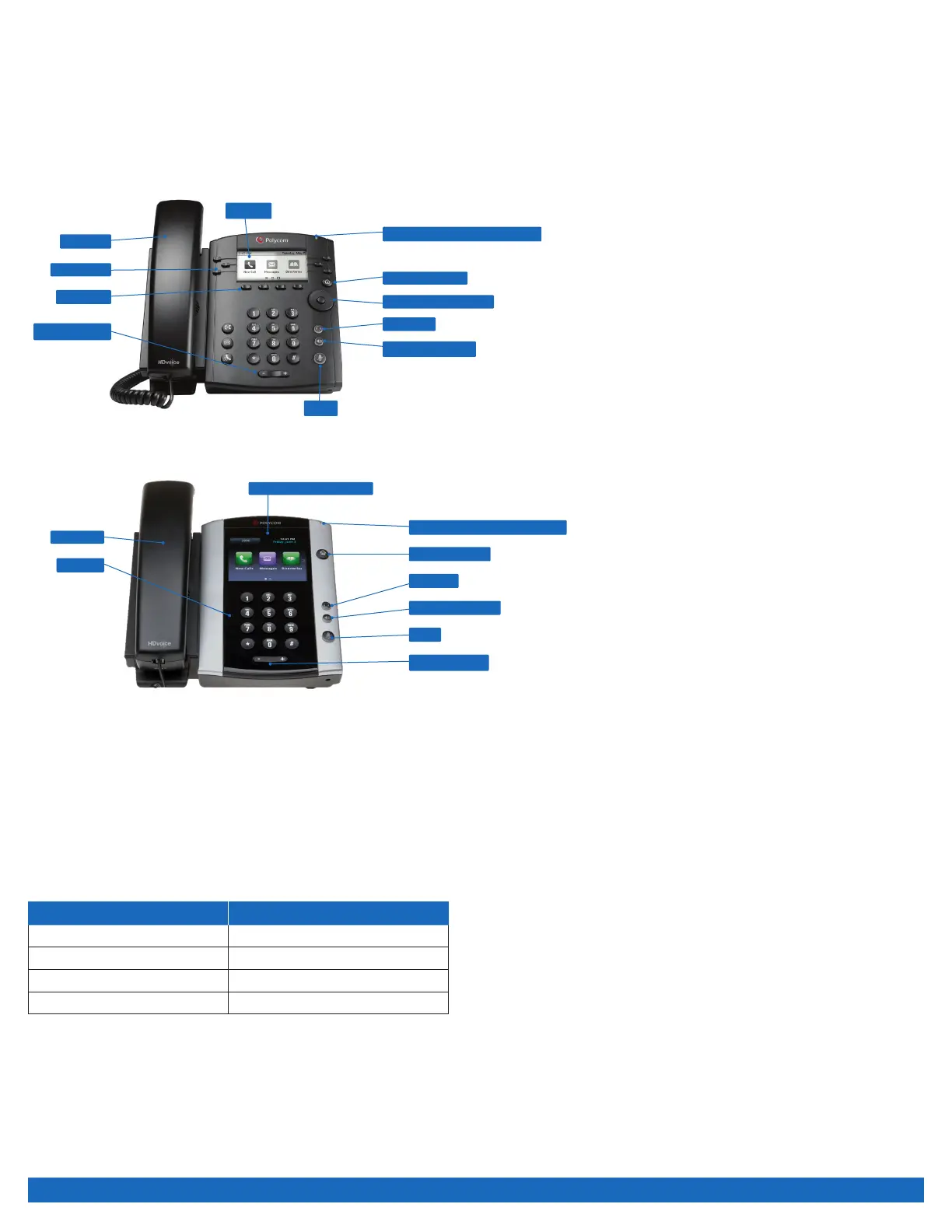
The Business VoiceEdge service comes with Polycom® IP Phones. Please refer to the diagrams below to get quickly introduced to
the buttons and functions of popular VoiceEdge phones.
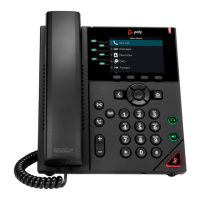
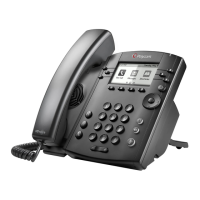
Polycom VVX310 Series Phone
Polycom VVX500 Series Phone
Touchscreen Display
Dialpad
Handset
Volume Keys
Mute
Speaker Phone
Headset
Home Button
Message Waiting Indicator
Additional supported phones include the Polycom VVX410 and VVX600. For more information on these devices, please visit
business.comcast.com/getstarted.
Users can use the navigation arrows as well as the soft keys to help navigate through each feature. The navigation arrows will be your
main tool for navigating the different setup menus while the soft keys will be used for more call related options.
Navigation Arrows
If you are not in any Menu lists your Navigation Arrows act as a quick access tool for your recent call logs. By pressing each of the
Navigation Arrows you can access Placed calls, Missed calls, Received calls and Speed Dial. All calls are ordered in order by time
stamp with the most recent appearing at the top of the list.
Arrow Key Call Log
▷ Right arrow Placed calls
▽ Down arrow Missed calls
◁ Left arrow Received calls
△ Up arrow Speed dial
Soft Keys
Your Polycom phone is equipped with a number of soft keys. The soft keys are the buttons directly below the screen, and the display
changes depending on the current call state. For example, if you are on a call, the soft keys may display transfer or conference as
options. As the phone goes through different states, the soft keys provide different options. To use a soft key, press the button below
the screen that corresponds to the option you would like to select.
Softkeys
Headset
Speaker Phone
Volume Keys
Handset
Line Keys
Navigation Arrows
Mute
Home Button
Display
Message Waiting Indicator


 To Next Page