End User 24
Hoteling Host and Hoteling Guest
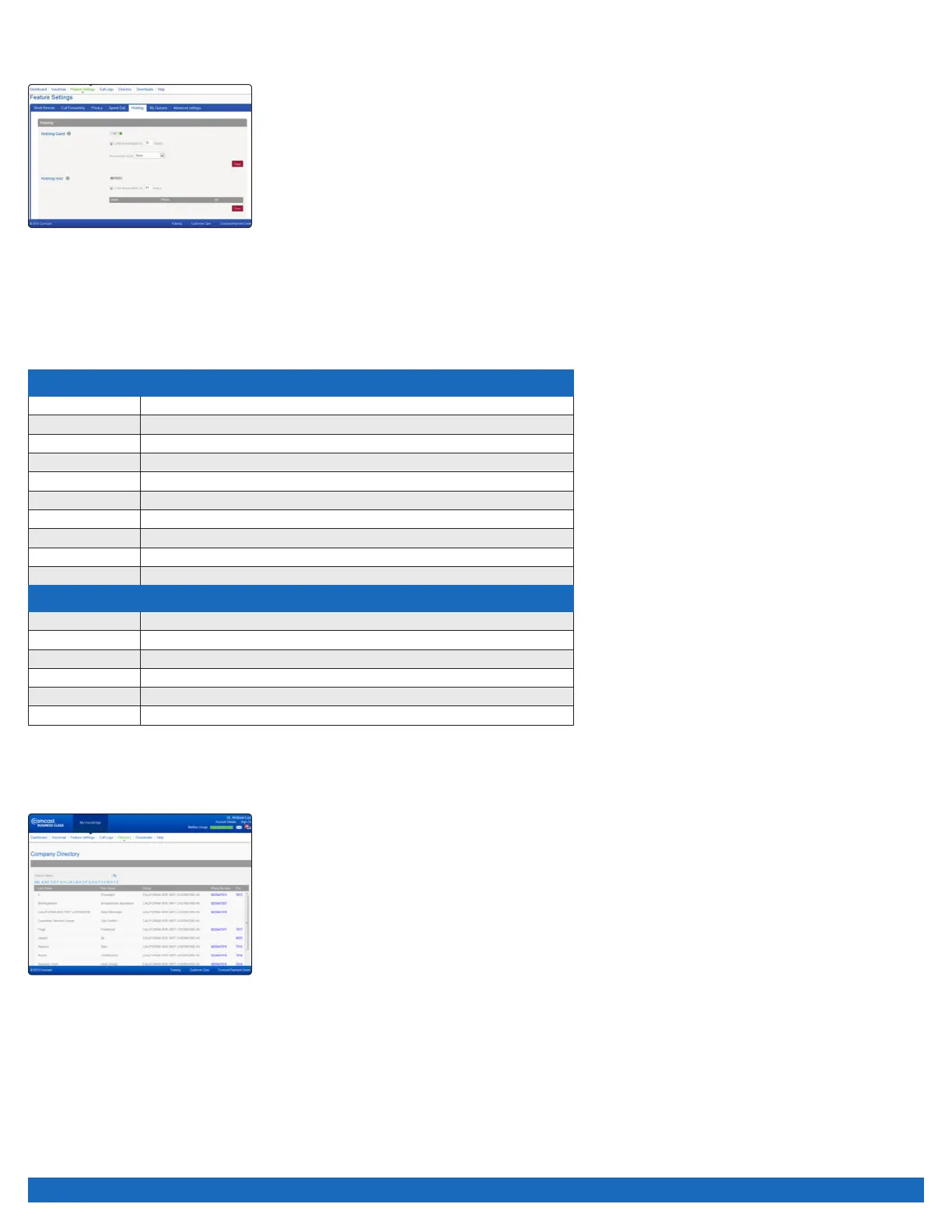
To set up Hoteling Host and Hoteling Guest:
1. Log on to business.comcast.com/bveportal.
2 From the Main Navigation Page, click “Feature Settings”.
3. Click the “Hoteling” tab.
4. To set up Hoteling Guest, turn feature “On”.
5 Select time to limit association (in hours).
6. Select who will be the Hoteling Host.
7. To set up Hoteling Host, turn feature “On”.
8. Select time to limit association (in hours).
Hoteling Guest Voice Portal Commands
Once associated, the guest can use the voice portal menu to manage services.
The User — Hoteling Guest voice portal controls are as follows:
Voice Portal Main Menu (If Hoteling Guest is Assigned)
Default Key Option
1 Access Voice Messaging
2
Change CommPilot Express Profile
3 Record Personalized Name
4 Change Call Forwarding Options
6 Make Call
7 Access Hoteling
8 Change Passcode
9 Exit Voice Portal
# Repeat Menu
Hoteling Menu
Default Key Option
1 Check Host Status
2 Associate With Host
3 Dissassociate From Host
4 Return to Main Menu
# Repeat Menu
Directory
The Directory provides access to your company’s directory. It is available on both the dashboard and the Directory section of the
VoiceEdge portal.
To find a phone number:
1. Use the scroll bar to search.
2. Use the alphabet to narrow by last name.
3. Use the search function to search by name.


 To Next Page