End User 14
Using the Telephony Toolbar
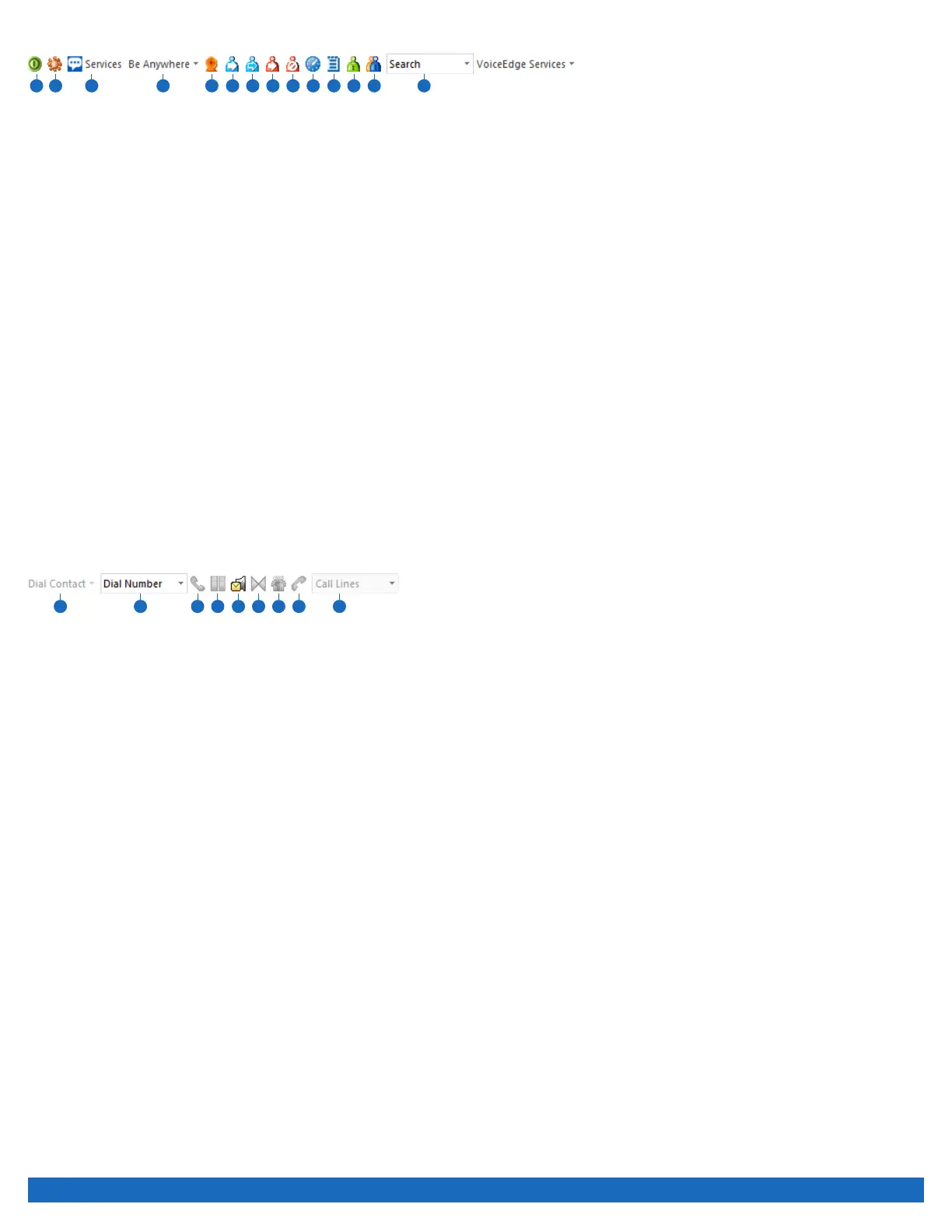
1 2 3 5 6 7 8 9
10
11
12
13
14
15
1. Connect: This button is red if you are not logged in; click to automatically log in.
2. Options: Pre-configured general connection settings; where you enter login during initial setup.
3. Services: Configure incoming call control features and/or voice messaging.
4. Portal Login: Log on to the Business VoiceEdge portal from Internet Explorer or Firefox.
5. Be Anywhere: Set up one number that rings all your phones; use the Be Anywhere voice portal to make and place calls using your
office line while you are mobile.
6. Remote Office: Enable a remote location to act as your work phone.
7. Call Forwarding Always: Turn on/off the ability to send calls directly to a specified phone number.
8. Call Forwarding No Answer: Turn on/off the ability to forward all incoming calls to a specified phone number if your phone isn’t
answered.
9. Call Forwarding Busy: Turn on/off the ability to forward all incoming calls if you are on a call.
10. Do Not Disturb: Turn on/off the ability to send calls directly to voicemail (busy greeting).
11. Speed Dial: Dial from the speed dial directory.
12. Call History: View missed, dialed and received calls.
13. Personal Directory: Access your personal directory.
14. Group Directory: Access the company-wide group directory.
15. Search: Enables you to search for a previously searched user/contact directly or to specify an ad hoc user/contact query.
Call Controls
1 2 3 4 5 6 7 8 9
1. Dial Contact: Click to dial an Outlook contact’s business, home or mobile phone number.
2. Dial Other: Displays the last 10 dialed numbers for quick selection.
3. Answer: Answer a call.
4. Hold: Place a call on hold.
5. Voicemail: Dial voicemail.
6. Transfer: Transfer a call to another extension.
7. 3-Way: Initiate a 3-way conference call.
8. End: Terminate a call.
9. Call Line: When a call is placed or received, the call line selector will automatically select a call and provide the name of the party (if
available).



 To Next Page