■ 6 Working with the application menu
40
6 Working with the
application menu
This chapter explains which working programs the balance has and
how these are operated (see also Chapter 4.5 “Activating the two
main menus” and Chapter 4.6 “How the menu control operates”).
If «PRINT» is operated in an application, a report corresponding to the
application is printed out.
6.1 Structure of the application menu
To activate the menu see Chapter 4.5 “Activating the two main me-
nus” and Chapter 4.6 “How the menu control operates”.
The working programs of the balance are called up using the applica-
tion menu and adapted to the user's needs:
Printing conventions:
• The settings for the sub-menus programmed in works are printed in
bold in these operating instructions
• For a greater clarity, only that part of the menu tree which
corresponds to this application is shown with each application
description.
• You will find the complete menu tree for the application menu in
Chapter 16 “Application menu tree”.
• Explanations of the menu functions are printed in italics.
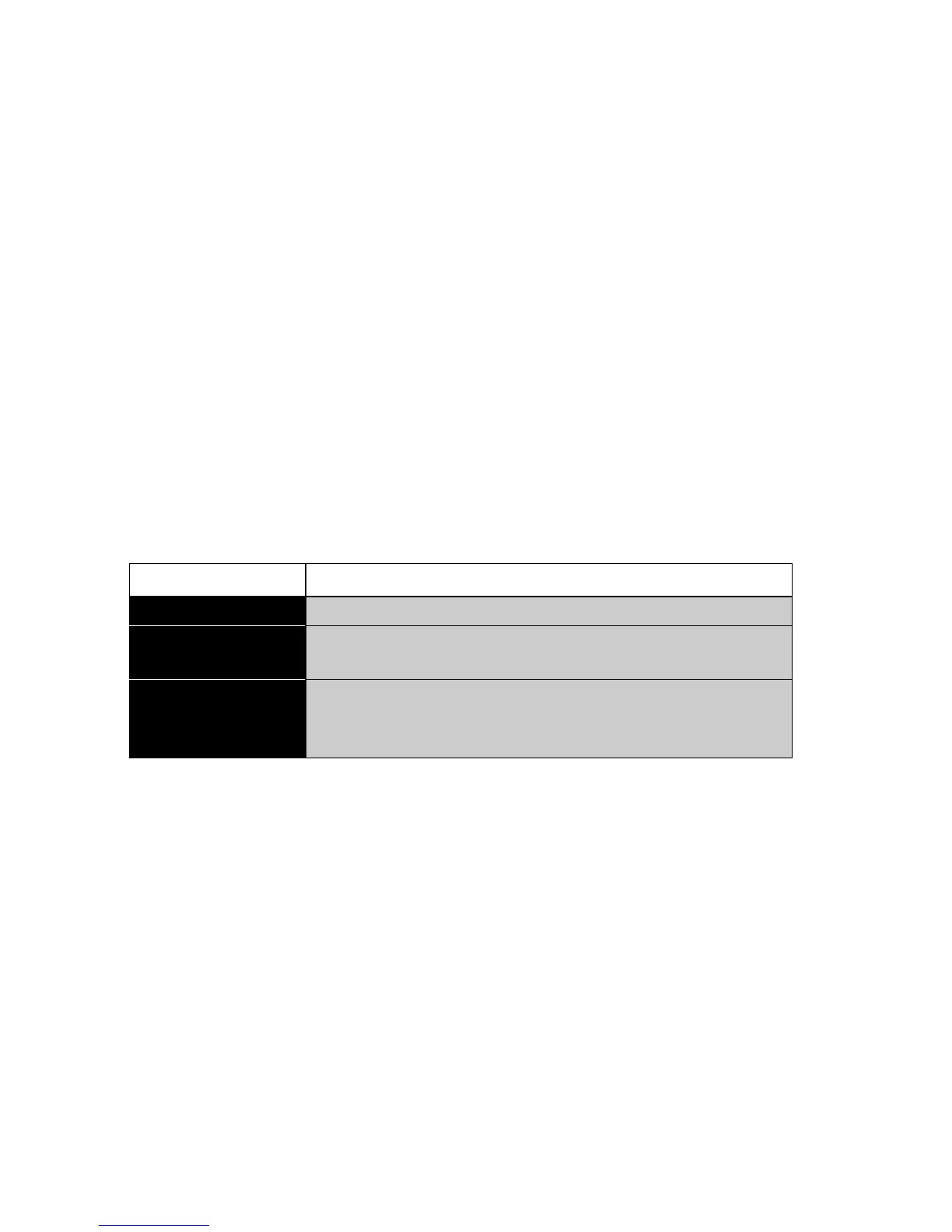
Main path Definable functions
SET APP. Select application program:
SETUP
APPLICATION
Specify parameters for the working program
selected under “Application»
AUTO-START
ON/OFF
The selected working program can, if required,
be loaded automatically every time the balance is
switched on
Tab. 6.1 Structure of contents of the application menu




 To Next Page