52 Printing from a Mac
D. PRINTING FROM ADOBE ACROBAT READER
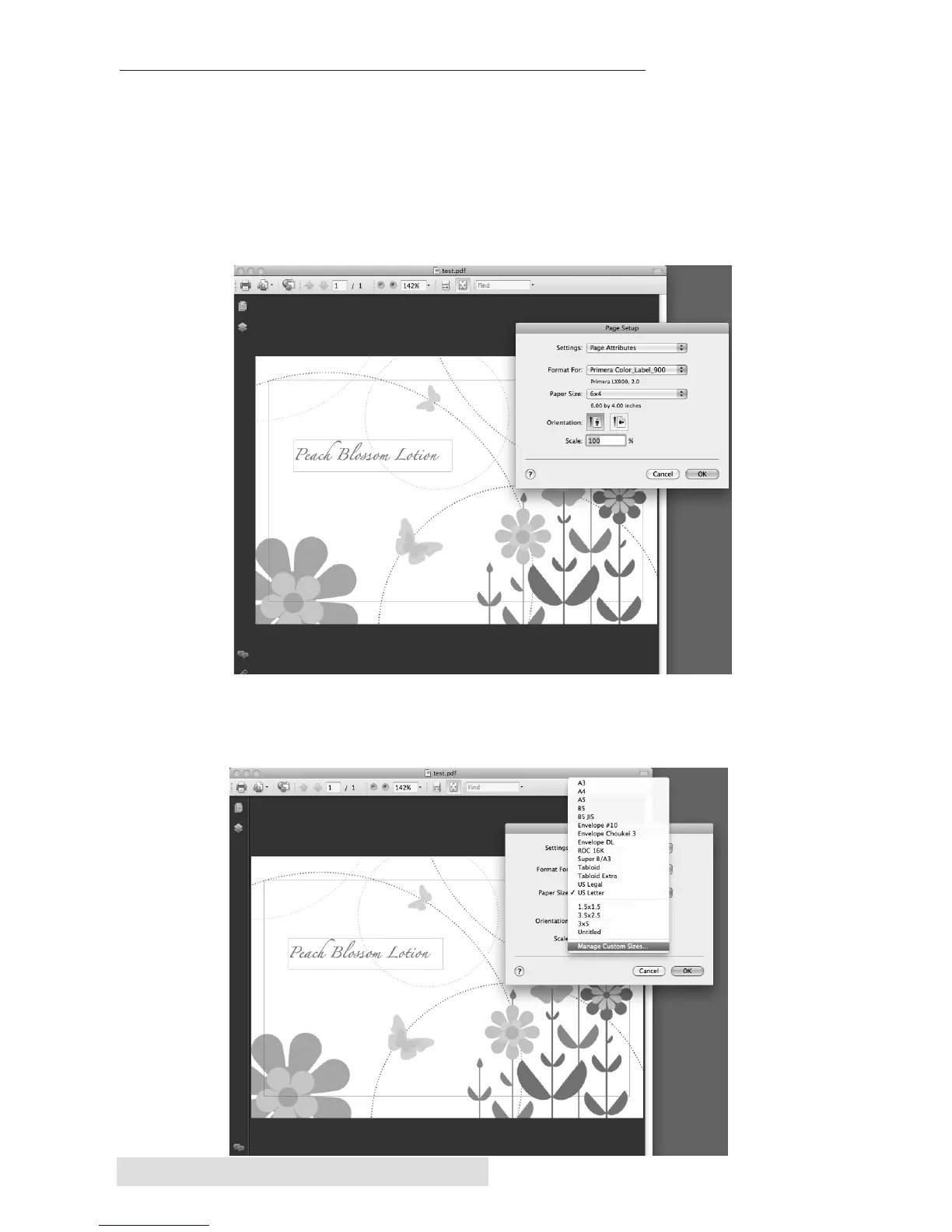
1. Set the Page/Label size in the Program. Open up your .pdf file
and select File – Page Setup. Select your paper size from the
Paper Size drop down menu. This should correspond to the
label size installed in your printer. If your label size is not listed
you will need to create a custom page size. See instructions in
the next step.
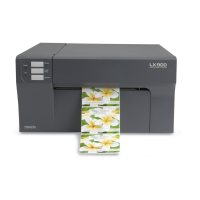
2A. Create a Custom Page Size (Optional). If the paper size you
need to print to is not already in the drop down menu options
select Manage Custom Sizes.


 To Next Page