ProtaSteel 2021 - Quick Start Guide 11
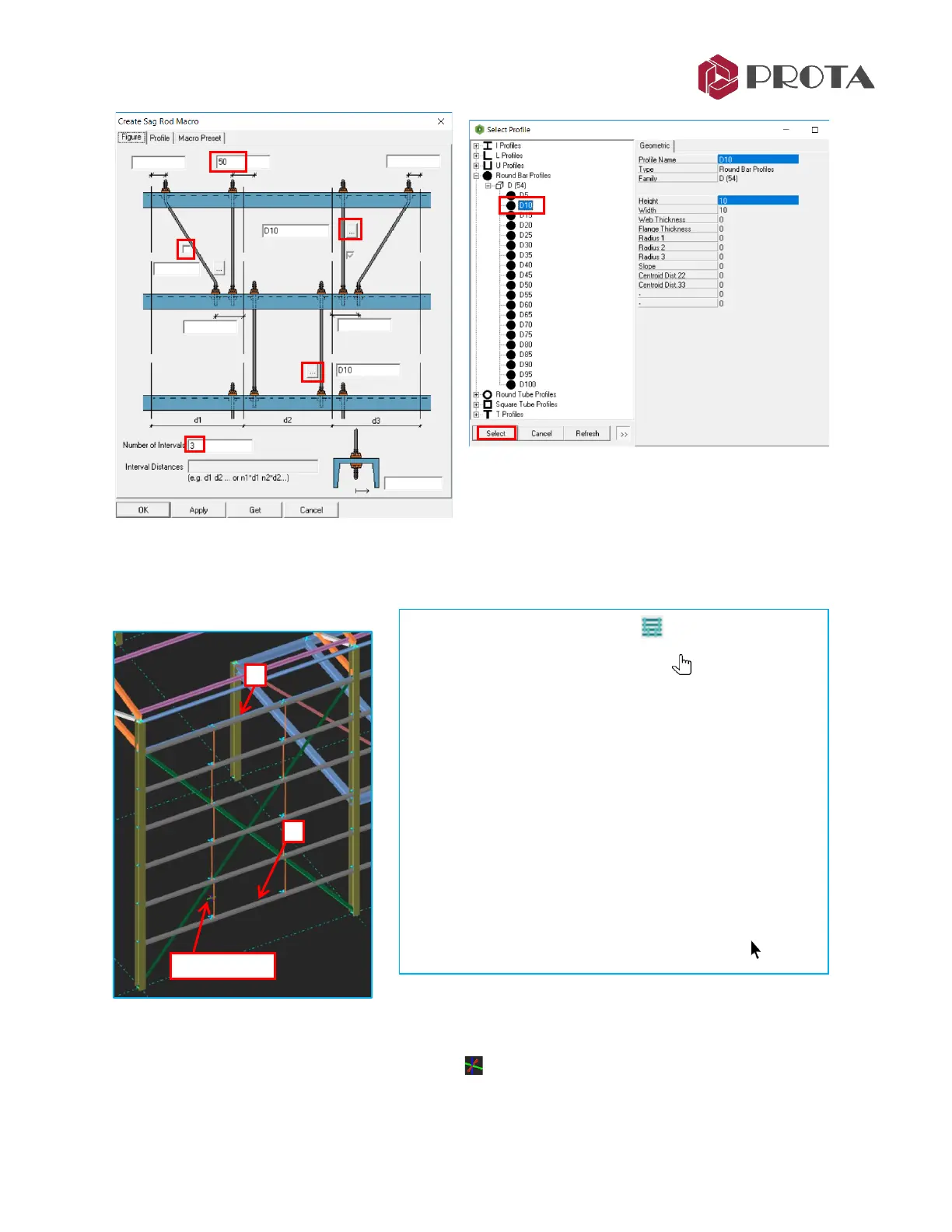
➢ Untick the diagonal so that it will not be included
➢ Choose the section profile by clicking on “…” (as shown above)
→
Pick Round Bar D10
→
Select
➢ Pick Get to make these input
the default from now on
→
OK
Each sag rod has its individual properties & can be selected, deleted or changed.
➢ Double-clicking it will reveal its properties.
All the sag rods are represented by the macro sign They can be changed in a group by selecting this
macro sign → press “Enter” as stated previously.
➢ Left-click on the Sag Rod icon
Notice the cursor turn to a hand icon meaning that it
is waiting for required element selection action(s).
➢ 1 – Left-click on bottommost girt
➢ 2 – Left-click on topmost girt
➢ Right-click
→
Sag Rods will be inserted
➢ Insert sag rods for another panel between grid B, C & D
using the same steps above, i.e. start by picking the
bottommost girt (no need to pick the sag rod icon
again)
➢ Once complete, press ESC to cancel the Sag Rod macro
action.
Notice the cursor changes back to default arrow .



 To Next Page