ProtaSteel 2021 - Quick Start Guide 15
Ctrl + W. However, if you try this you will find that the offsets are too small. Further detail adjustment can
be done by exposing the Profile properties.
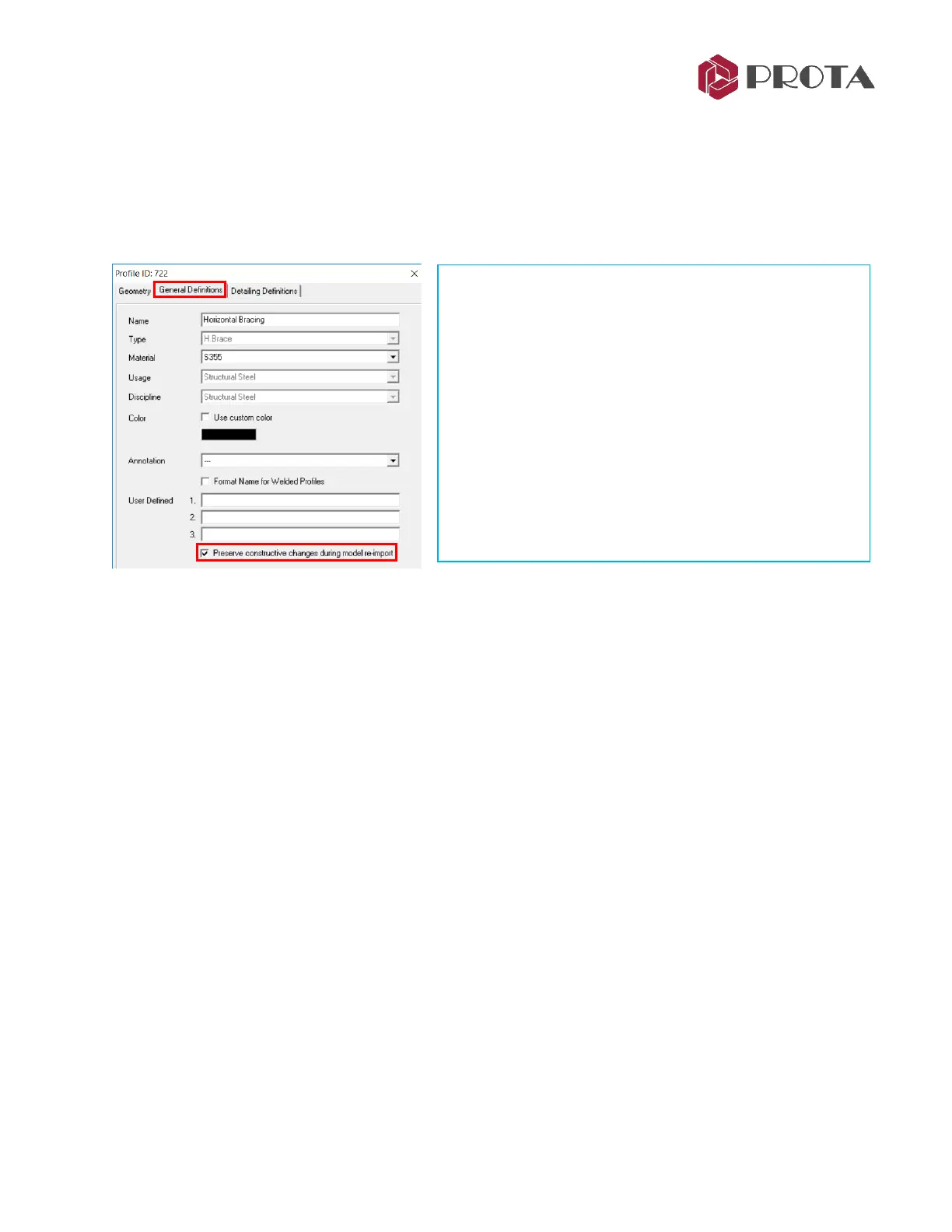
Preserve constructive changes during model re-import
In the General Definitions tab, the option “Preserve constructive changes during model re-import” is
by default checked.
13. Steel Connections
Once we have finalized position of the steel members, we can start “connecting” the steel members, i.e.
create connections. Connections can be created in two ways:
1. Automatically using the connection macros
2. Manually by using the Plates, Bolts, Welds & Cuts commands
The automatic connection macros will automatically create the appropriate connection. If there are
internal forces transferred from ProtaStructure, they will be automatically taken in the connection design.
Detail design check is performed for the following connections in accordance to EuroCode 3, AISC (LRFD),
AISC (ASD), BS5950 :
• Beam to Beam Connections: End Plate, Stiffened End Plate, Fin Plate
• Beam to Column Connections: End Plate, Stiffened End Plate, Fin Plate
• Beam to Beam End Plate Connection
• Haunch Connection
• Direct Welding Connection
• Simple Base Plate Connection
• Flange Plate Moment Connection
• Extended End Plate Connection
• Bolted Gusset Plate Connection
• Corner Bolted Gusset Plate Connection
This will preserve the member offset adjustents (e.g.
member position & orietation) made in ProtaSteel during
subsequent re-import from ProtaStructure. During the
next import, the import log file will show a warning :
Imported Frame's ID in *.cdf file[xxx]: Frame is locked. Therefore,
in plane, out of plane and start/end offsets were not applied.
Ignore the above warning if you want the member offsets
to be retained in ProtaSteel.
If this option is unticked (disabled), offsets done in
ProtaSteel will be discarded during the next re-import
from ProtaStructure.



 To Next Page