ProtaSteel 2021 - Quick Start Guide 14
Notice L braces orientation is not symmetrical with the other. We will rotate the brace so that flange of
the brace is aligned with the flange of the beam.
There is still a problem in the vertical position of the brace as it is too close to the top of the beams. Usually
braces are connected to the middle of the beam so transfer of force is to the centroid of the members
and there will less clashes in the connection. Minor shift in the vertical alignment can be done by pressing
➢ Select the brace
➢ Press Ctrl + Q to rotate it until the correct
orientation is achieved as shown in the left figure
➢ Repeat for the other brace
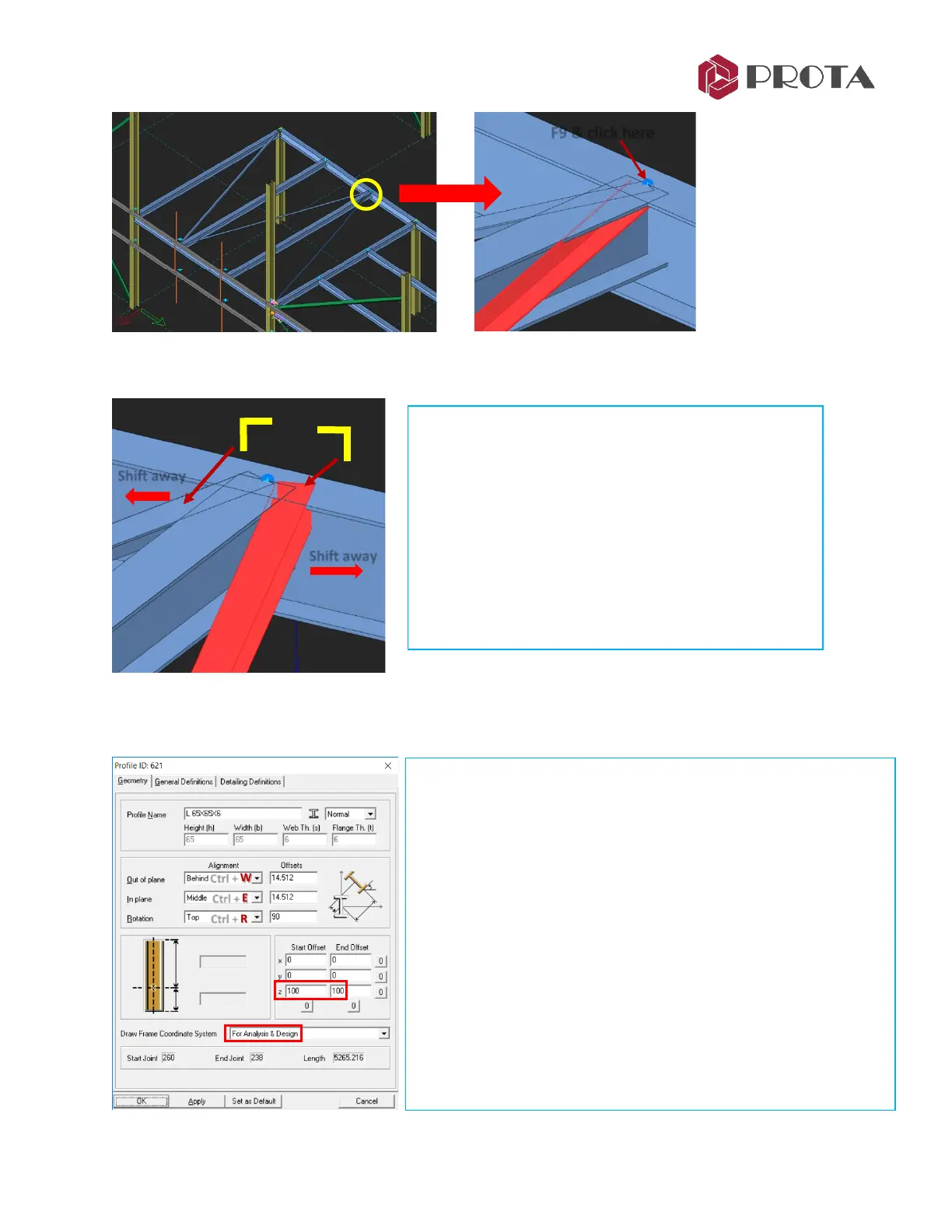
The braces are coming in too close to the secondary
beam. We can shift it slightly away.
➢ Press Ctrl + W to offset the brace horizontally until it
is farthest away from the secondary beam
➢ Repeat for the other brace
➢ Double-click on the right L brace
Profile Properties dialog allows you to change :
• Profile /Section type by picking “…”
• Alignment (Out of Plane, In-plane, Rotation)
• Offsets Start & End
• Draw Frame Coordinate System
➢ Change Frame Coordinate System to For Analysis & design
→
Apply
Notice 3 arrows showing local axis appear at the frame end. Red
arrow = x-axis; Green arrow is y-axis; Blue arrow is z-axis.
If the axes is not visible, please ALT+D to change to Wireframe
➢ Enter z Start & End Offset to 100 mm
→
Apply
➢ Check the 3D view to ensure brace is moved down
➢ Repeat for the other brace (-100mm)
→
OK to exit



 To Next Page