ProtaSteel 2021 - Quick Start Guide 4
1. Introduction
Thank you for choosing ProtaSteel – Steel detailing & connection creation module of the ProtaStructure
suite. The main steel model must be created in ProtaStructure. The model can be exported & opened in
ProtaSteel seamlessly. In ProtaSteel, you can :
• Model ancillary/secondary steel members such as roof purlins, girts, sag rods, staircase, etc.
• Adjust members to final positions for accurate detailing
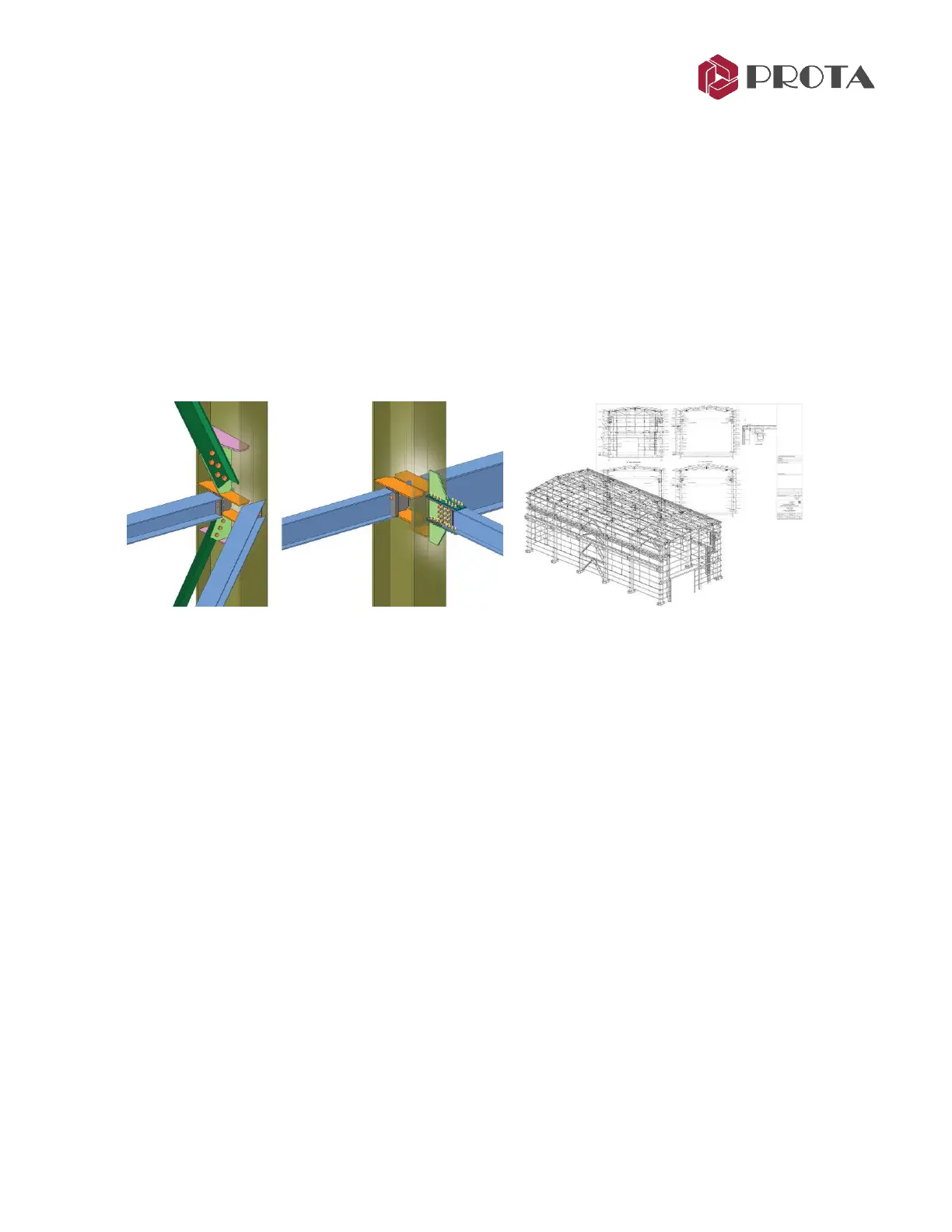
• Create and design steel connections
• Create any steel connections manually, save them macro library and re-use them at similar
nodes.
• Produce engineering drawings of the steel structure and connections
• Sharing the 3D model created with other BIM platform such as Tekla Structures.
Before you proceed, it is highly recommended you go through ProtaStructure Quick Start Guide as
knowledge of the fundamentals of ProtaStructure is required.
This Quick Start Guide aims to get you up and running quickly. You should be able to learn the
fundamentals of ProtaSteel in approximately 2 hours by following this simple guide.
2. Exporting model to ProtaSteel
A sample steel model is already created & installed in default installation folder of ProtaStructure. We
will now open the model, run analysis & export to ProtaSteel :
➢ Start ProtaStructure and the Open Project dialog will appear.
➢ Select & open project “Quick_Start Steel_Complete”
➢ Go to Analysis
→
Building Analysis
➢ Go to Analysis tab
→
Tick Building Analysis
→
Start
➢ Close the Building Analysis menu
➢ Go to Steel Design (top menu)
→
Load ProtaSteel
ProtaSteel will start and load the project model. ProtaSteel model is created in subfolder “ProtaSteel” in
the project folder.



 To Next Page