ProtaSteel 2021 - Quick Start Guide 40
31. Preparing Engineering Drawings
ProtaSteel has a powerful tool to prepare engineering drawings – it’s simply called the “Drawing
module”. The drawings are based on the views prepared in the modelling module. The steps are
summarized as below :
➢ Create the desired Views in main modelling view.
➢ Ensure the orientation of the view you want to use in the drawing is correct as the drawing
module will automatically use the latest views.
• Double-click on Axis 3 view
→
Press F4 to reset the view to default
• Double-click on Storey 1 view
→
Press F4 to reset the view to default
➢ Create any detail views such as connection details using Detail Item Manager
➢ Start the Drawing module by double-clicking Drawings in the Explorer pane (Ctrl + D)
32. Drawing Module
In the Drawing Module, the same views that was shown in the main model will be duplicated under the
Explorer → Modelling Views :
• 3D View – 3D view of the model
• Storey F – foundation plan view (ST00 in ProtaStructure)
• Storey 1 – Storey 1 plan view as defined in ProtaStructure
• Storey 2 – Storey 2 plan view as defined in ProtaStructure
• Axis 3 – New view along Axis 3
• Axis A – New view along Axis A
If you do not have the same views, please close the drawing module to return to the main model &
create the view as outlined in previous sections.
33. Creating Drawings via Drawing Manager
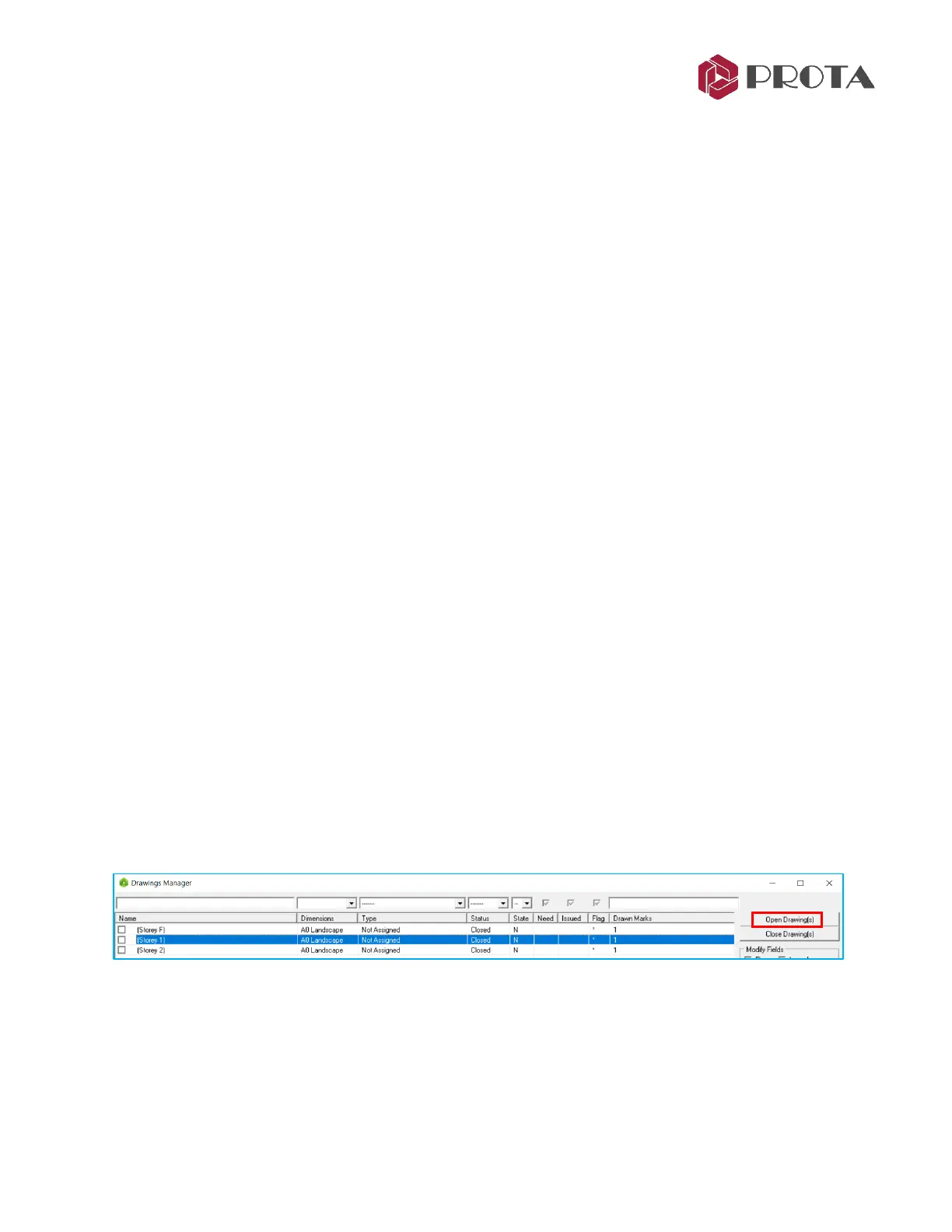
➢ Double-click on Drawing Manager (or F6)
The Drawing Manager is where you can start a new drawing. The sample plan drawings of foundation,
Storey 1 & Storey 2 are already created & listed.
The View Manager allows you to manage the drawings :
➢ Select Storey 1
→
Open Drawing
➢ Alternatively, simply double-click on Storey 1 to open it
➢ Close the Drawing Manager & review the drawing



 To Next Page