ProtaSteel 2021 - Quick Start Guide 6
4. Zoom & Pan Methods
The view manipulation is similar to ProtaStructure. You will find it easiest to use the mouse wheel to:
Zoom in – scroll your mouse wheel up
Zoom out – scroll mouse wheel down
Pan (move) – hold down the middle mouse wheel and drag
Rotate – Right click & drag
The following keyboard shortcut keys are useful :
Zoom All – Home key → Zoom so that all content is visible in the viewport
Origin of Interest – F9 key → Select an origin of interest by clicking on any node or any
object (such as bolt or plate). The model will then rotate around the selected
point.
5. Selection Methods
➢ Left-click on the entity to select the entity.
➢ To select multiple entities, hold down CTRL key while you pick them
You can drag with the mouse to access further selection options:
➢ Drag from left to right to create a rectangular box. When you release the mouse button, all
entities completely contained within the box will be selected
➢ Drag from right to left similarly and all the entities that are contained within the box and which
cross it boundaries will be selected
➢ To deselect all entities, left-click on any empty space anywhere in the viewport.
6. Views & View Settings
By default, the 3D view general is created & shown when you open the project. The plan of each storey
is also created.
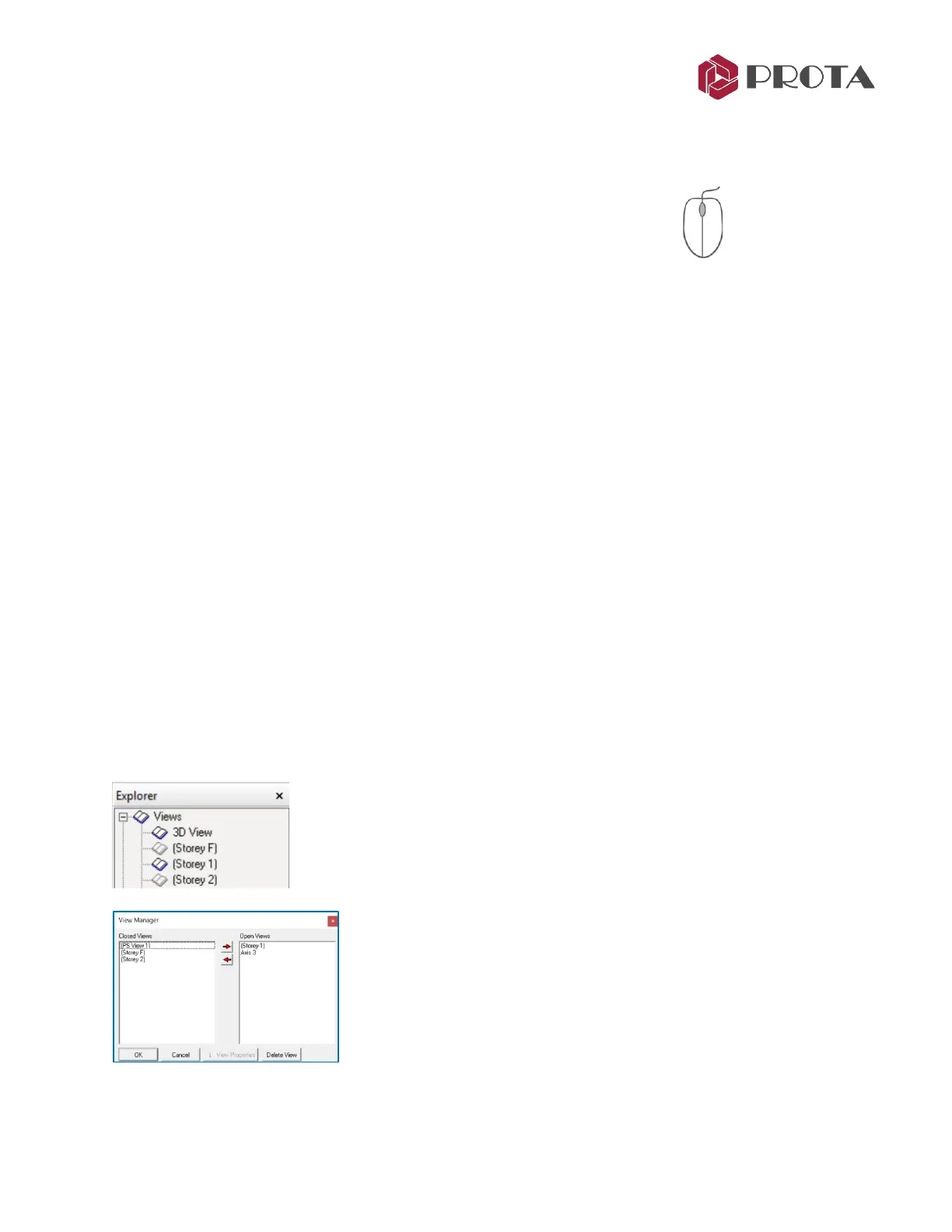
The views are shown under the View folder in the left Explorer pane.
➢ Double-click on the desired view in the left-hand Explorer pane to open it.
You can open as many views that you like.
➢ Double-click on Views will open the View Manager where you can
quickly :
• Open a view
• Close a view
• Delete a View
• Display the View Properties



 To Next Page