ProtaSteel 2021 - Quick Start Guide 44
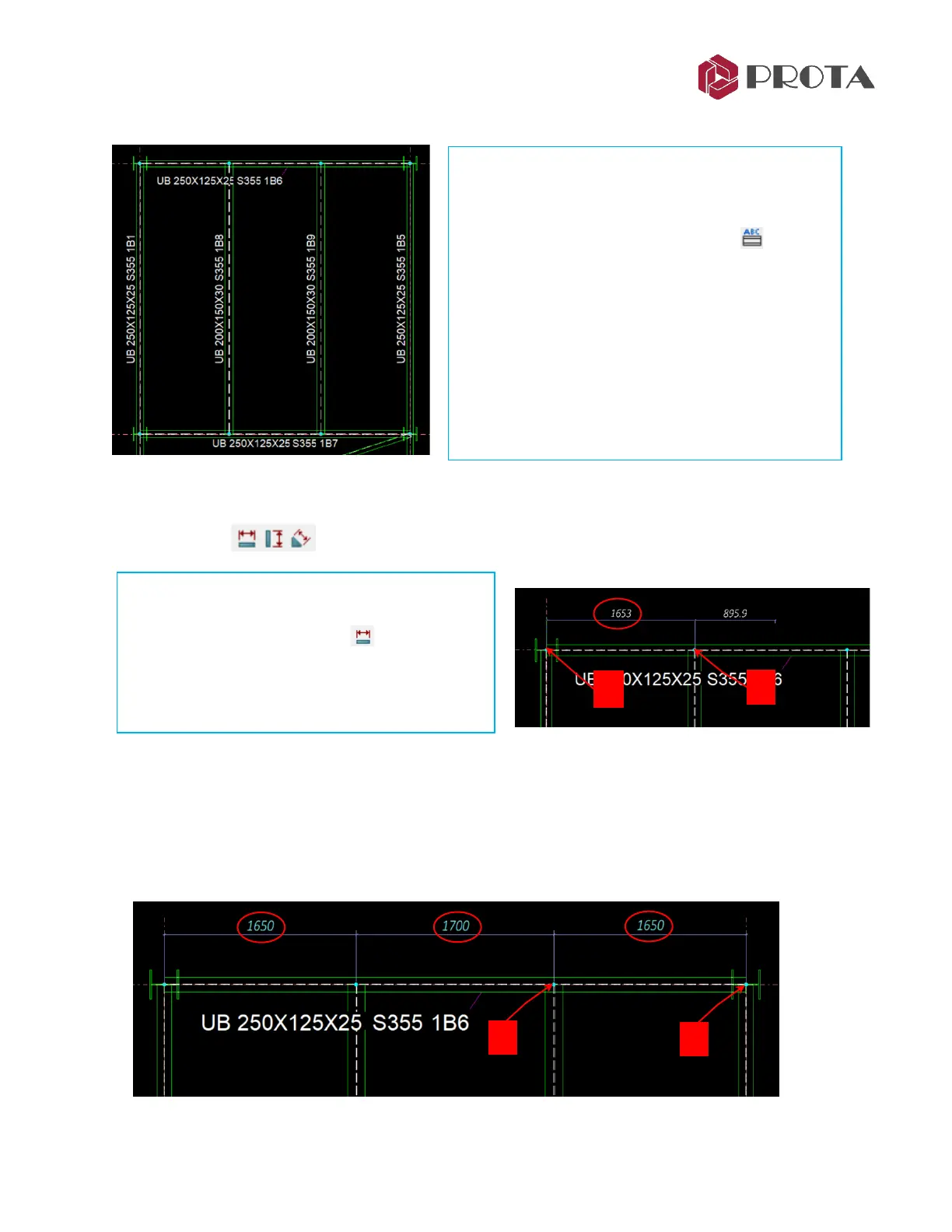
The annotations are added next to all steel members as shown below.
35. Dimension
Dimension tools can be used to insert dimensions in the drawing.
Notice the dimension is shown dynamically.
➢ Left click on the 3
rd
point & then the 4
th
point
➢ Move the mouse cursor to the exact position where you want the text to be placed
➢ Right-click to confirm & create the dimensions
The dimensions will be created as shown below.
Notes :
❖ Alternatively, click OK to exit the Frame
Annotation dialog → Select elements → Left-
click on the Profile Annotation icon
❖ User Defined 3 is ProtaStructure member labels
such as 1B1, 1C1
❖ The annotation position can be moved by left
click & drag
❖ Annotations can be deleted using Delete key
❖ Annotation text size, font height, etc can be
changed by selecting them → ENTER →
Annotation Text Property Editor
➢ Zoom in the top around primary beam along
axis D
➢ Click Horizontal Dimension
➢ Left click on the 1
st
point & then the 2
nd
point
between the points to be dimensioned.
➢ Move the mouser cursor away to the right



 To Next Page