ProtaSteel 2021 - Quick Start Guide 36
➢ Select one or more connection macro
If no macro is selected, the table will show all supported macros in the model
➢ Go to Drawings & Reports (top menu)
→
Connection Reports
→
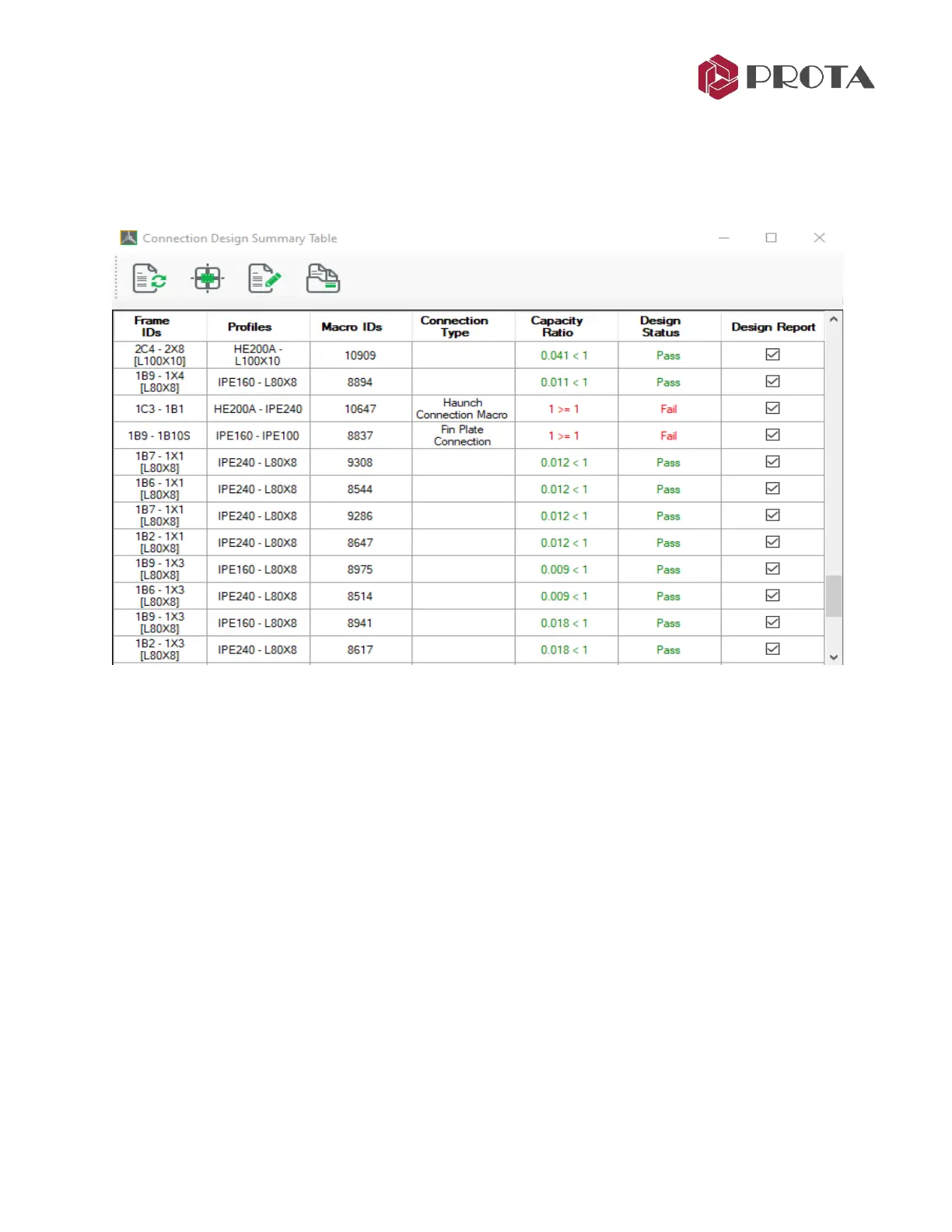
Connection Design Summary
Table
The top icons from left to right :
❖ Update → Refreshes the table
❖ Show in Model → Locate & zoom in the selected macro in the model view. Double-clicking on
any row will also perform the same function.
❖ Create Report → Create the connection design report of the selected macro. Hold down CTRL
key to multiple select.
❖ Open Report → Open the selected design report
If the connection fails, change the macro properties. When the connection parameters are enough, the
connection check again and color will be in green.
28. Collision / Clash Checks
Prior to creating detail general arrangement drawings, it is recommended that a collision check be
performed for all elements. The collision check shows elements which are clashing or overlapping :
➢ Select all or some elements of the model
➢ Go to Tools (top menu)
→
Diagnostic Tools
→
Clash Check
➢ Alternatively, right click on the model screen and pick Clash Check



 To Next Page