ProtaSteel 2021 - Quick Start Guide 35
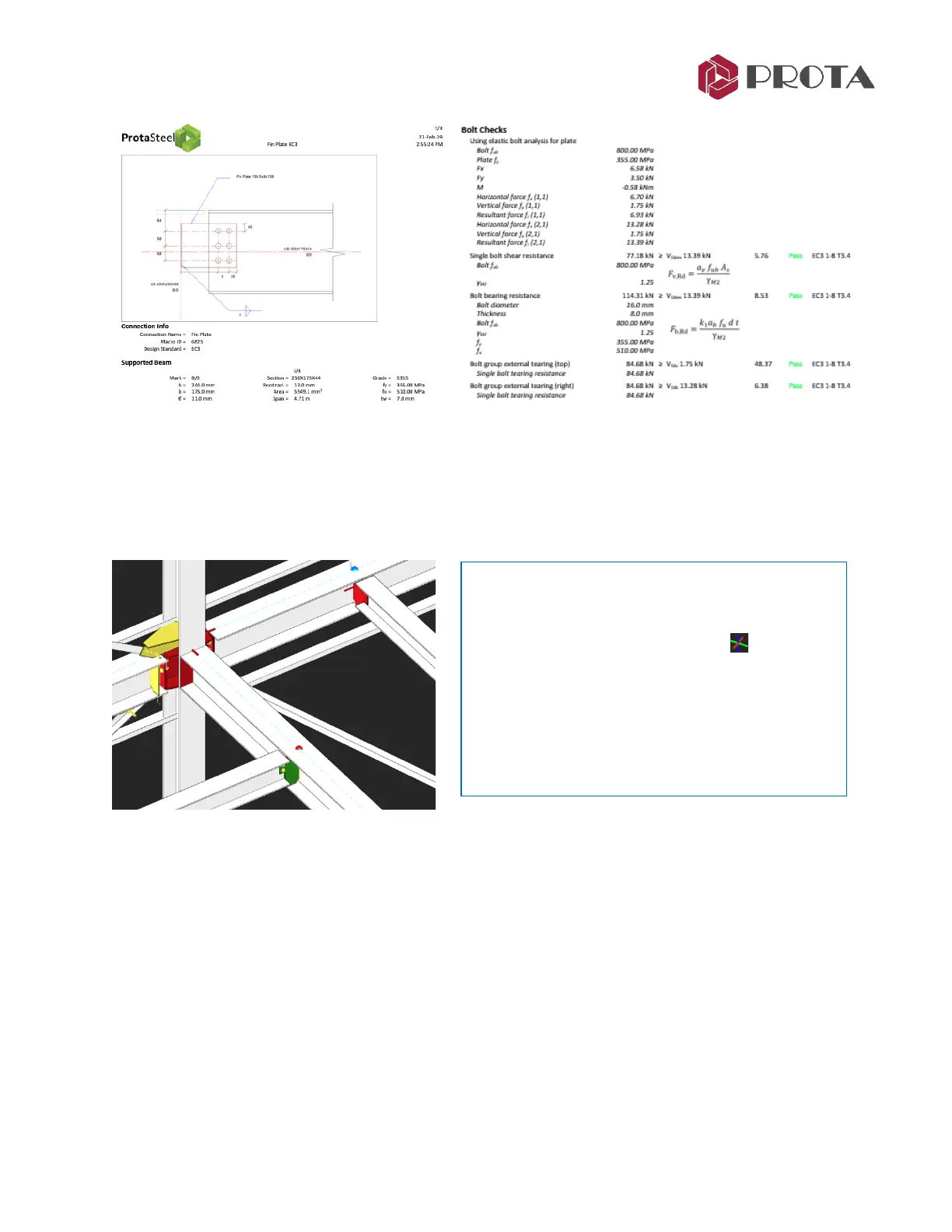
The reports can be created on demand in rich text format (RTF). Design Status colors can be seen on model
view before report creation. To show the utilization ratio of the connection visually:
➢ Go to View (top menu)
→
Connection Design Ratio Coloring
The connection will color coded : Yellow = Not checked/designed; Green = Pass; Red = Fail.
➢ Right-Click
→
Connection Design Reports (or Go to Drawings & Report (top menu)
→
Connection
Reports)
→
Select the desired report :
• Show Connection Report → Show connection report of selected macro (s)
• Default Connection Report → Create connection report according to project preference
• EC3 / BS5950 / AISC_LFRD /AISC_ASD Connection Report → Create connection report for the
selected code
27. Connection Design Summary Table
Connection design summary table presents details about selected connection macros. The summary
table shows the “Frame Id”, profile types of macro dependents, connection type, capacity ratio of
connection, design status according to capacity ratio and whether design report of connection is
created.
To check the connection & generate the report :
➢ Select the connection by any of these methods :
• Select the connection macro sign
• Select any component of the connection (eg. a
plate or a bot)
→
then press “M”
• Left click and drag a window enclosing the entire
connection
TIP : Hold down CTRL to multiple select



 To Next Page