ProtaSteel 2021 - Quick Start Guide 45
36. Creating Connection Detail
Let us now create a new connection drawing for the connection we created along Grid 3.
➢ Double-click on Drawings Manager (or F6)
➢ Pick Create Drawing
→
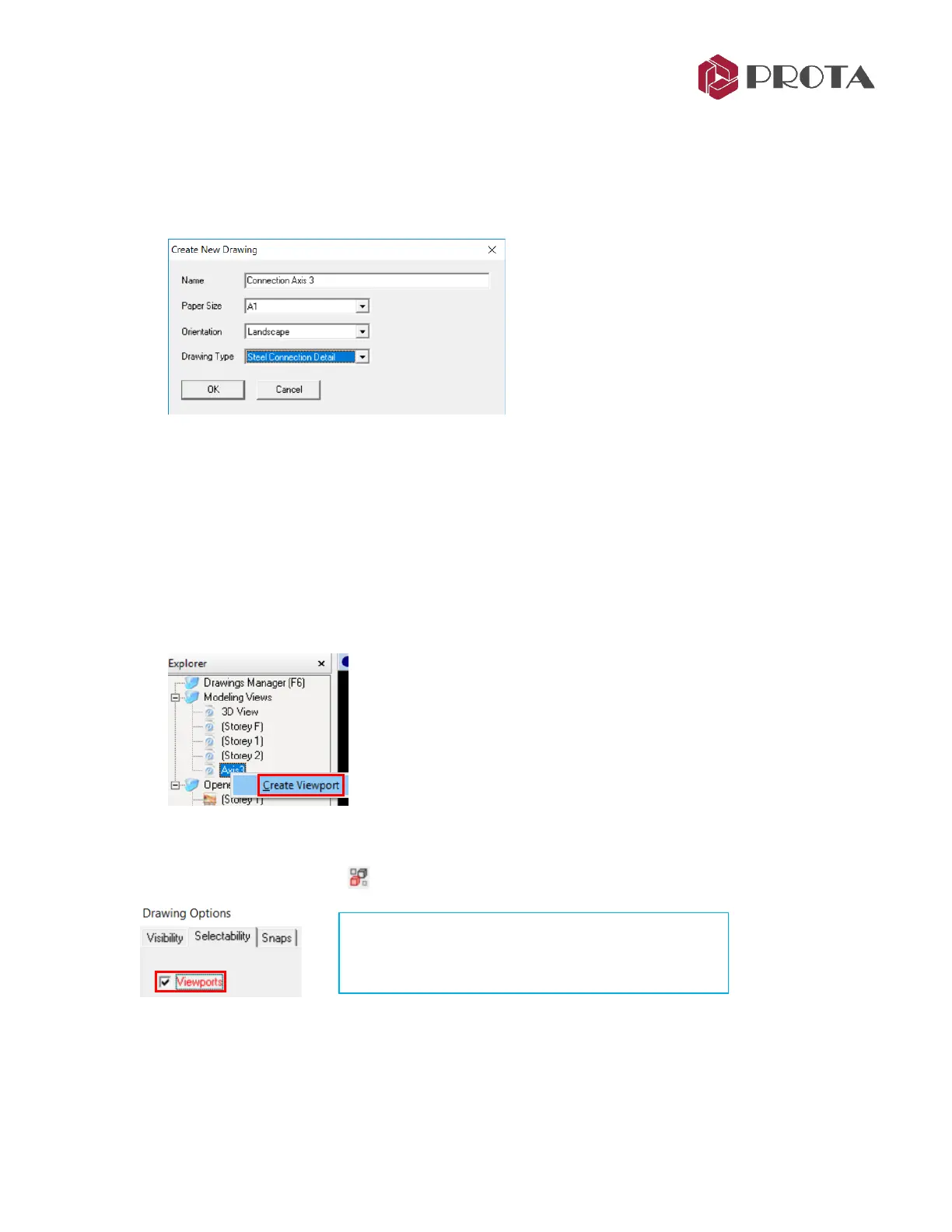
Create Drawing Dialog will appear
➢ Name it “Connection Axis 3”
➢ Change the Paper Size to A1
→
Orientation = Landscape
➢ Pick Drawing Type = Steel Connection Detail
➢ Pick OK
→
The drawing will be created & automatically opened
➢ Close the Drawing Manager dialog (Pick OK if prompted to save)
The drawing “Connection Axis 3” will be opened and brought to focus. The drawing is empty & we will
insert the required view into the drawing.
➢ Right-click on Axis 3 View
→
Create Viewport
The view region will be inserted but region may not be positioned correctly. Let us move it within the
drawing border. In order do this, we need to be able to select the blue region border.
➢ Click on Selectability icon at the top menu to access the Drawing Options dialog



 To Next Page