ProtaSteel 2021 - Quick Start Guide 5
3. User Interface
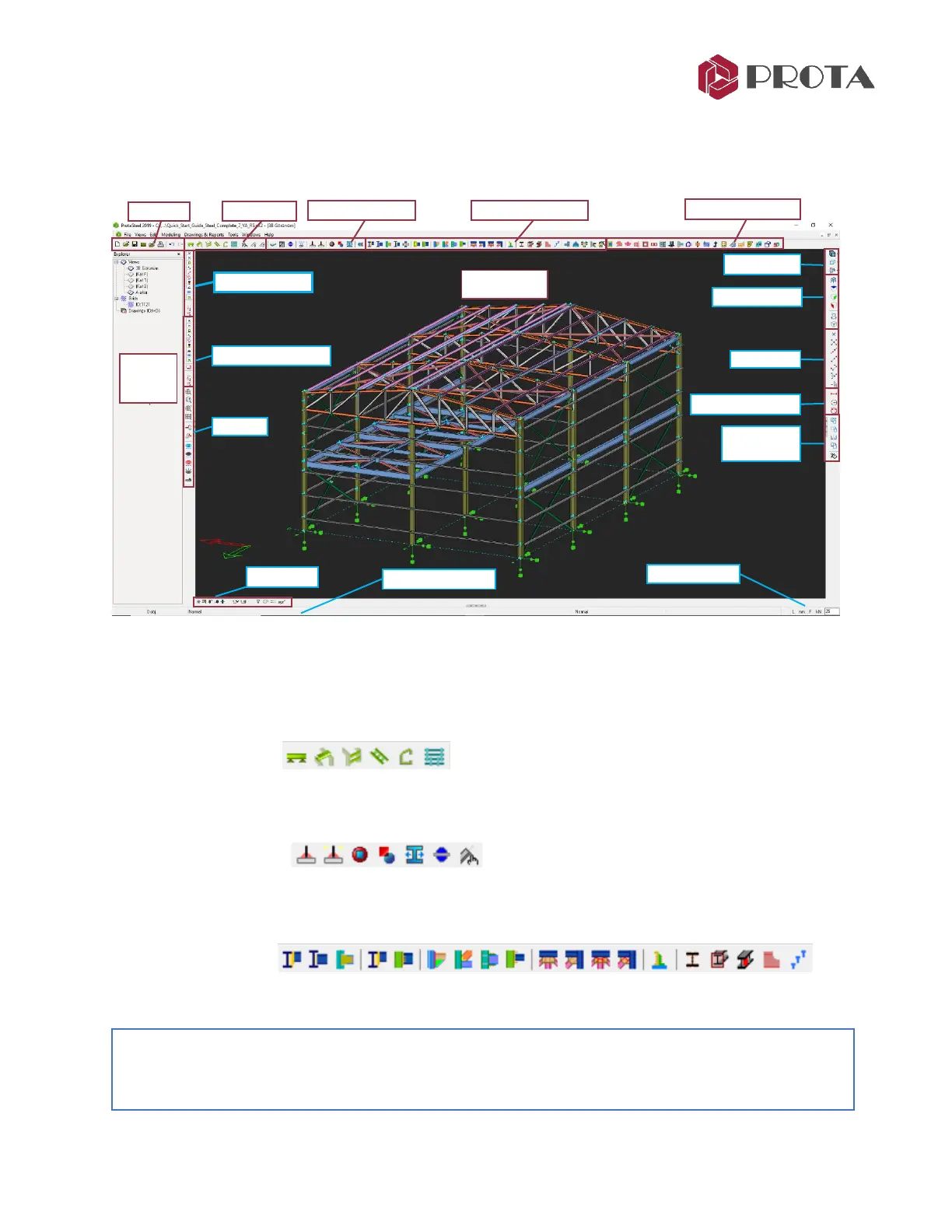
The various components of ProtaSteel user interface are as shown below:
Default views are created under the Views folder in the Explorer pane in the left pane. By the default the
views created are 3D view & plan view of each stories. Double-click on the desired view to access it.
The graphical editor supports multiple windows; you can open as many windows as you desire.
Modelling can be done both on the plan view as well as the 3D View.
Frame Creation Tool
In ProtaSteel, you can only create joist, purlin, girt, stair member, eaves beam & sag rods. Main
members such as beam, column & brace must be created in ProtaStructure.
Manual Detailing Tool
These are secondary detailing tools such as weld creation, section plate creation, element cutting &
trimming & profile adjustments.
Connections Macros
These are all the steel connections creation tools, eg. gusset plate, fin plate, haunch, splice etc.
Tip : If you hover the mouse cursor over any icons, a tooltip will appear with detail explanation on how
to use it. By right-clicking on the macro icon, you can set the default parameters that will be used each
time it is run.



 To Next Page