3. Rand Navigation 2.0
Rand Tablet User Manual 11
Navigation Settings
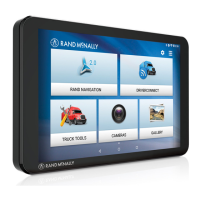
To access navigation settings, tap the gear icon in the bottom-right
of the Rand Navigation Home Screen. After adjusting any settings,
tap the Back icon in the upper-left to return to navigation.
General Options
Language English
Español
Français
For the screen and spoken instructions.
Units Automatic
Metric
U.S. Standard
Clock 12-hour format
24-hour format
Note: Some tools and settings may not be
available in car mode.
Yard Time Zone Hawaii-Aleutian time
Alaska time
Pacic time
Arizona
Mountain time
Central time
Eastern time
Indiana (East)
Atlantic (Canada) time
Newfoundland time
Vehicle Type Truck
Bus
Car/Light truck
Controls how routes are calculated.
General Options
Load Prompt Enabled
Always loaded
When enabled, the system will ask if the truck
is loaded or not every time you start a trip or
a new leg.
Mileage Log Truck & bus
Car only
Truck & car
Disabled
Custom POIs Tap to display the list of custom Points of Interest
and control if they appear on the map.
Touch Sound Display Android System sound settings.
System Settings Tap to display Android System settings.
Data Repair Tap to x missing or out-of-date les for your
navigation system. An internet connection
is required.
System Update Tap to perform system update.
Tutorial View getting started tutorial.
Contact & About Tap to show version information and customer
support contact information.
Legal Notices End user responsibilities and credits.


 To Next Page