Rand Tablet User Manual 16
3. Rand Navigation 2.0
7
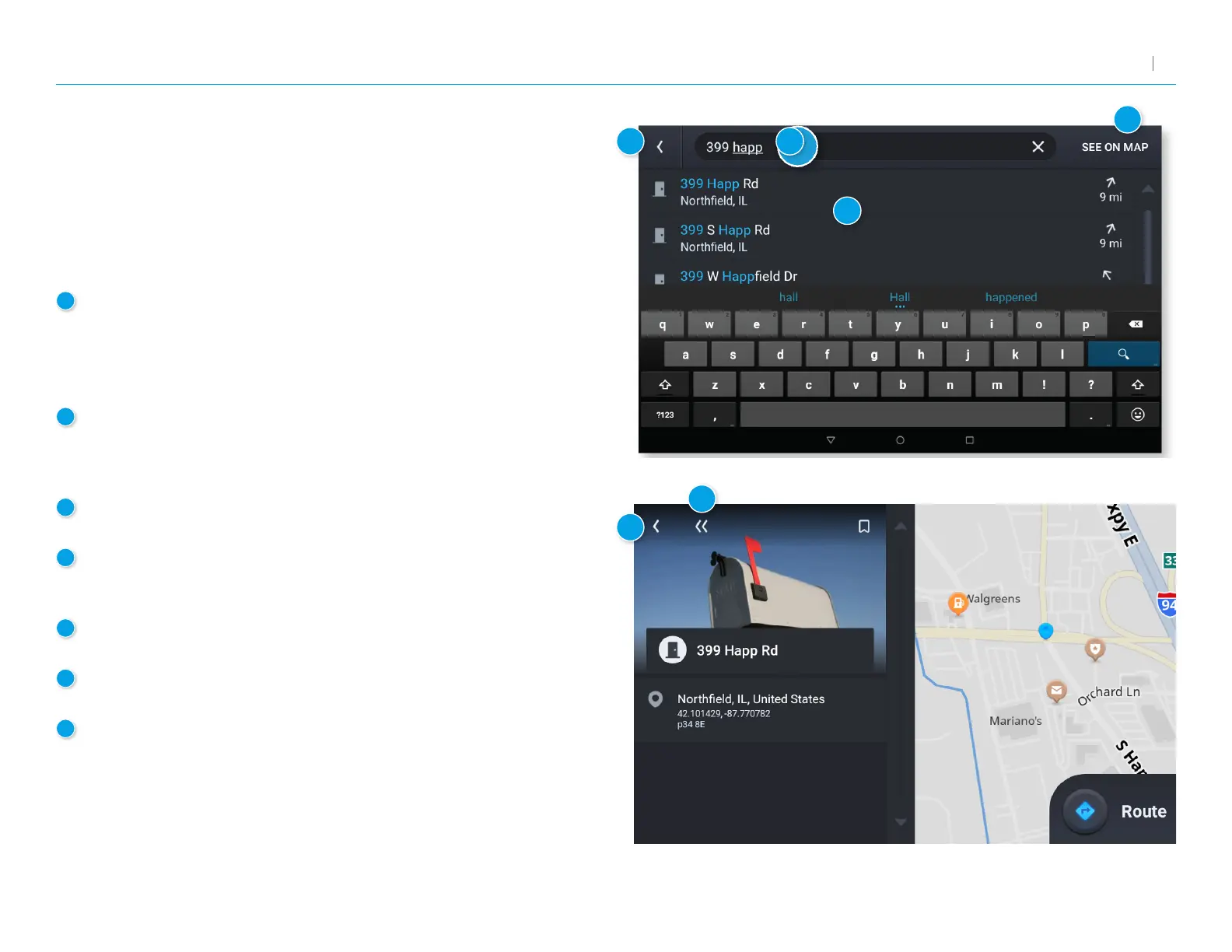
Single-line Search
To access the single-line search window from the Rand Navigation
Home Screen, tap Where to?
From this screen, you can tap in the search bar to bring up a keyboard
and begin typing an address, point of interest, or any other destination
type. The single-line search will return matching results below.
1
Address/Text Search
Search for addresses, streets, cities and points of interest.
• Address searches should include either a city or postal code.
• Avoid using punctuations.
• Avoid using street prexes and sufxes.
2
Matching Results
Destinations that match your search terms display here. The address,
city, and state display to the left. The distance from your current
location displays on the right. Tap a destination to begin navigation.
3
See on Map
Tap to view the listed destinations on a map in a split-screen view.
4
Selected Destination
Tap a destination from the list to select it. The address, coordinates,
and Motor Carriers’ Road Atlas reference page are displayed.
5
Navigate
Tap to begin navigation to the selected destination.
6
Back
Tap to return to the previous screen.
7
Go to Map
Tap to return to the navigation screen.
1
2
3
6
6
7


 To Next Page