3. Rand Navigation 2.0
Rand Tablet User Manual 32
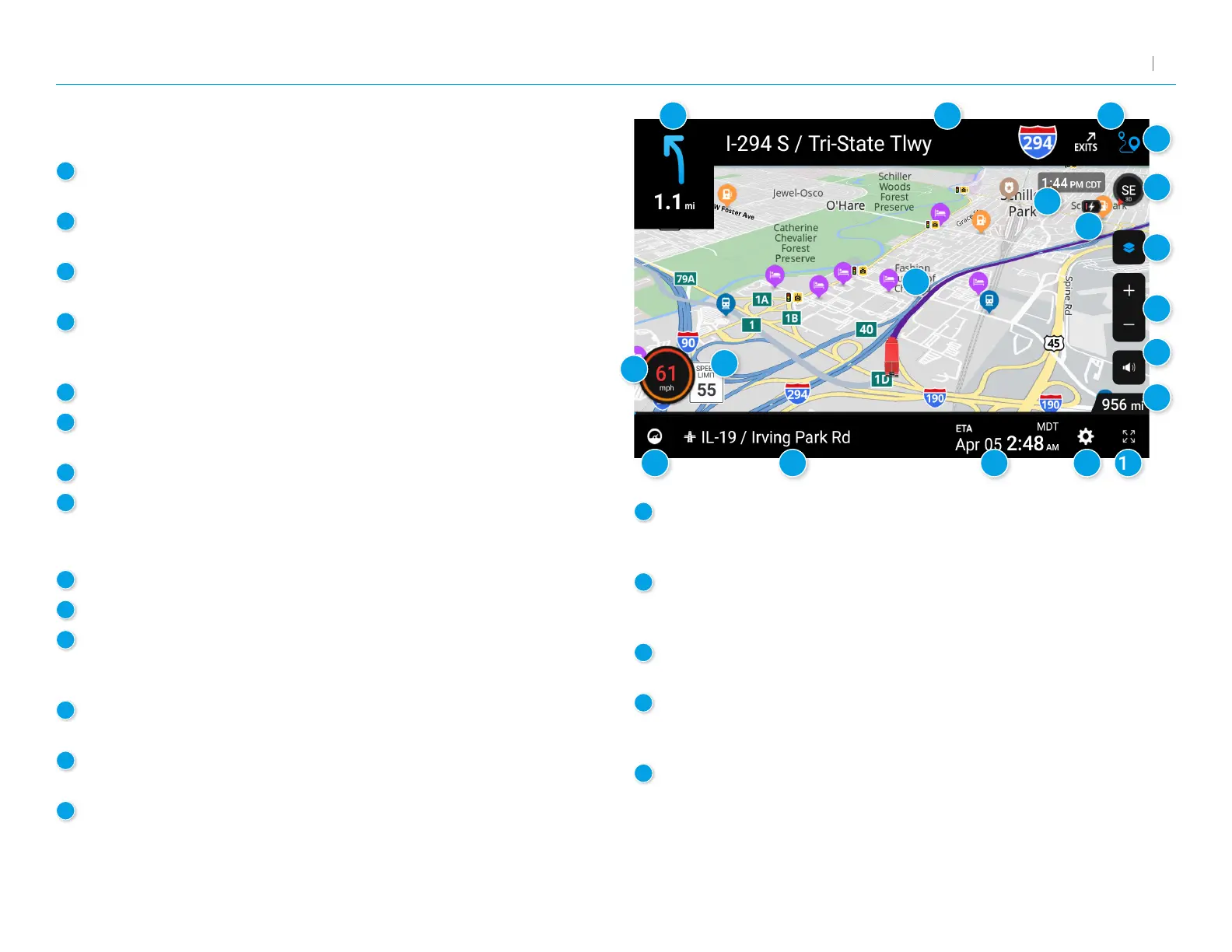
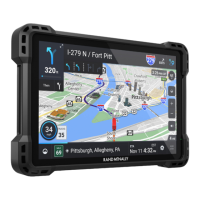
Route Map Window
4
5
6
7
8
9
10
11
1213141516
17
1
Next Maneuver
Instructions for your next maneuver.
2
Road Name
Next maneuver street name or highway sign.
3
Exits
Check upcoming exits for food, gas, hotels and other places.
4
Route Options
Tap to display additional options, including adding a stop,
detours, and ending navigation.
5
Current time and time zone
6
Map View Mode
Tap to switch the map view: 3D map, North up, or Heading up.
7
Battery power status and charging indicator
8
Wi-Fi Connected Services
Tap to enable fuel prices, weather and trafc on the map.
Note: TheseoptionsrequireaWi-Ficonnection.
9
Zoom In/Zoom Out
10
Announcements
11
Distance remaining to your destination
Displays a progress bar indicating the distance remaining to your
destination.
12
Expanded Map Display
Tap to remove additional options from the map screen.
13
Settings
Tap to open the Navigation Settings screens.
14
ETA/Time/Distance
Tap to toggle between displaying ETA, Yard ETA, Remaining
Time, Yard Time, and Elevation.
15
Location View
Tap to toggle between displaying the current location by city, street
name, or next cross street.
16
Virtual Dashboard
Tap to view information about your current location, route, trips,
and more.
17
Current Speed
Displays your current speed and turns red for speed warnings.
18
Speed Limit
Posted speed limit for your vehicle setting.
Tap to open a screen to submit a speed limit correction.
19
Map
Displays the map, your current route, and your vehicle’s current location.
1
2 3
18
19


 To Next Page