39
StarSight System
Using the StarSight Features
Future Recording
Make sure you insert a tape with safety tab in place.
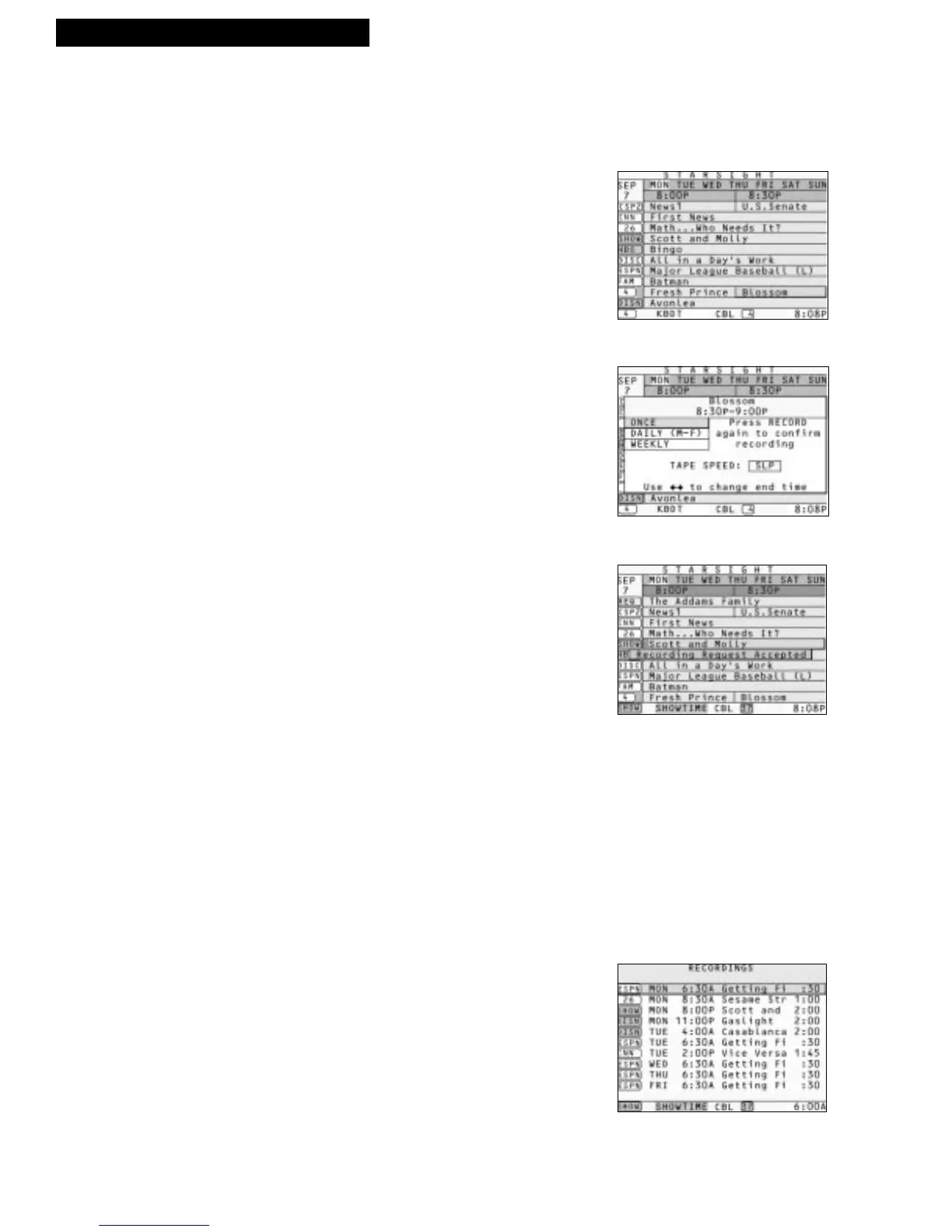
1. Press GUIDE to see the Grid Guide.
2. Press UP, DOWN, RIGHT, or LEFT ARROW to
highlight a current or future program.
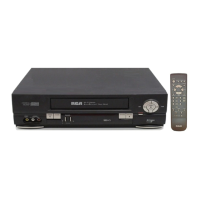
3. Press RECORD to see a Recording Pop-up for the
selected program.
4. Press UP or DOWN ARROW to select ONCE,
DAILY, or WEEKLY. See “You should also know...”
below.
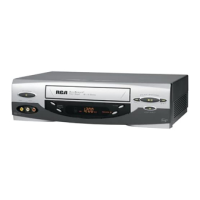
5. Press RECORD again to confirm your recording.
6. To cancel a selected recording, highlight the
program in the Grid Guide (it is shown in red),
press CLEAR and then press ENTER to confirm.
You should also know...
• Selecting ONCE records only the selected program.
• Selecting DAILY records a program every day (M-F).
• Selecting WEEKLY records a program once every week.
• You can adjust the tape speed by pressing the SP•SLP
button. If you select the AUTO option, the highest quality
tape speed possible will be automatically set, based on the
amount of tape remaining.
• If a StarSight recording and an RCA VCR recording are
scheduled for the same time, only the StarSight recording
will occur.
• For more information on recording, see the “Current
Recording” section on the previous page.
Recordings List
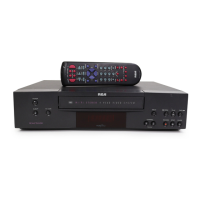
StarSight keeps track of up to 25 scheduled recordings.
1. Press LIST to review your scheduled recordings.



 To Next Page